Implementing a Simple Rasterizer
Published: 2026-02-21
Introduction
For our first assignment in CS184, we are told to build a simple rasterizer, with features such as drawing triangles, supersampling, and texture mapping with antialiasing.
This post will detail my journey through this project, talking about implementation details and my thought process behind them.
Drawing Single-Coloured Triangles
The first problem we have to tackle is drawing single-coloured triangles. To do this, we rasterize triangles as follows:
- First, we construct a bounding box. This can be done by taking the minimum and maximum and components of our given points. Note then that this box is the smallest rectangle which guarantees that our triangle lies inside.
- Next, we iterate through each pixel inside of this bounding box. For each pixel, we can then determine whether or not it is “inside” our triangle. If it is, we colour the pixel. Otherwise, we don’t.
We also note that it’s important for our vertices to have a consistent winding order; this is to ensure that our point-in-triangle check works for any triangle.
Initial Implementation
Initially, we constructed our bounding box as follows:
float min_x = floor(std::min({ x0, x1, x2 }));
float max_x = ceil(std::max({ x0, x1, x2 }));
float min_y = floor(std::min({ y0, y1, y2 }));
float max_y = ceil(std::max({ y0, y1, y2 }));
Then, in order to construct our triangle edges, we defined three Vector3D() structs and computed the cross-product to ensure that they are in a consistent winding order (in this case, clockwise):
Vector3D p0(x0, y0, 0);
Vector3D p1(x1, y1, 0);
Vector3D p2(x2, y2, 0);
if (cross(p1 - p0, p2 - p0).z > 0) {
    swap(p1, p2);
}

Vector3D z(0, 0, 1);
Now, we iterate through our bounding box. Initially, we calculated the edges for our triangle in each iteration, and their corresponding normals. Then, we tested to see if a point was inside the edge or not using the following check:
(dot(p - p1, n0) <= 0) && (dot(p - p2, n1) <= 0) && (dot(p - p0, n2) <= 0)If this was true, we filled in the pixel. Else, we didn’t. This algorithm runs through each pixel inside of the bounding box and determines whether it lies inside the triangle or not; thus, by definition, it is no worse than one that checks each sample inside the bounding box.
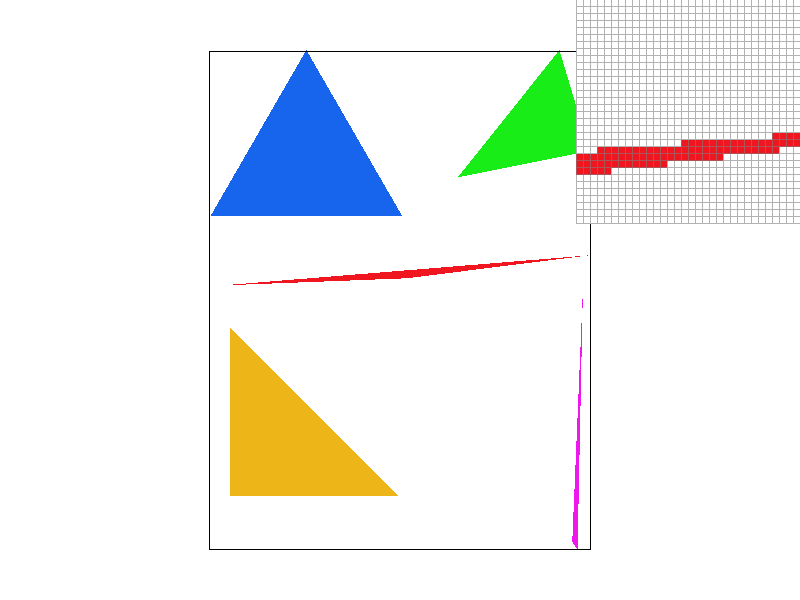
Now, running this, we see that we get the following result:
Optimizations
Moving Repeated Operations Out of Loops
The first thing I noticed was that calculating the edges and their normals didn’t have to be done inside of our loop each time. As such, I moved them out of the loop. This provided an approximately 2x speedup.
Direct Edge Computations
After further pondering, I realised that there was another way to speed up my implementation. With the current implementation, I had to calculate the difference between our points three times, and then call the dot product thrice to ensure that the point lies inside our triangle.
Instead however, I could simply compute the edge function directly, and use that in our computations. More concretely, we note that an edge function is simply the following:
And we note that to move across the bounding box, we just have to increment and . So, we can use the edge functions directly as follows:
float A0 = y1 - y0;
float B0 = x0 - x1;
float C0 = x1*y0 - x0*y1;

float A1 = y2 - y1;
float B1 = x1 - x2;
float C1 = x2*y1 - x1*y2;

float A2 = y0 - y2;
float B2 = x2 - x0;
float C2 = x0*y2 - x2*y0;
Then, we calculate the edge for the first pixel in our bounding box, and inside our loop, we simply increment and appropriately to move across the area. Furthermore, instead of having to call the dot() function, we can directly check whether or not our point is valid using the following:
if (w0 <= 0 && w1 <= 0 && w2 <= 0) {
    fill_pixel(x, y, color);
}
This provided an even larger speedup (of around 3x from the naïve implementation).
Below is a table to show the result while running our implementations on basic/test4.svg:
| Implementation | Time Elapsed (s) |
|---|---|
| Naïve | 0.0005514 |
| Moved Operations | 0.0003070 |
| Direct Edge Computations | 0.0001788 |
Antialiasing by Supersampling
Need for Supersampling
One of the things you may have noticed from the image above is how along certain edges, there are “jaggies,” making the image looks, well, jagged. A way to mitigate these issues is through supersampling: this process allows us to “smooth out” the edges, thus making them look less jagged.
The Algorithm
The high-level overview of the supersampling algorithm is as follows:
- We first take the square root of the sampling rate. This will give us the area we will be working within to sample our point.
- Now, we will be modifying our implementation from the previous task. Initially, we have a double-loop that iterates through our bounding box. However, with supersampling, we will now be sampling
sampling_ratetimes per pixel, so we will have to add in a double nested loop as we iterate through each point. - From here, we calculate the subpixels, and then check whether they are inside the triangle or not. If they are, we mark the corresponding index in our sample buffer. Otherwise, we don’t.
- Finally, once we’re done with everything, we will have to resolve the framebuffer and calculate the average value for each pixel.
Now, due to this, we will also have to change a few things in our current implementation of rasterization. As mentioned before, we will have to edit rasterize_triangle() to account for looping through the subpixels as well by introducing a double nested loop.
Furthermore, we edit fill_pixel() to also go through each of the subpixels and mark it. However, because we don’t have to antialias points and lines, we don’t need to introduce any checks.
Additionally, we will have to modify resolve_to_framebuffer() by having it go through and averaging the pixel values at the end.
Finally, we also have to tweak set_sample_rate() and have sample_buffer be resized to width * height * sample_rate.
Results
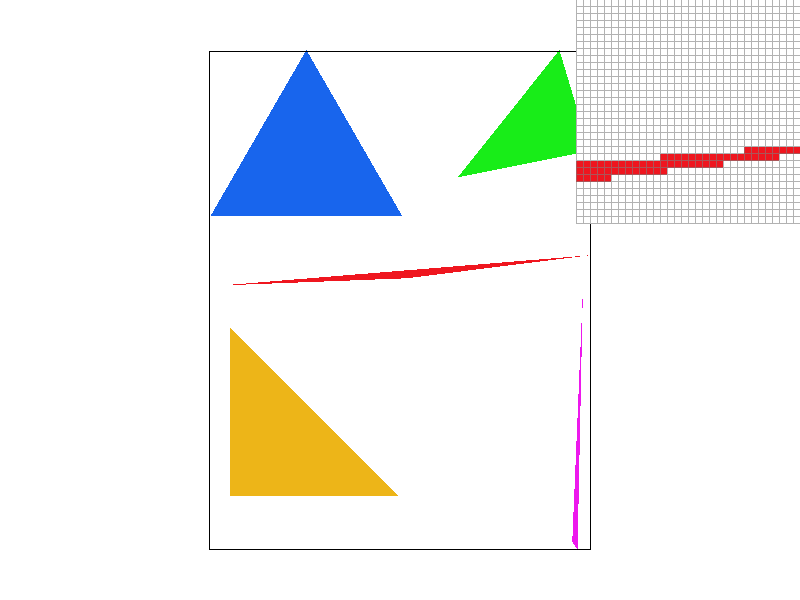
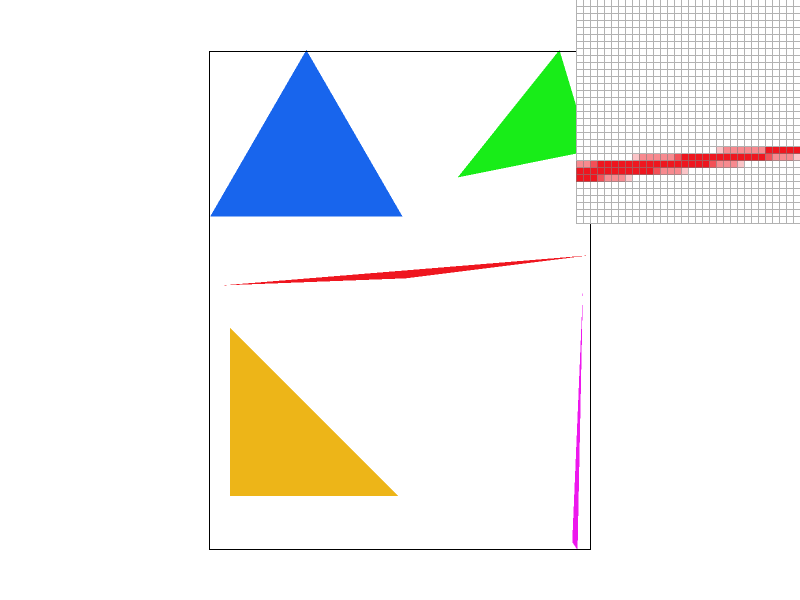
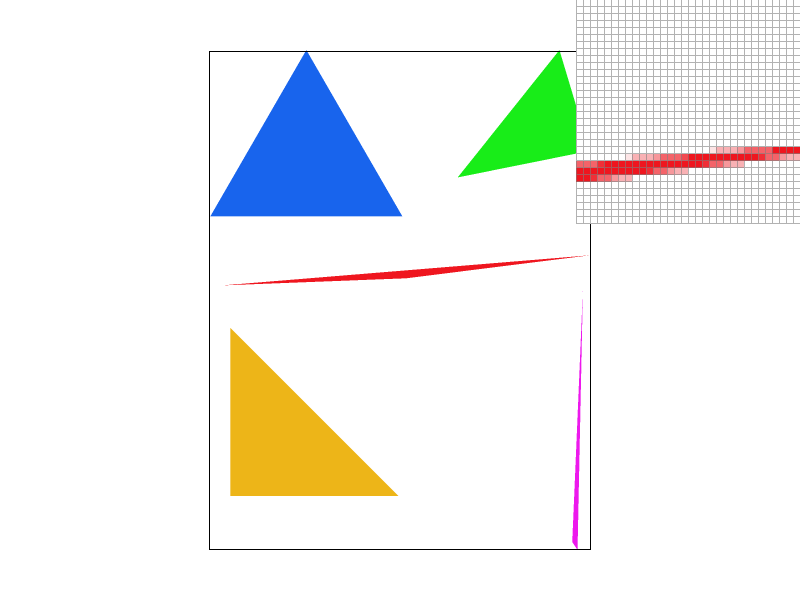
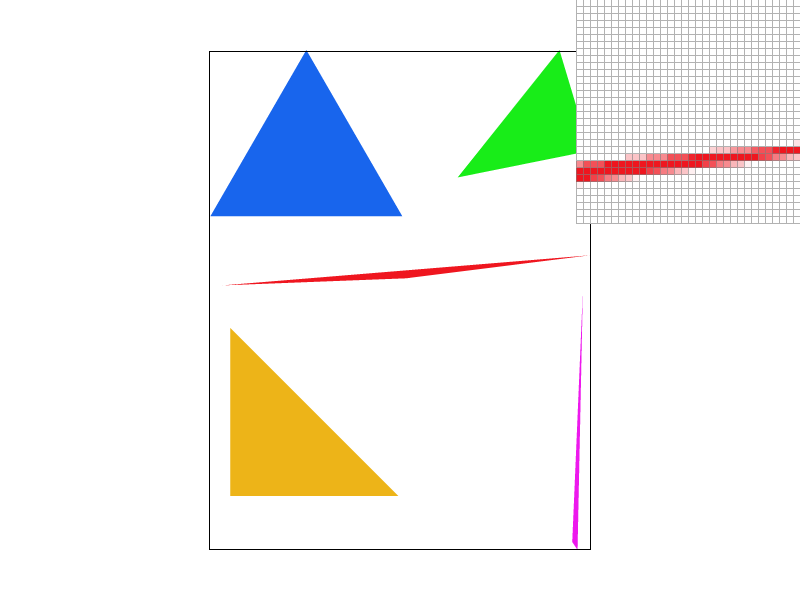
By using supersampling, we are able to smooth out the edges. Below, we illustrate how the edge smoothens out as we increase the sampling rate. By the sample the sampling rate is , we see that we can’t really observe any jaggies:
Jittering
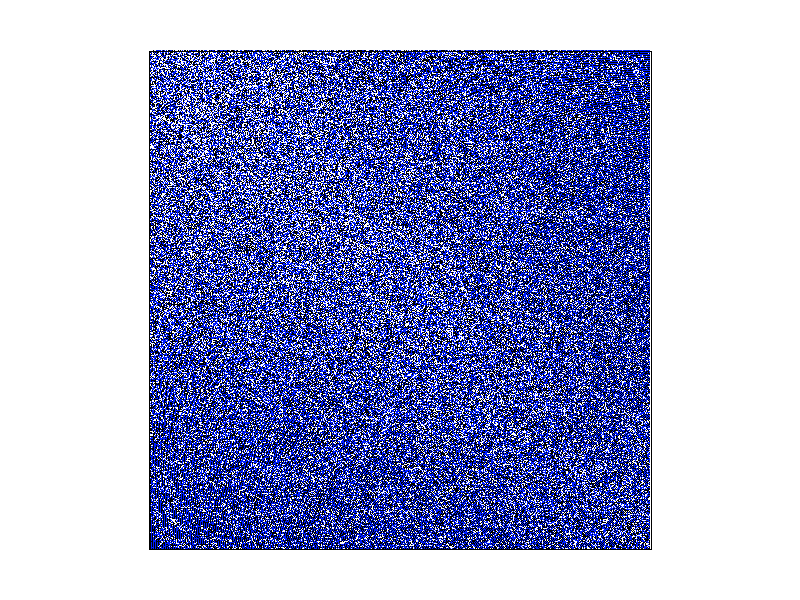
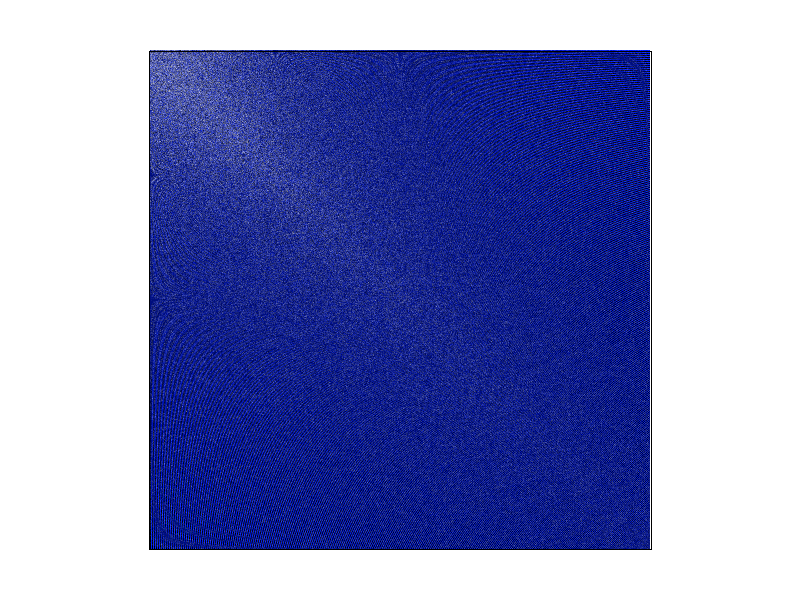
Finally, we note that the original implementation utilizes grid sampling. However, we also experimented with jitter sampling. Although it causes images to appear “grainy”, we note that it can help dramatically with more complex pictures. For example, let us look at 02_degenerate_sqare2.svg. Here is what the square looks like with grid sampling, with a rate of and respectively:
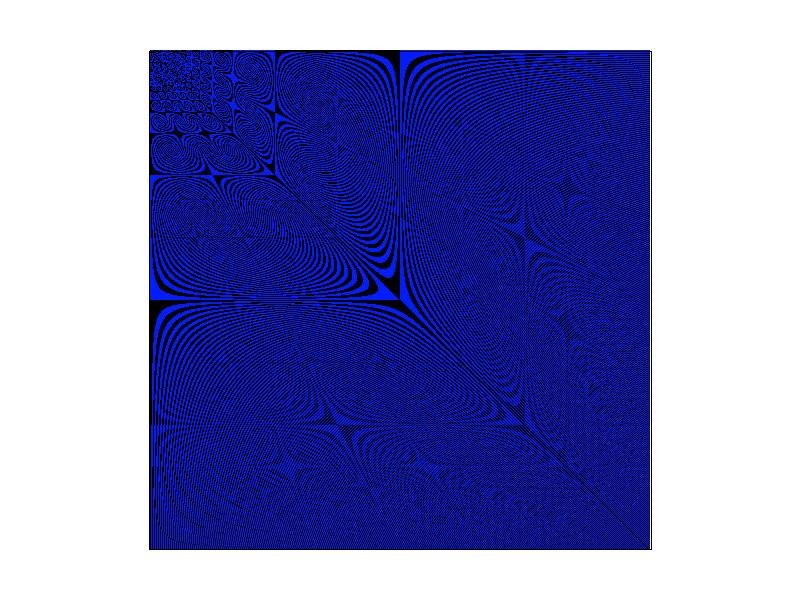
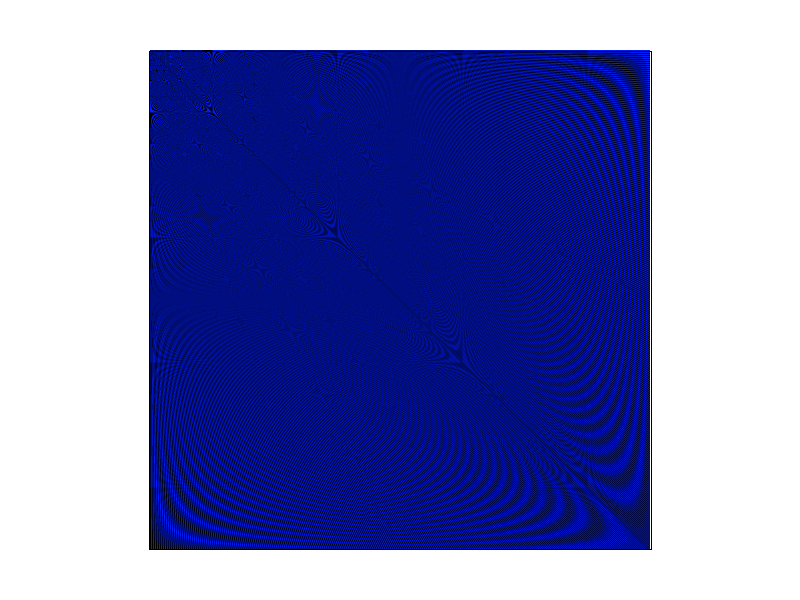
Here, we see that the Moire effect is clearly visible, even in the case of . However, with our jitter sampling, these effects are reduced a lot more. However, the trade-off is that there is very clear “graininess” to the images (though this gets better as increases):
Transformations
For this task, we have to implement the following three transformations:
- Translation
- Scaling
- Rotation
We do this by implementing the appropriate matrices. More concretely, for translations, we would need the following matrix:
For scaling, we would use this:
And for rotations, we first note that since the angle is in degrees, we will have to convert it to radians by calculating . Then, we use the following matrix:
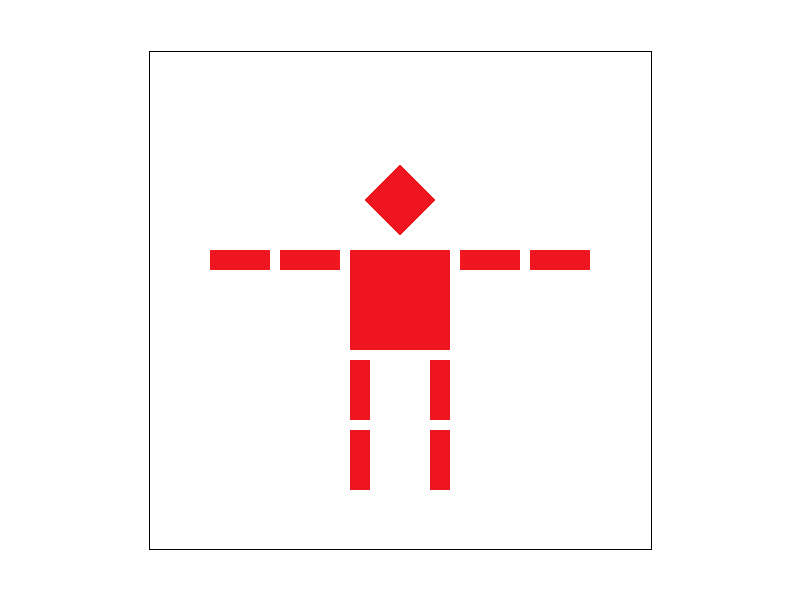
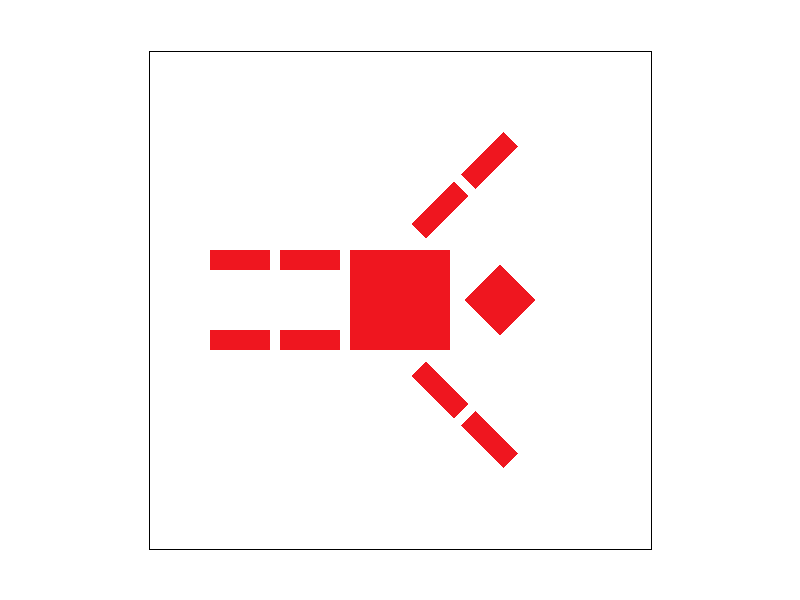
Now, with these functions implemented, we now see that transforms/robot.svg renders correctly:
And using these functions, we can make it look like the robot is praising the sun:
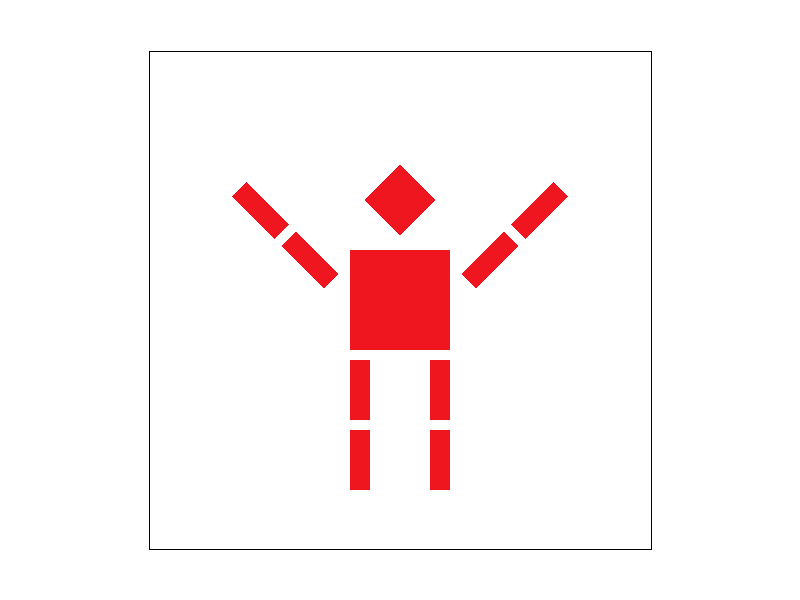
Here, we created this transformation by applying a 45-degree rotation to its right arm, and a 315-degree (or simply, -45-degree) rotation to the other arm.
GUI Additions
Additionally, we implemented extra functionalities to the GUI. Namely, the A and D keys rotate the image left and right by 5-degrees respectively. In order to rotate from the center of origin, we first calculated where this point is (by simply taking the midpoint of our width and height).
From there, we simply apply the transformations to each vertex by first shifting it, rotating, and then reshifting it back. The result of this can be seen below, where we rotate our robot by 90 degrees to the right:
Barycentric Coordinates
For this section, we want to draw triangles with colors defined at the vertices and interpolated across the triangle’s area using barycentric interpolation.
So, what exactly are Barycentric Coordinates? First, suppose we have a triangle defined by points . Now, for any point , we can write it as:
Now, these weights are the barycentric coordinates of . Intuitively, we can think of these weights as the “massses” we’d need at the vertices of our triangle so that its center of mass is at the point .
To better understand this, let’s consider an extreme case where our point is at one of the vertices (say, at A). In this case, we’d want so that the center of mass of our triangle is at . Similarly, if our point is in the center of our triangle , then .
We can visualize this better below: 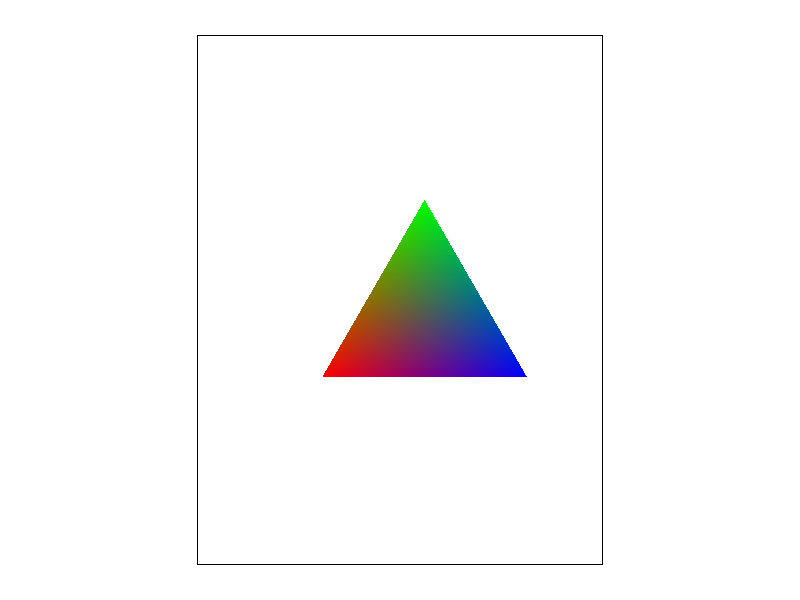
Now, with this in mind, we can implement this with some linear algebra. We note that for a triangle defined by points , we have:
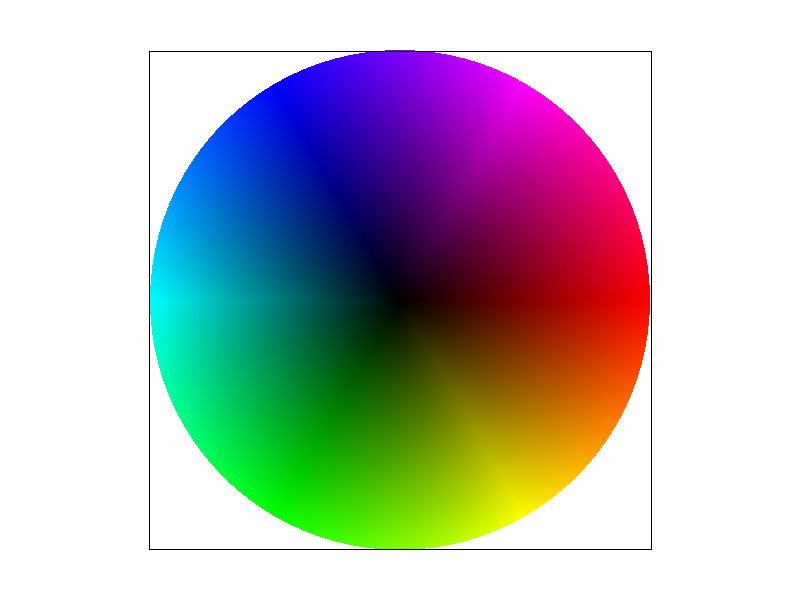
So, following through with our previous implementation of drawing single-coloured triangles, we now add in this extra computation to calculate the barycentric coordinates of each point and use that to determine the colour. Running this on basic/test7.svg yields us the following result:
Pixel Sampling for Texture Mapping
In this part, we will be drawing triangles with colors defined by texture mapping with the given 2D texture coordinate at each vertex and the given Texture image. In addition, we will be using two different methods: nearest-neighbour and bilinear interpolation.
But before we dive into our implementation and discuss the results, we first will talk about what exactly pixel sampling is. Simply put, we can think of pixel sampling as using sampling to determine what color each of our pixel should be based on the texture used.
We utilized pixel sampling to perform texture mapping by sampling each point and using barycentric coordinates to convert them to their corresponding texture mapping coordinates.
In this task, we implemented two different sampling methods:
- Nearest: In this case, we simply round to the nearest pixel in our texture mapping and use that for our colour.
- Bilinear: For this, we first get the four closest points to our current pixel . Then, we perform bilinear interpolation in order to calculat the final colour needed. Although the result is smoother, it is more computationally expensive.
Below, we provide images of the two different sampling methods. First, we have nearest sampling with :
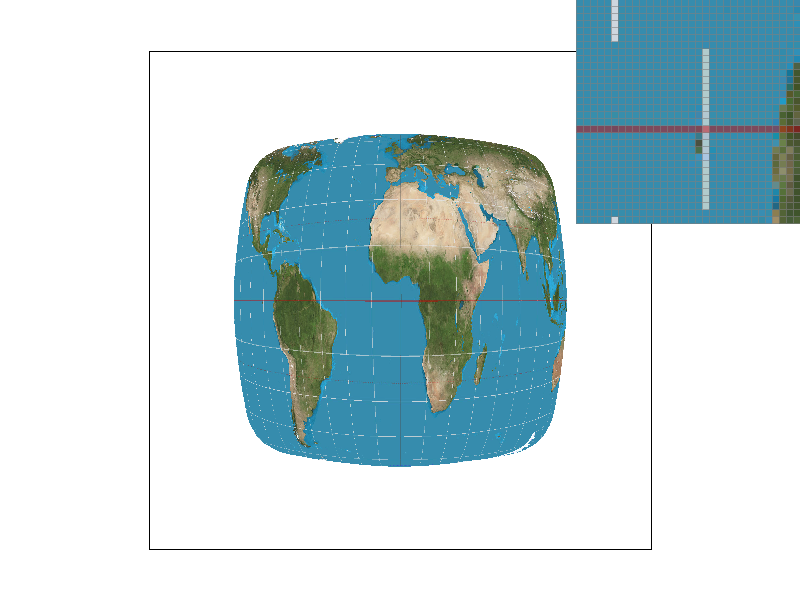
Next, we have bilinear sampling with :
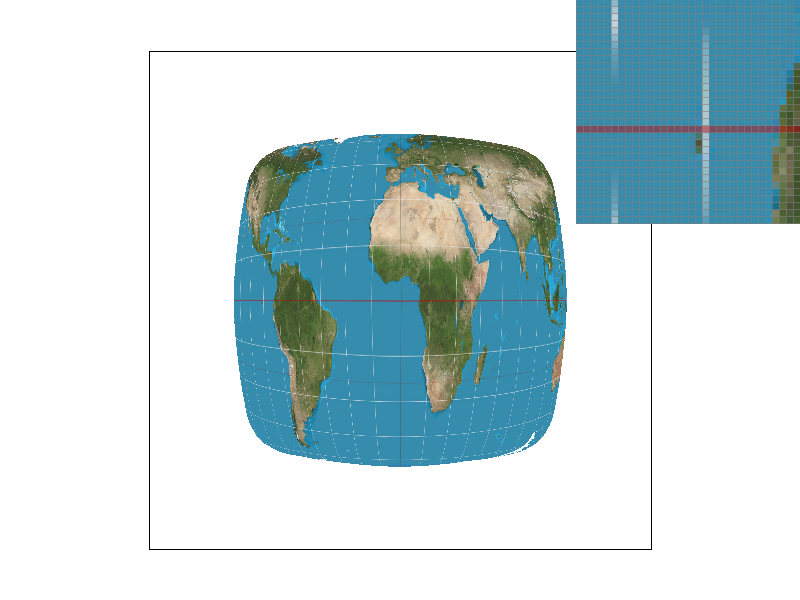
Now, we have nearest with rate :
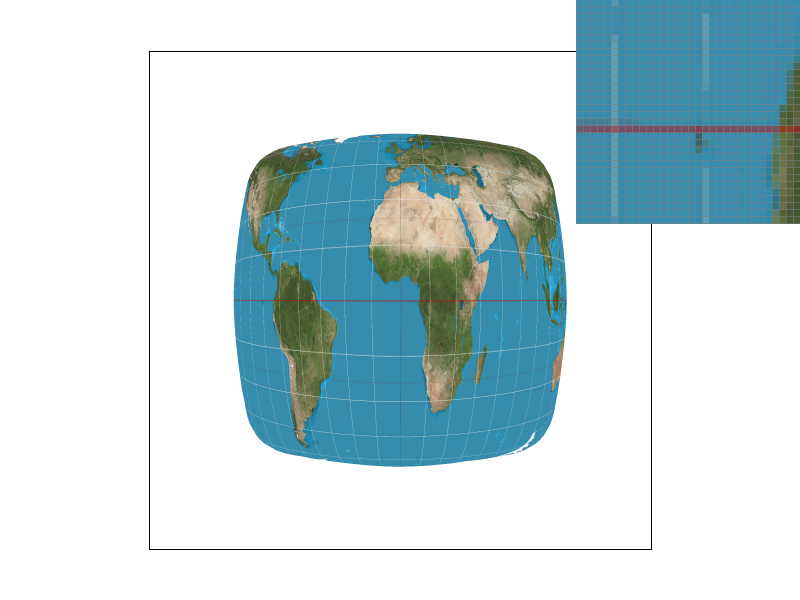
And finally, bilinear with :
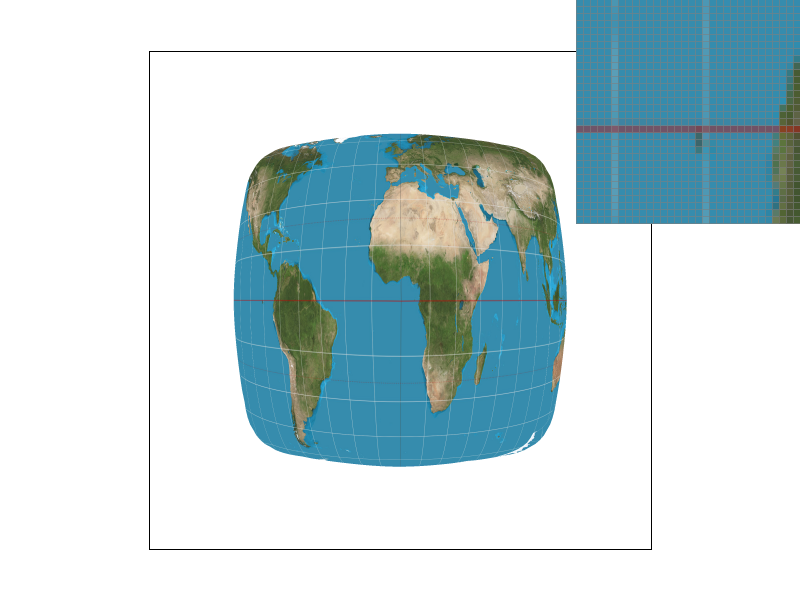
We notice how with nearest sampling, it fails to capture some of the white lines that bilinear sampling does. We also note that with nearest sampling, jaggies are more apparent (at least with the case). The differences between them will be most apparent in situations where the pattern changes often, as bilinear sampling takes into account neighbours whereas nearest sampling doesn’t.
Level Sampling with Mipmaps for Texture Mapping
For this task, we are asked to implement level sampling with mipmaps for texture mapping.
Level sampling basically is the process of constructing different “levels”, where each level has progressively lower resolution. The idea then is that with this, we can use different levels for different levels of details depending on how far away we are. This allows us to reduce aliasing artifacts that may occur.
Now, for this part, we had to implement three different types of level sampling:
L_Zero: In this case, we simply setlevel = 0. This is effectively the same as the previous part.L_NEAREST: Here, we round the level to the nearest integer. Then, we use the mipmap corresponding to that level.L_LINEAR: For this, we take the two levels closest to us (which we can calculate usingfloor()andceil()). Then, we average out the color values from these two values using bilinear interpolation.
To actually get the level, we calculate it using the following formula:
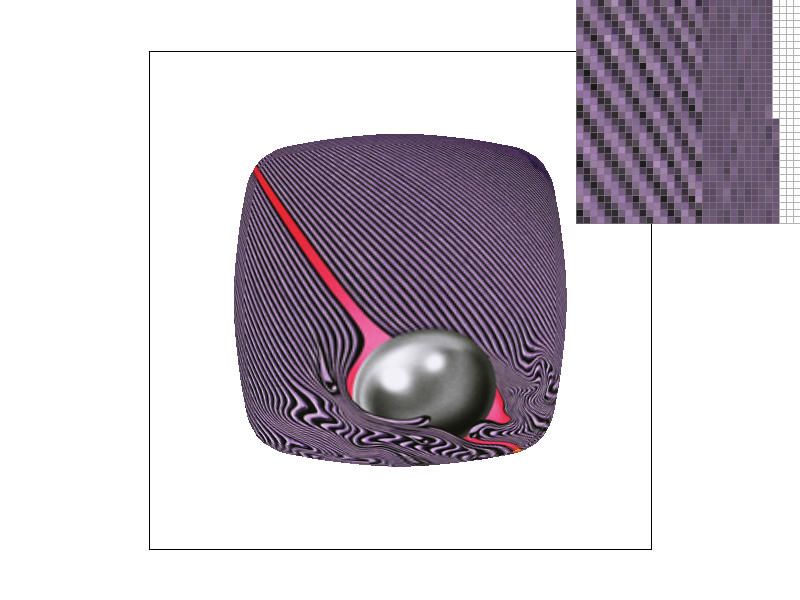
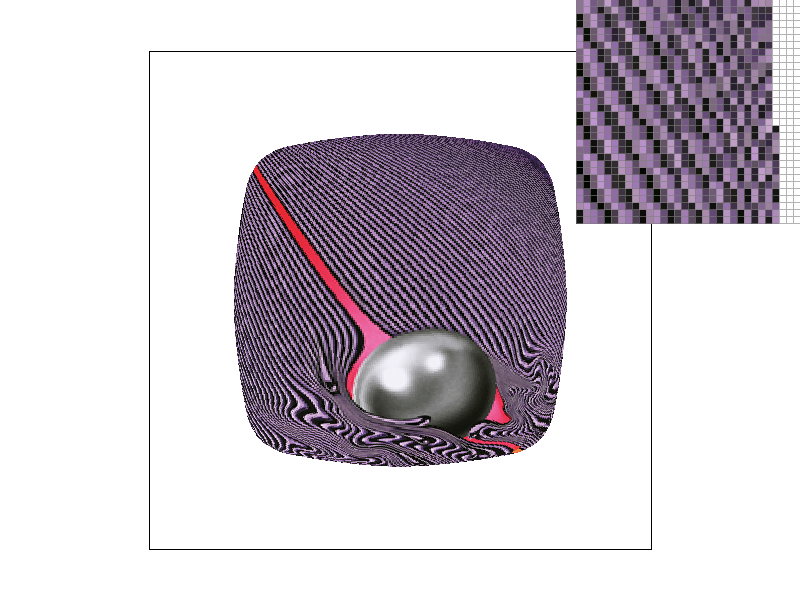
Now, let’s actually see the results. Here, we used the album cover from Tame Impala’s Currents (primarily due to the wavy effects it has, which I hopped would make aliasing artifacts more apparent).
First, we show the case of L_ZERO and P_NEAREST. We observe here that there is very apparent jaggies and also the Moiré effect happening:
Next, let’s try L_NEAREST and P_NEAREST. In this case, we see that the edges of our shape are becoming a bit blurred, helping reduce some aliasing artifacts. However, the differences aren’t dramatically noticeable with this image.
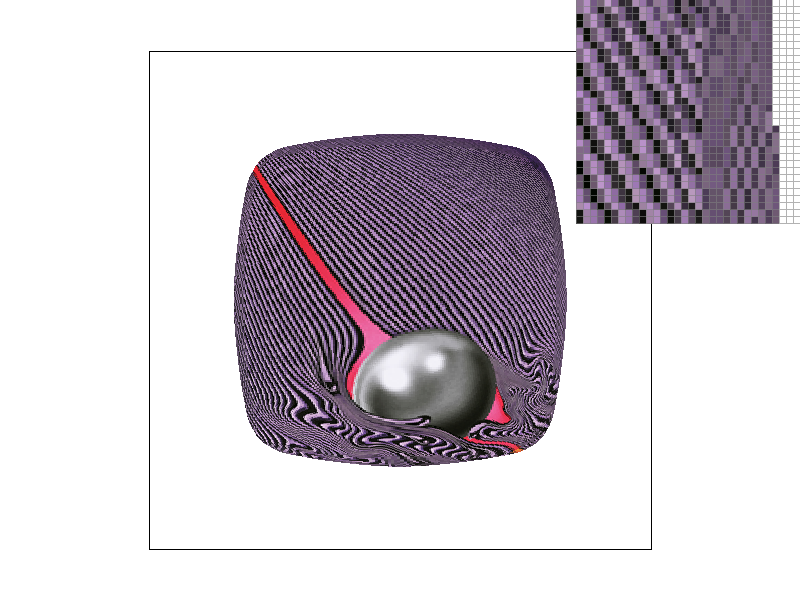
Now, we try L_ZERO and P_LINEAR. With this, we see that jaggies and the Moiré effect are reduced dramatically. However, the edges look jagged.
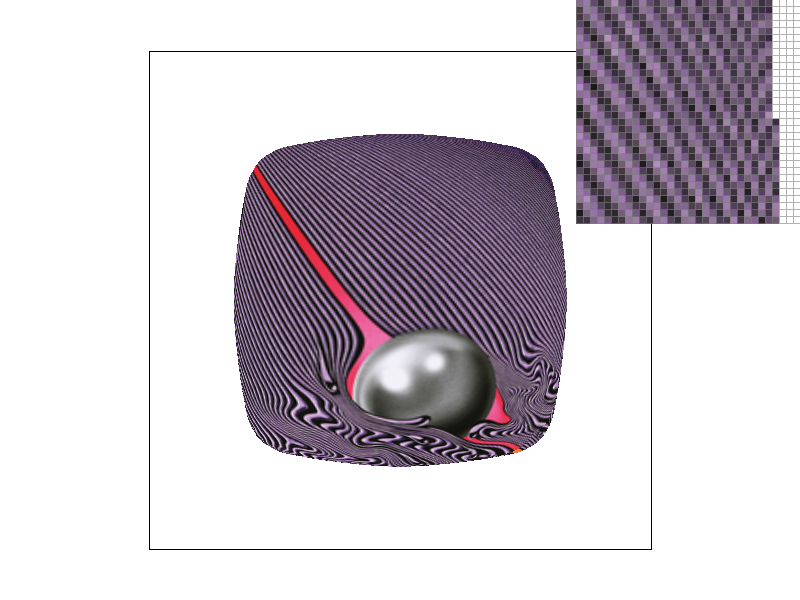
Finally, we try L_NEAREST and P_NEAREST. With this, we see that the image looks much better than the other three combinations, with much less noticeable aliasing artifacts.