Simulating a Cloth
Published: 2026-04-24
Introduction
In this project, we implement a real-time cloth simulator alongside several rendering systems in order to add some flair to the simulation. At a high level, the cloth model is made using point masses and springs, with the forces being calculated via numerical integration. Furthermore, we handle both collisions with other objects and self-collisions.
Masses and Springs
To begin with, we construct a cloth model. While there are a number of different options to choose from, one of the simplest choice is where we utilize a system of point masses and springs to model our cloth.
In this model, the cloth is modelled as a grid of point masses. Each point mass can also be pinned or not as well; this determines whether or not they will remain stationary throughout the simulation.
Between each point mass, we also have springs to both model the tension in the cloth and to prevent various deformations such as shearing and bending. For our springs, we have three types:
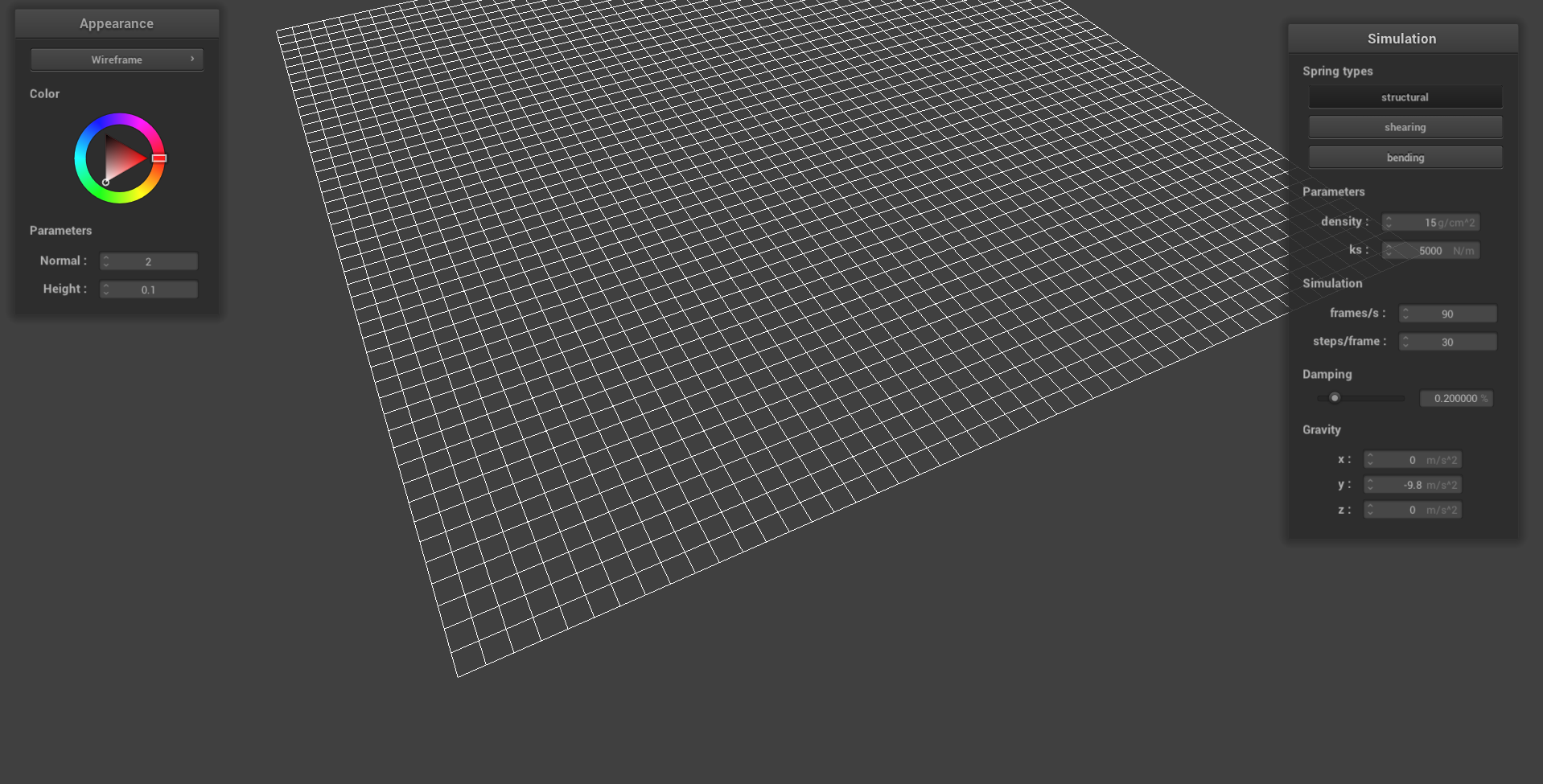
- Structural: These exist between a point mass and the point mass to its left as well as the point mass above it.
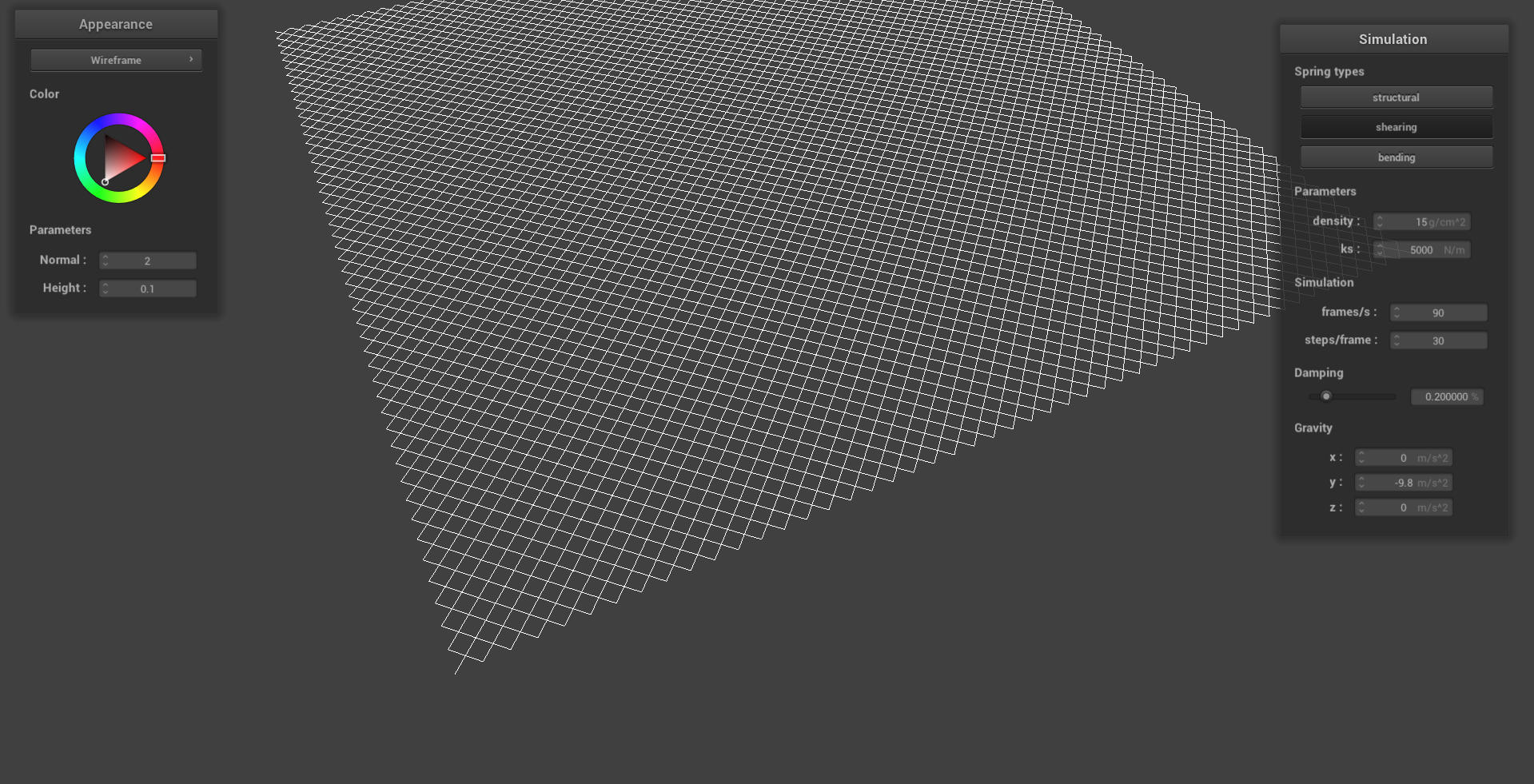
- Shearing: These exist between a point mass and the point mass to its diagonal upper left as well as the point mass to its diagonal upper right.
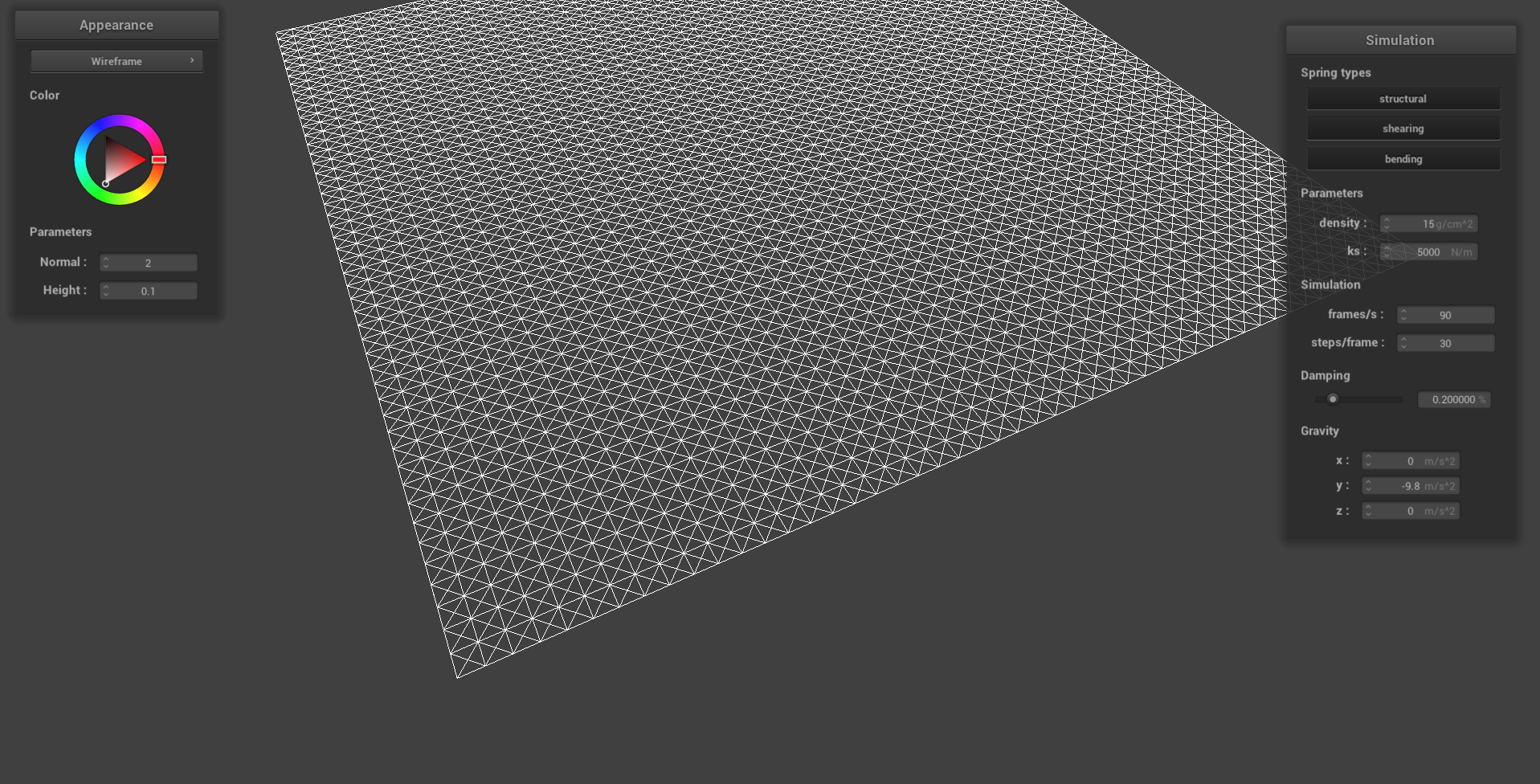
- Bending: These exist between a point mass and the point mass two away to its left as well as the point mass two above it.
To actually implement this, we follow the following algorithm:
- First begin by constructing an evenly-spaced grid of point masses spanning
widthandheightlengths, withnum_width_pointsbynum_height_pointstotal masses. - From here, we check the cloth’s orientation and set the point masses’ coordinates accordingly.
- Next, we check whether to pin a point mass or not.
- Finally, with the grid of masses constructed, we add in the springs appropriately.
Below, we show images of our cloth wireframes with a combination of the springs:
Simulation via Numerical Integration
Next, we implement the machinery to actually simulate our cloth. Using our mass-and-spring model for our cloth, we now have two forces to take into account:
- External Forces: These forces uniformly affect the cloth.
- Spring Correction Forces: These forces apply the spring constraints in order to keep the cloth intact.
Computing Total Forces
First, we want to compute the forces on each of our point masses. To do this, we iterate through all of the masses, calculating the external force using Newton’s Second Law:
Next, for the spring correction forces, we can utilize Hooke’s Law to calculate the force for springs with an enabled constraint type:
Here, we note that is our spring constant, and is the spring’s length (rest_length). Furthermore, a small remark to make is that in order to ensure that the bending constraint is less than the other two constraints, we should multiply by some constant (e.g. ) when spring_type == BENDING.
This yields us a force vector , which we can apply to a point mass , and an equal but opposite force to .
Verlet Integration
Now that we’ve calculated the forces being applied on each mass, we can utilize numerical integration to calculate the next position for each point mass. While there are a number of different integration techniques we can use, for this project, we use Verlet Integration. The reason is that it’s both easy-to-implement while still remaining visually accurate.
The Verlet Integration algorithm works as follows: first, we define our next position to be:
Here, is the position of our mass at time-step , and is the size of our timestep. Now, note that we can calculate the total acceleration from all forces by rearranging . Furthermore, we note that we can approximate . This gives us the following:
And we can add in some extra damping to simulate energy loss due to other factors (e.g. friction), ultimately giving us our final equation:
Note that cp->damping is in percentages, so we have to first divide it by 100 first before subtracting. Also, recall that it’s possible for some masses to be pinned; in this case, we skip them!
Constraining Positions
Finally, an extra tweak we introduce to our simulation is to implement a feature from the SIGGRAPH1 1995 Provot paper . This ensures that our springs don’t look unreasonably deformed during each step in time.
The idea outlined in this paper is straightforward: each spring’s length can only reach at most more than its rest_length. If it exceeds this threshold, we can apply a correction:
- If neither masses are pinned, apply half the correction to each of them.
- Otherwise, if one of the masses are pinned, apply the entire correction to the non-pinned one.
- If both are pinned, we do nothing.
Tweaking Parameters
With our machinery in place, we can now begin simulating our cloth. First, let us look at a cloth with two pinned massses at the corners, with default parameters , , and :
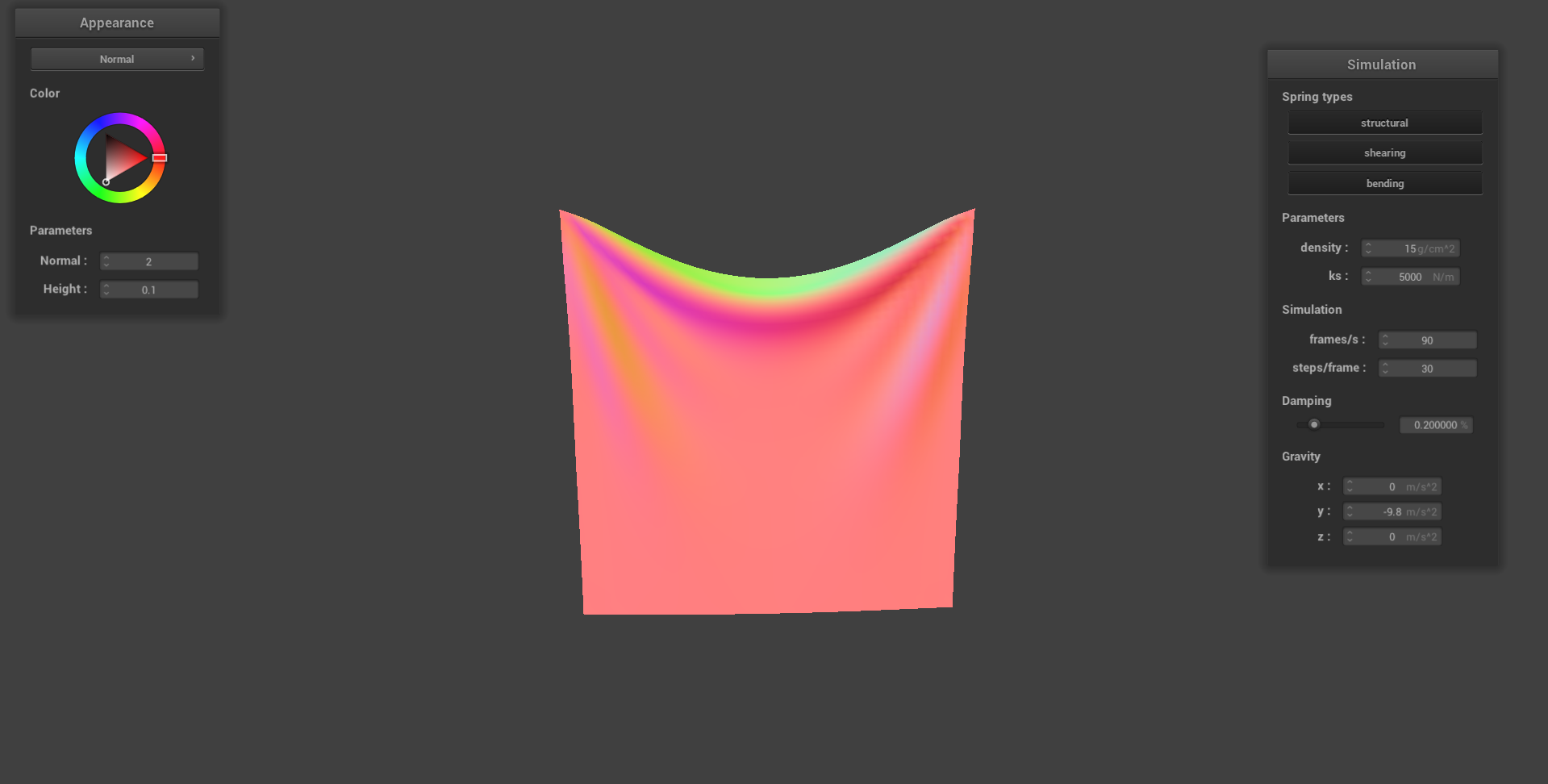
First, we will tweak the spring constant :
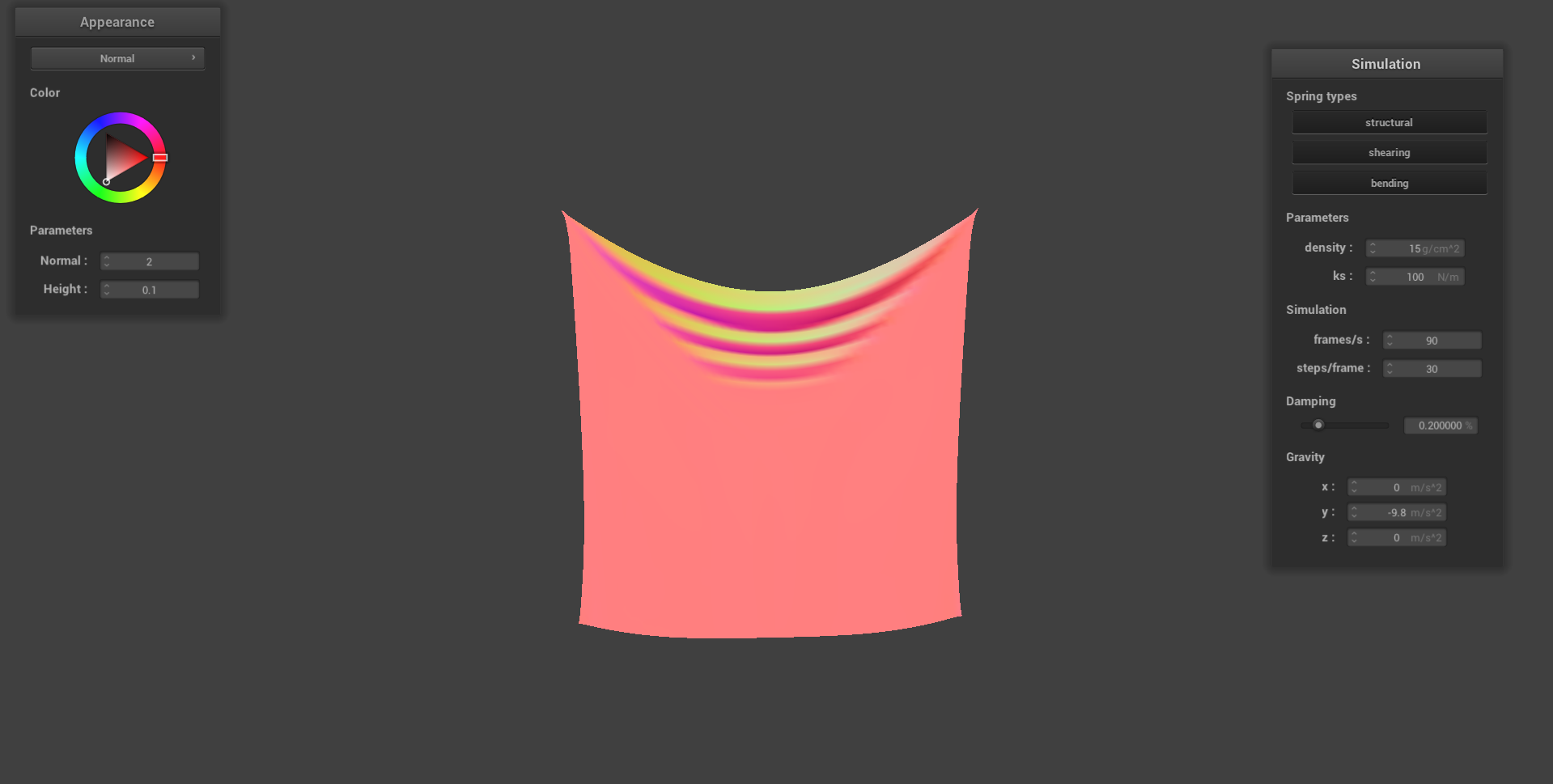
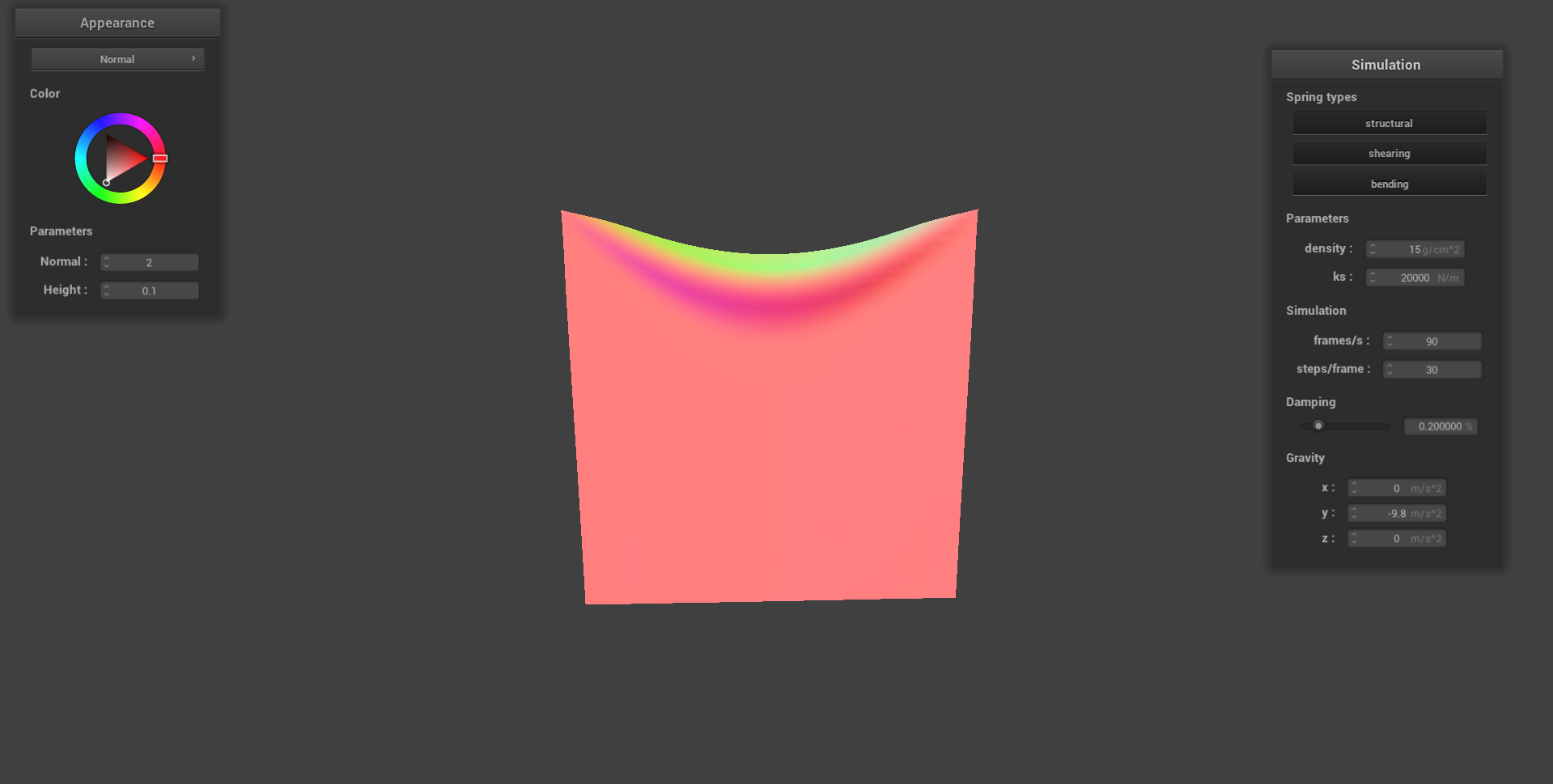
From these images, we see that for lower spring constants, the cloth appears to be drooping more. Meanwhile, for higher spring constants, the cloth droops less, appearing stiffer.
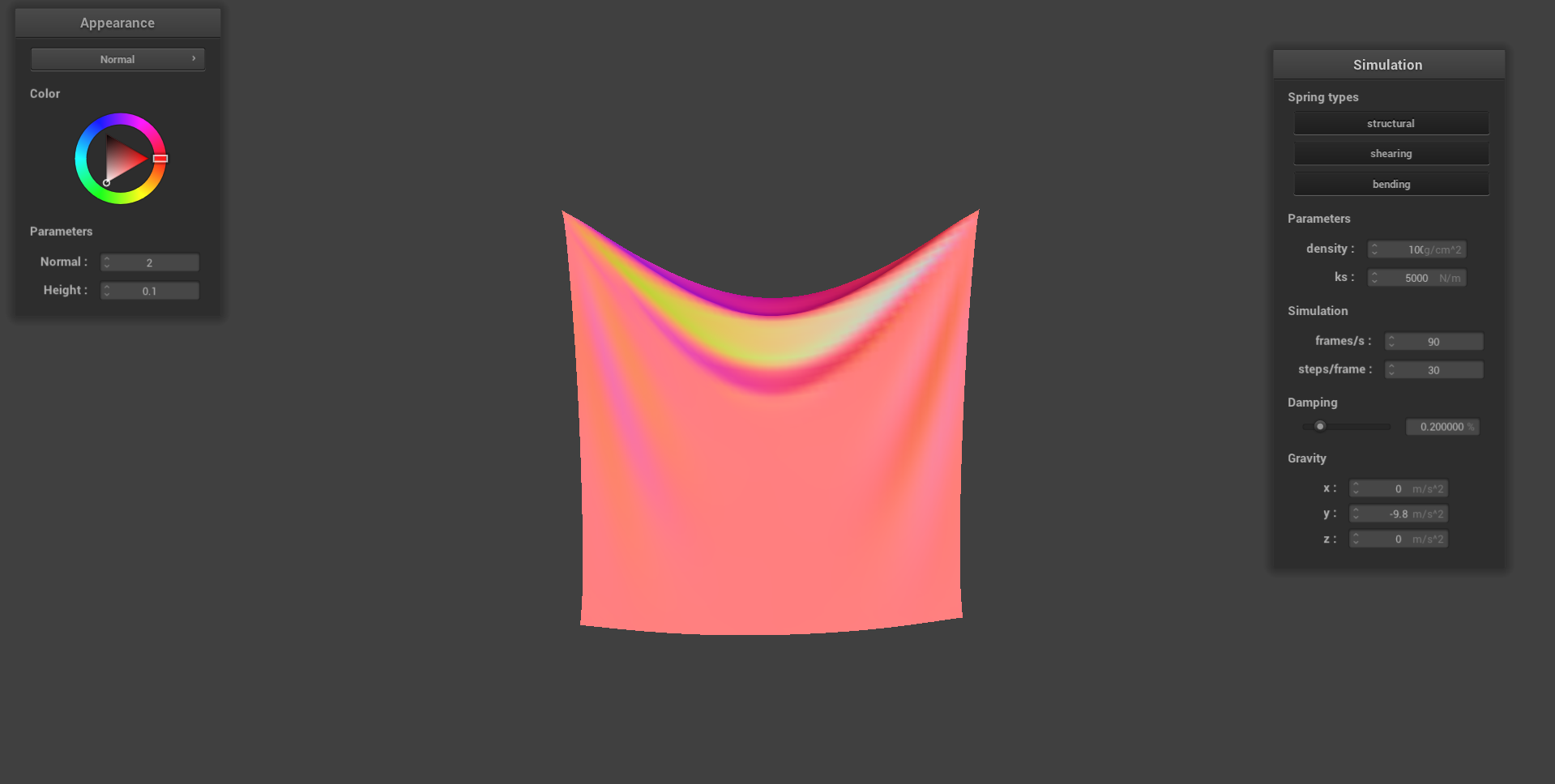
A similar effect is achieved when playing with the density , where higher densities droop more while lower densities droop less (which makes sense intuitively, as higher densities means our cloth is heavier):
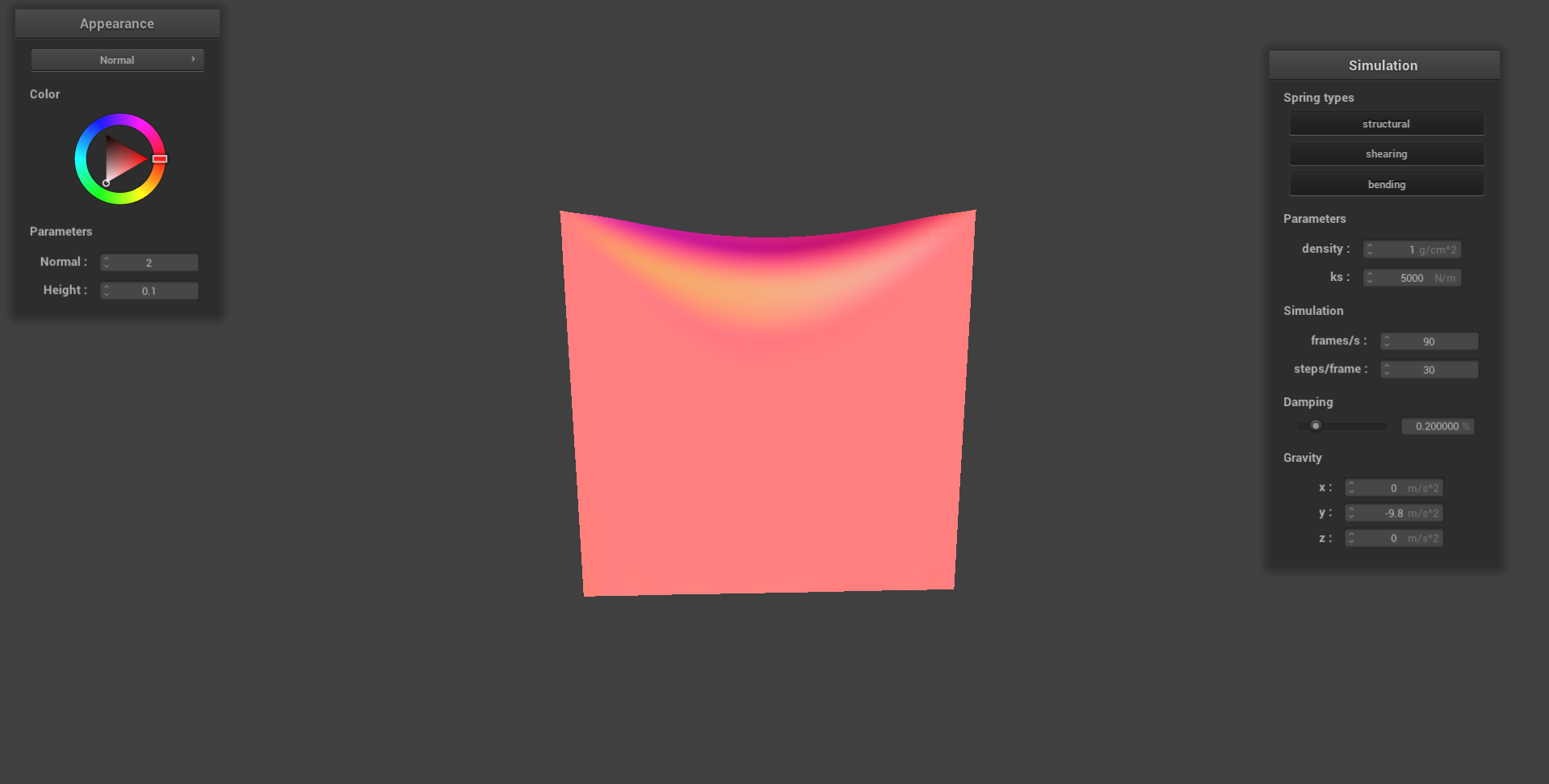
Finally, we toy around with the damping factor :
From this, we observe that for high damping values, the cloth falls down a lot slower. Meanwhile, for lower damping values, the cloth falls down faster. However, with , we see that the cloth keeps on swinging back and worth for a very, very long time.
Finally, as a funny joke, we look at what happens when we set to something absurdly high (in this case, ). Here, we see that the cloth spazzes out, moving violently with no end in sight:
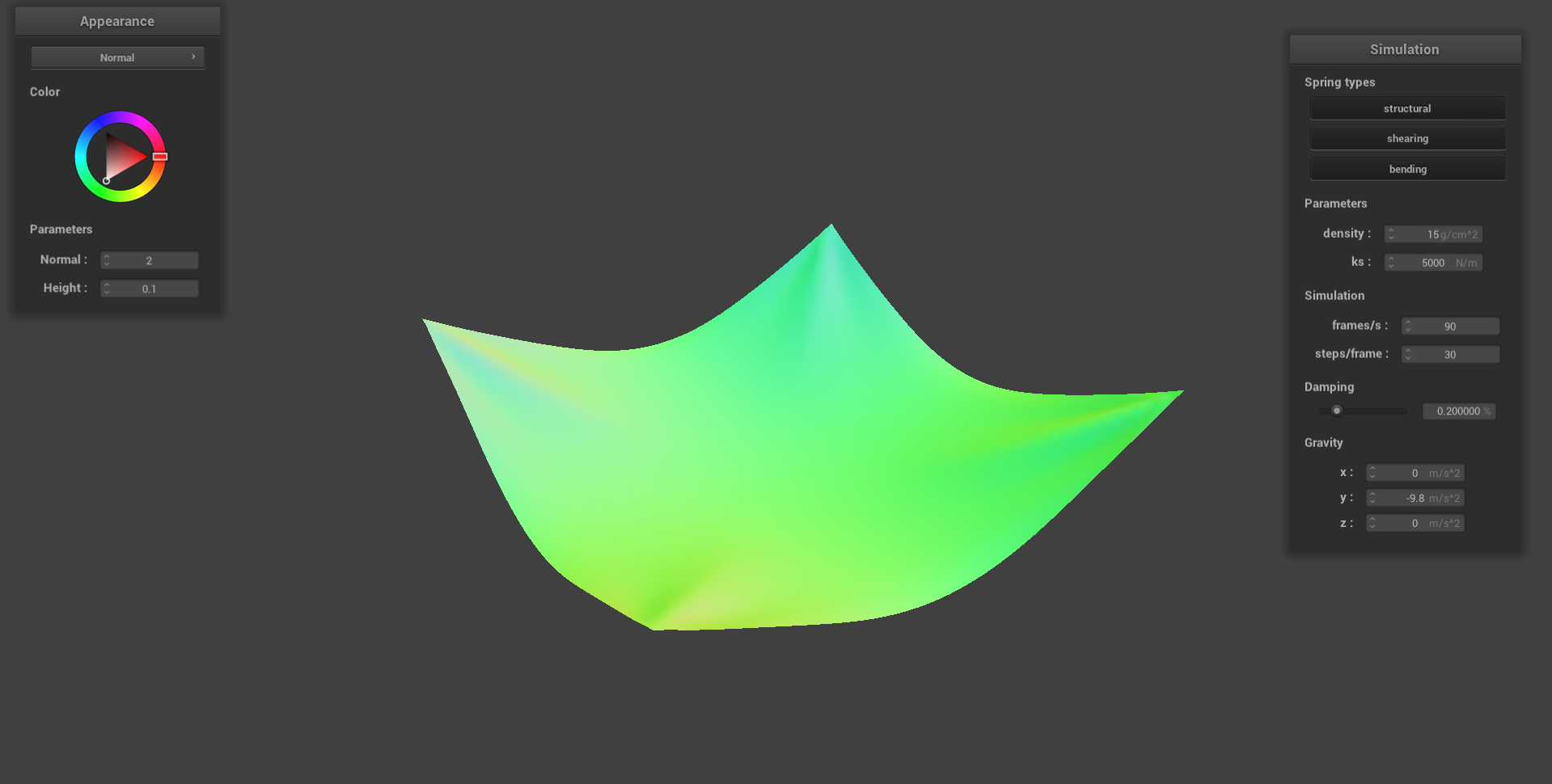
And below, we see a cloth with four pinned corner in its resting state:
Collisions
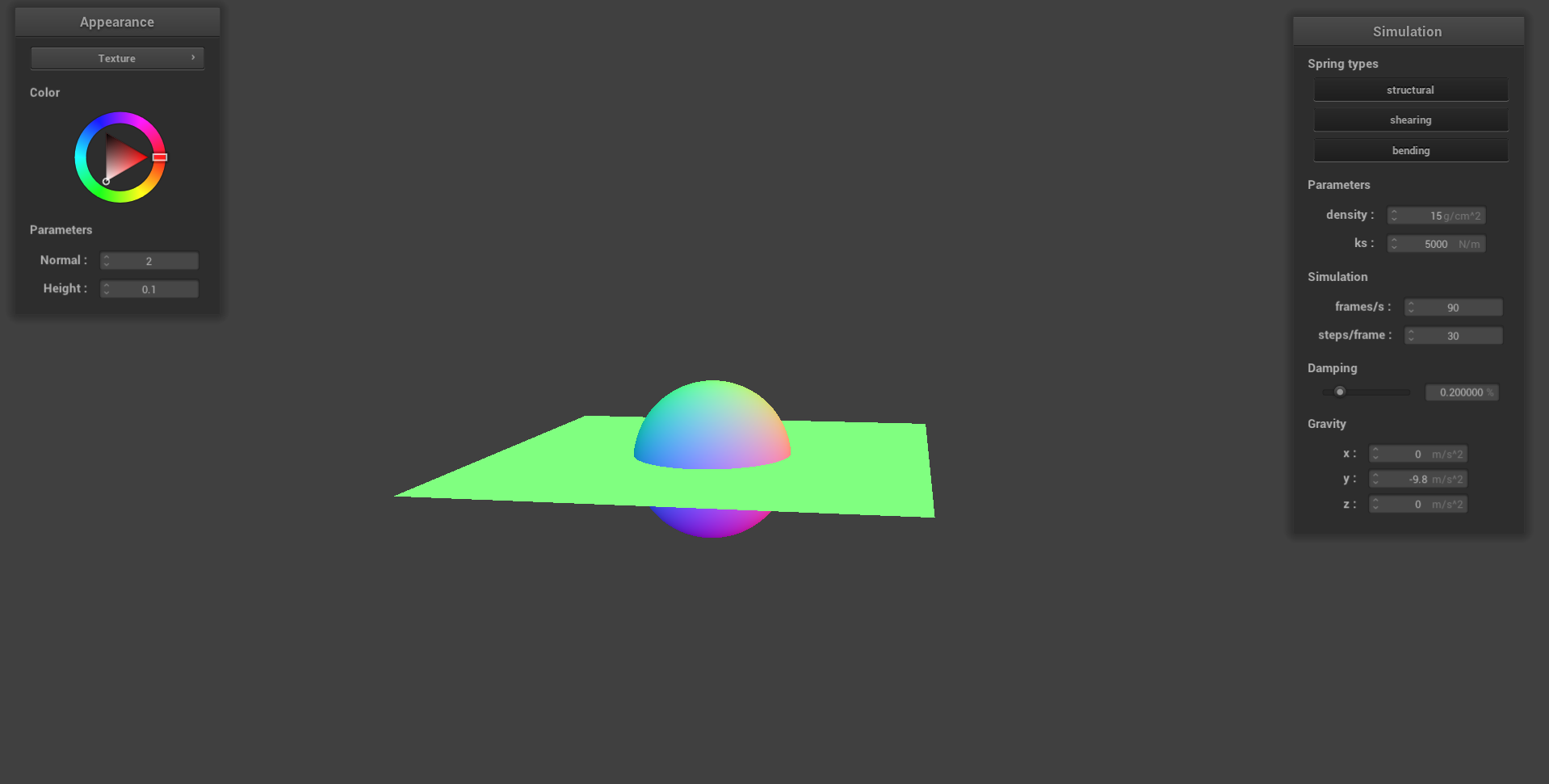
Right now, we’ve implemented the physics for our cloth. However, we are still missing some crucial interactions: namely, collision with other objects and with itself. As it stands, we haven’t implemented any collision logic yet, meaning that our cloth just… phases through everything.
Collisions with Spheres
First, we will implement collisions with spheres. The high level idea here is that we can first check the position of our point masses: if it is inside of a sphere, we can “push” it out to its surface.
More concretely, we proceed as follows:
- First, we can calculate the distance between our mass’ position and the origin of the sphere. If it is greater than the radius, the mass is still outside of our sphere; we can continue safely.
- Otherwise, if the distance is less than the radius, we have to “push” the mass out. In this case, we can first calculate the tangent point on the sphere surface, calculate a
correctionvectorcorrection = tangent_point - last_position, and then add thatcorrectionto our current position. - Note that we multiply
correctionby a scaling amount based on the friction; without this, our cloth would just slide forever.
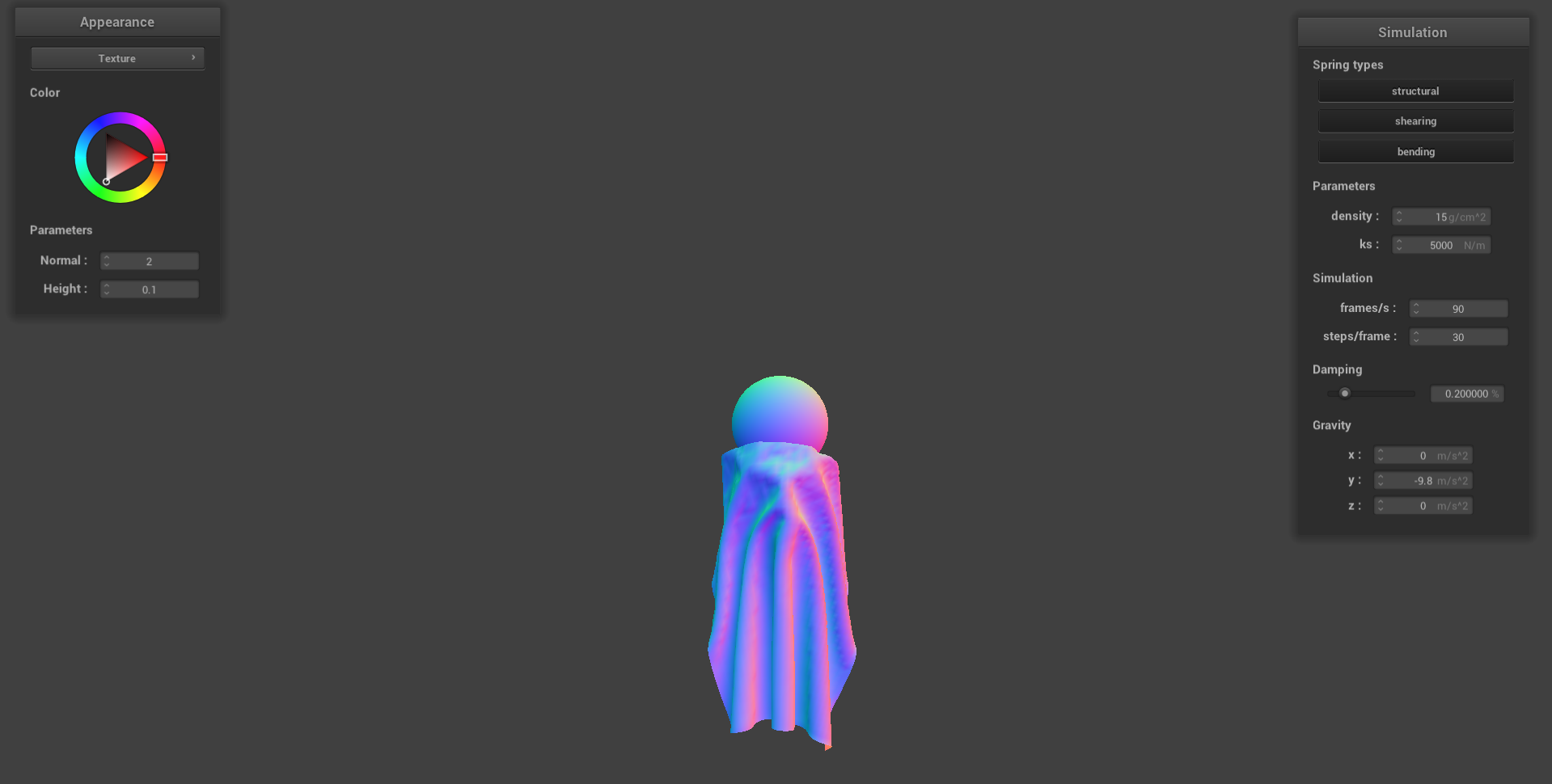
First, we see that without the friction correction, our cloth ends up sliding off of the sphere right away, as seen below:
Next, we look at what happens when we tweak with the spring constant :
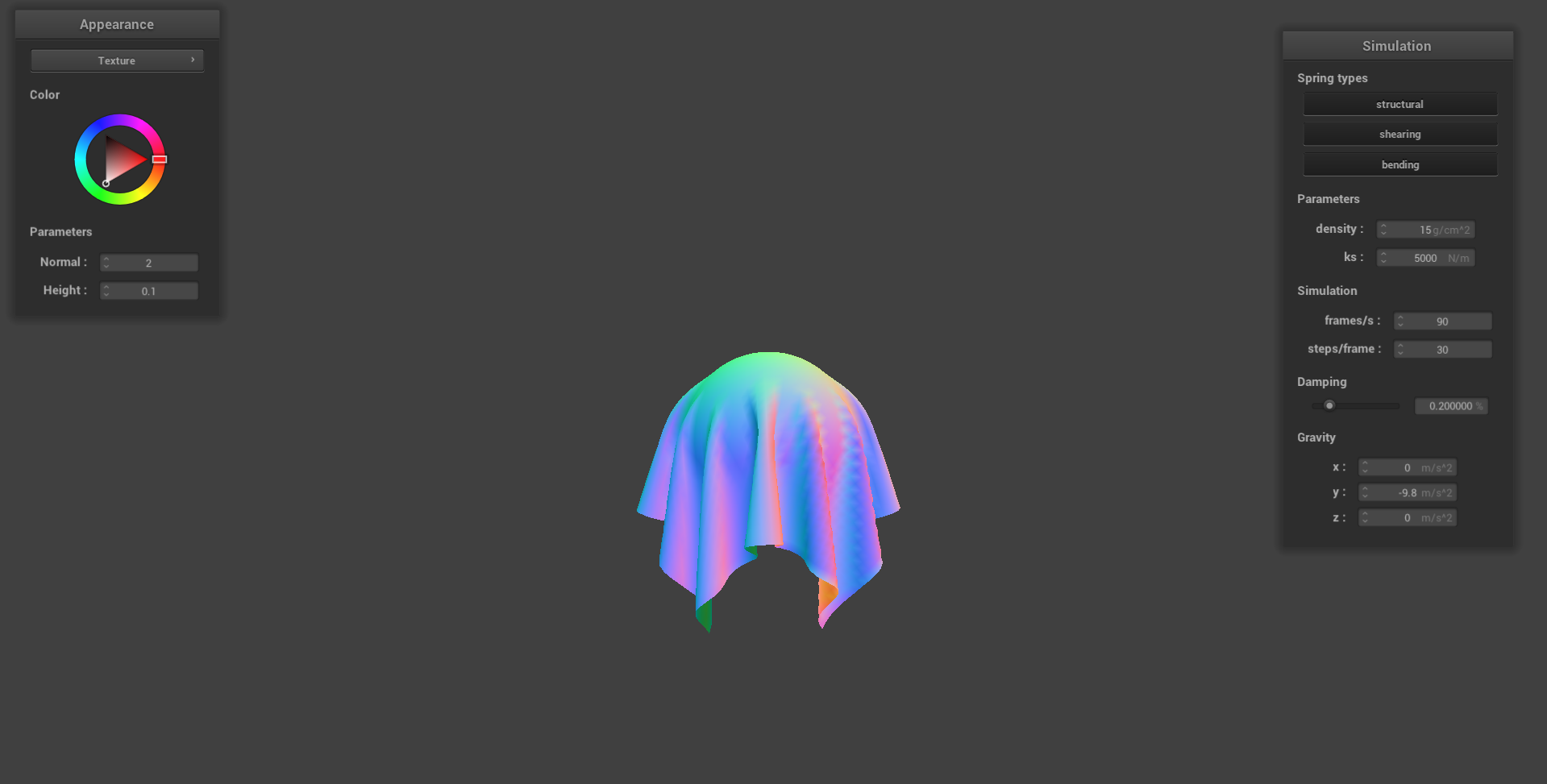
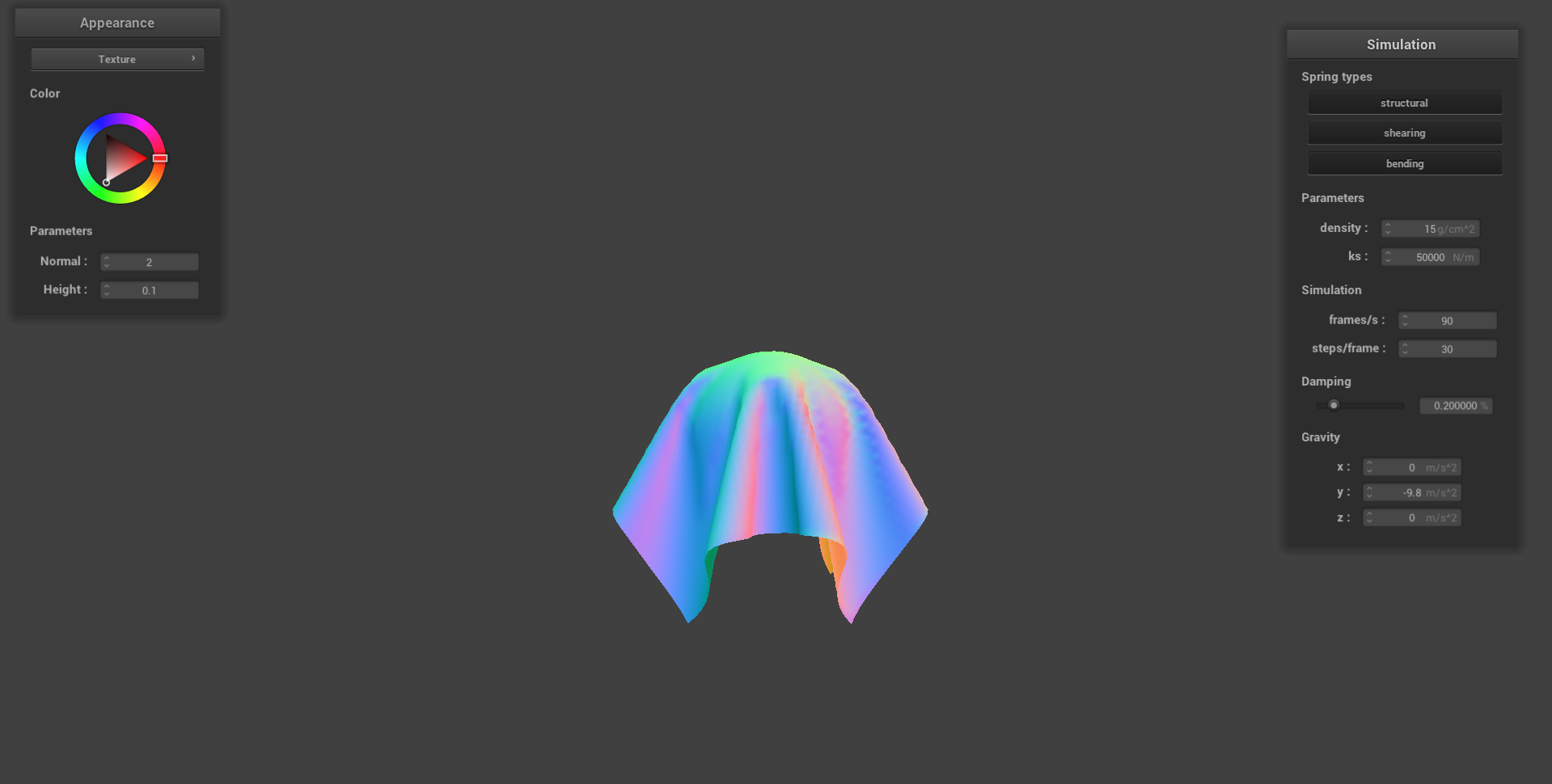
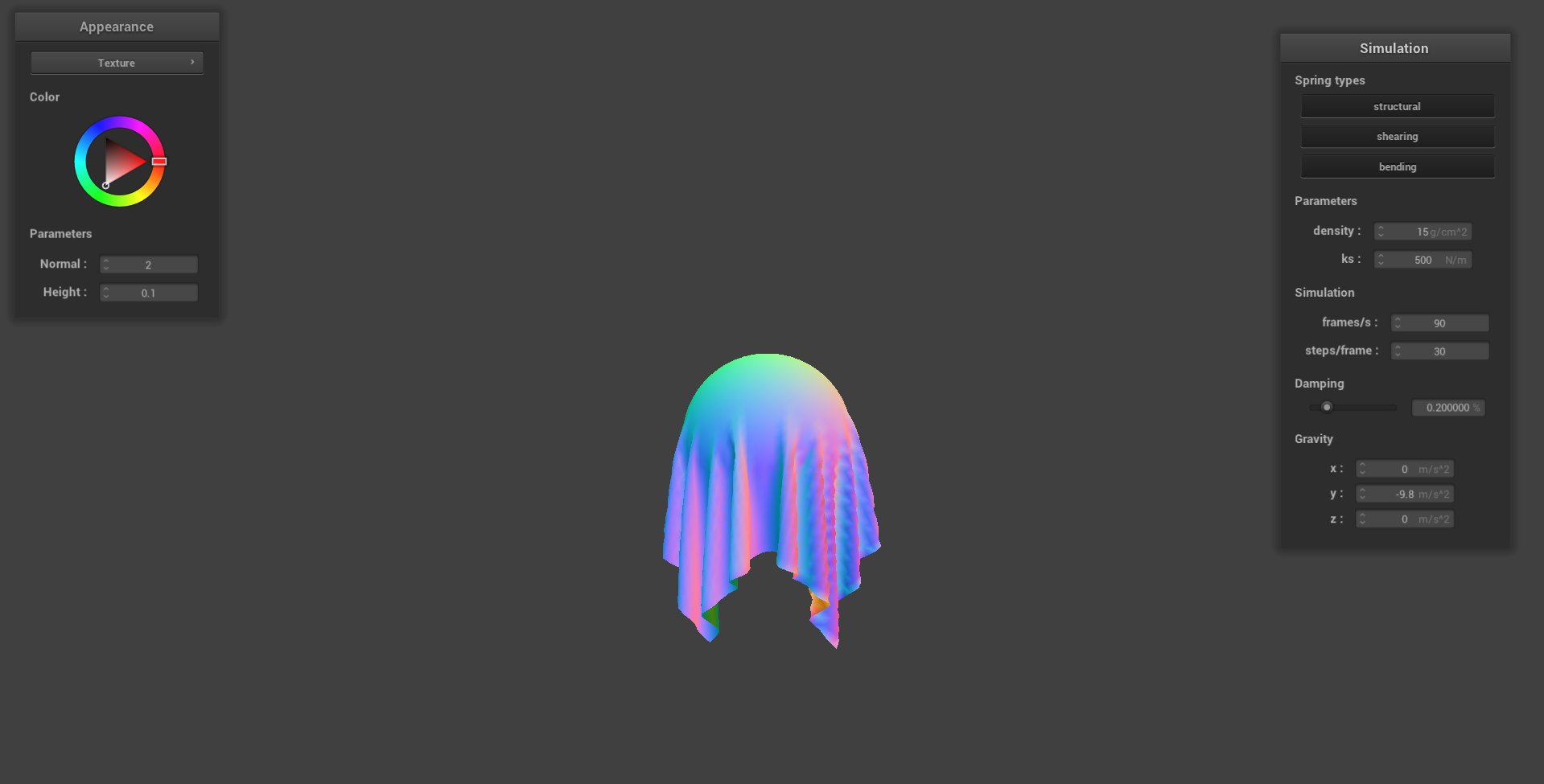
From these images, we see that the higher the spring constant is, the less the cloth droops. Conversely, the lower is, the more the cloth will droop. Intuitively, this is because as increases, the cloth becomes stiffer, allowing it to retain its original shape more and more.
Collisions with Planes
For collisions with planes, we follow the same high-level idea as with spheres: we check whether we’ve crossed the plane, and if so, we “bump” our cloth to the surface. However, there is some subtleties here: namely, to check for the collision, we instead can check the signed distance to the plane for last_position and position (which we will call d1 and d2 respectively):
where is the normal, and is the point, and is the position of our point mass.
We see that if both signs are the same, we know that we haven’t crossed the plane yet, and so we can continue. However, if they aren’t the same, then we have to bump the cloth to the correct side. To do this, we proceed as follows:
- First, we calculate the exact intersection point. To do this, we first find , and then use this to compute where along the line from
last_positiontopositionthat we hit the plane. - From here, we can use the
SURFACE_OFFSETto move our point just a bit away from the plane, on the same side that the cloth came from. - Finally, we apply the friction correction to our correction vector, and add this to our point mass’ last position.
Ultimately, this gives us the following result:
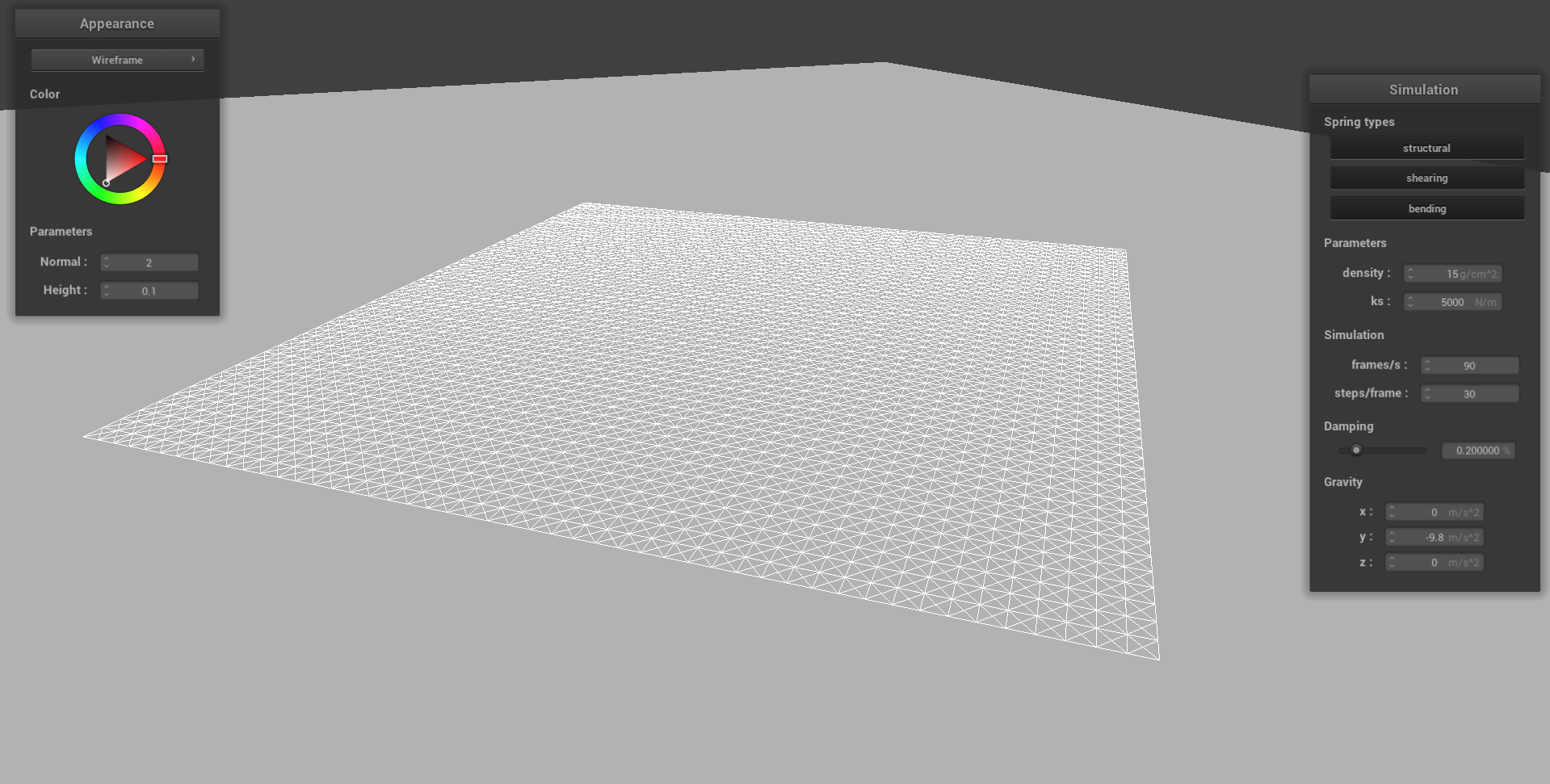
Self-Collisions
Now that we’ve implemented collision with other objects, the next step is to handle self-collisions. Currently, as we haven’t implemented it yet, our cloth can intersect with itself and create a deformed mess. For example, below, we see that as the cloth drops, it doesn’t bundle up as we’d expect, but instead constantly intersects with itself. Then, at its rested state, we see how there are many points of self-intersection:
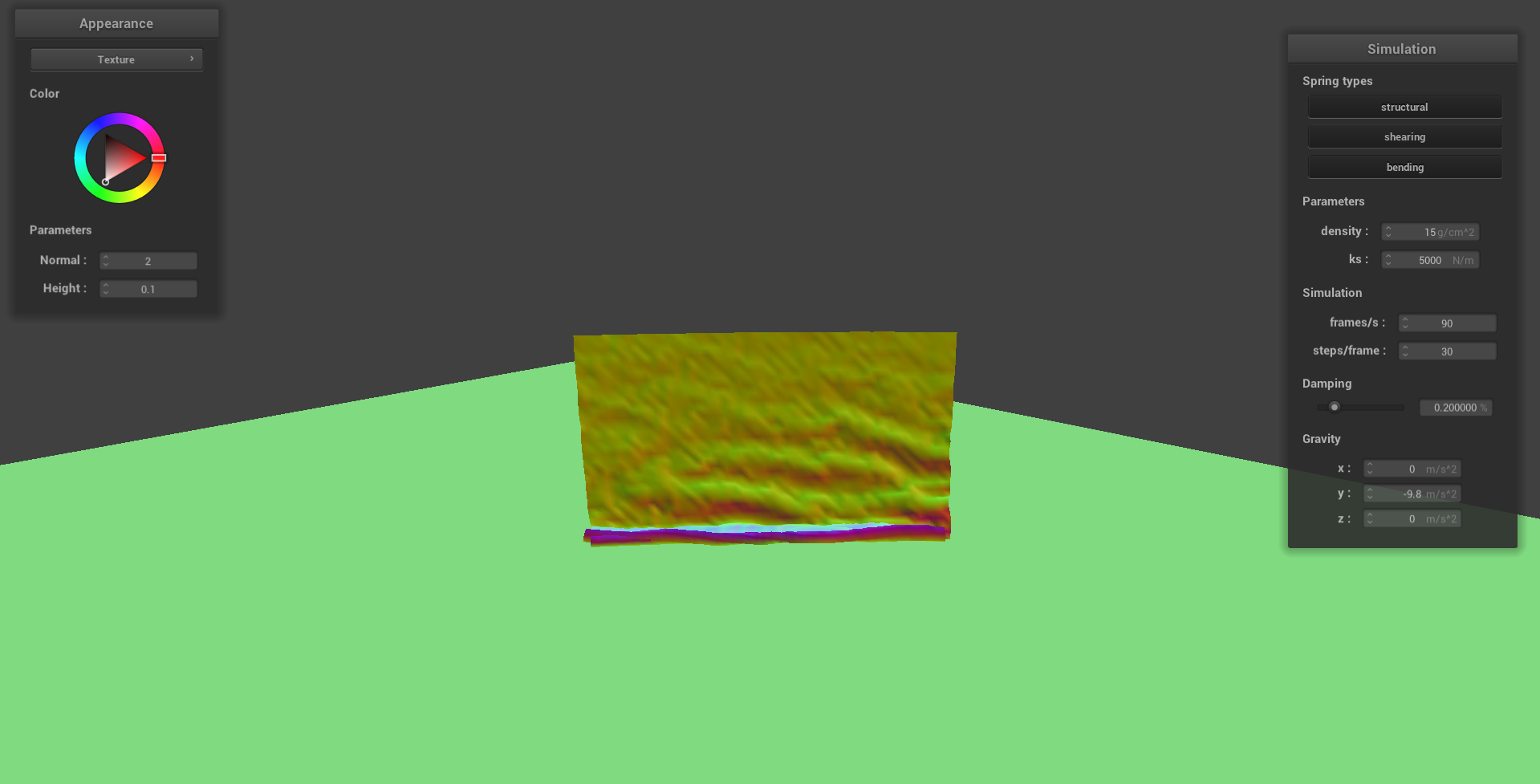
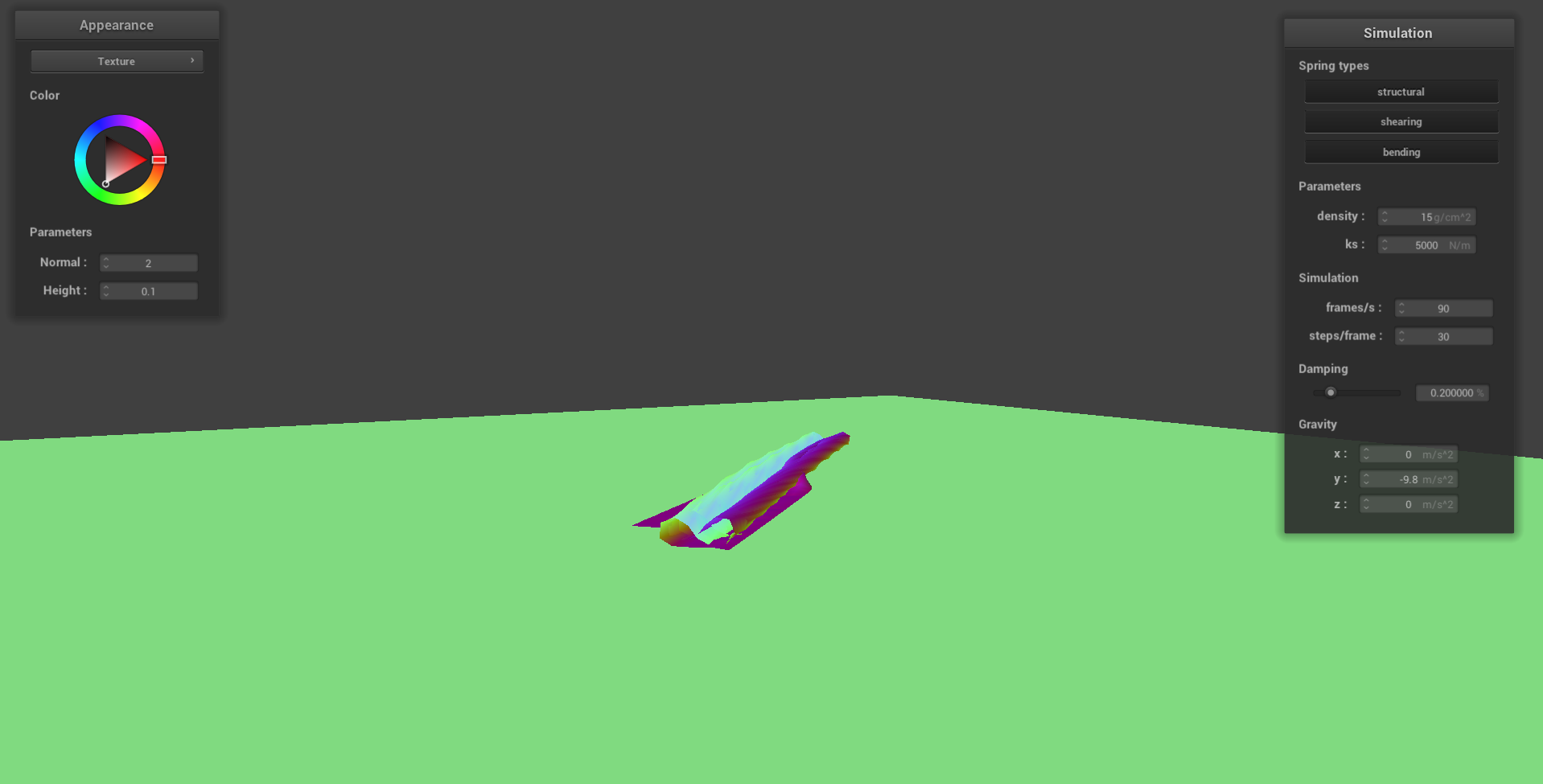
Now, the naïve way to implement self-collisions is to simply iterate through all pairs of point masses, computing the distance between them, and then if they’re too close to each other we apply some force to push them apart. However, this is an algorithm; this is way too slow for a real-time cloth simulation, especially for larger and more complex scenes!
In order to create a more efficient algorithm, we will utilize a clever hashing approach, implementing what’s called “spatial hashing” instead. The key idea here is that we can partition the space into boxes, and we only have to check points within each box to see if their distance crosses some threshold. At each time step, we construct a hashmap that maps a float (which represents some cube partition in our space) to point masses within that partition. In our case, we will use the following hashing function from this video :
Then, we can iterate through only the points in each cube. If they violate some threshold, then we apply the force to prevent self-collision. In our case, we apply this repulsive force to points that are within distance of each other, making sure that afterwards they are distance apart from each other after. Here, is some thickness constant. This ultimately reduces our runtime to approximately — a massive improvement!
Below, we demonstrate our self-collision check. Here, we see that in the early phases, the cloth is bundling up at the bottom; it’s colliding with itself and repulsing itself. And in its rested position, we note how it isn’t all rolled up on itself and intersecting with itself anymore, but instead is now flat on the ground.
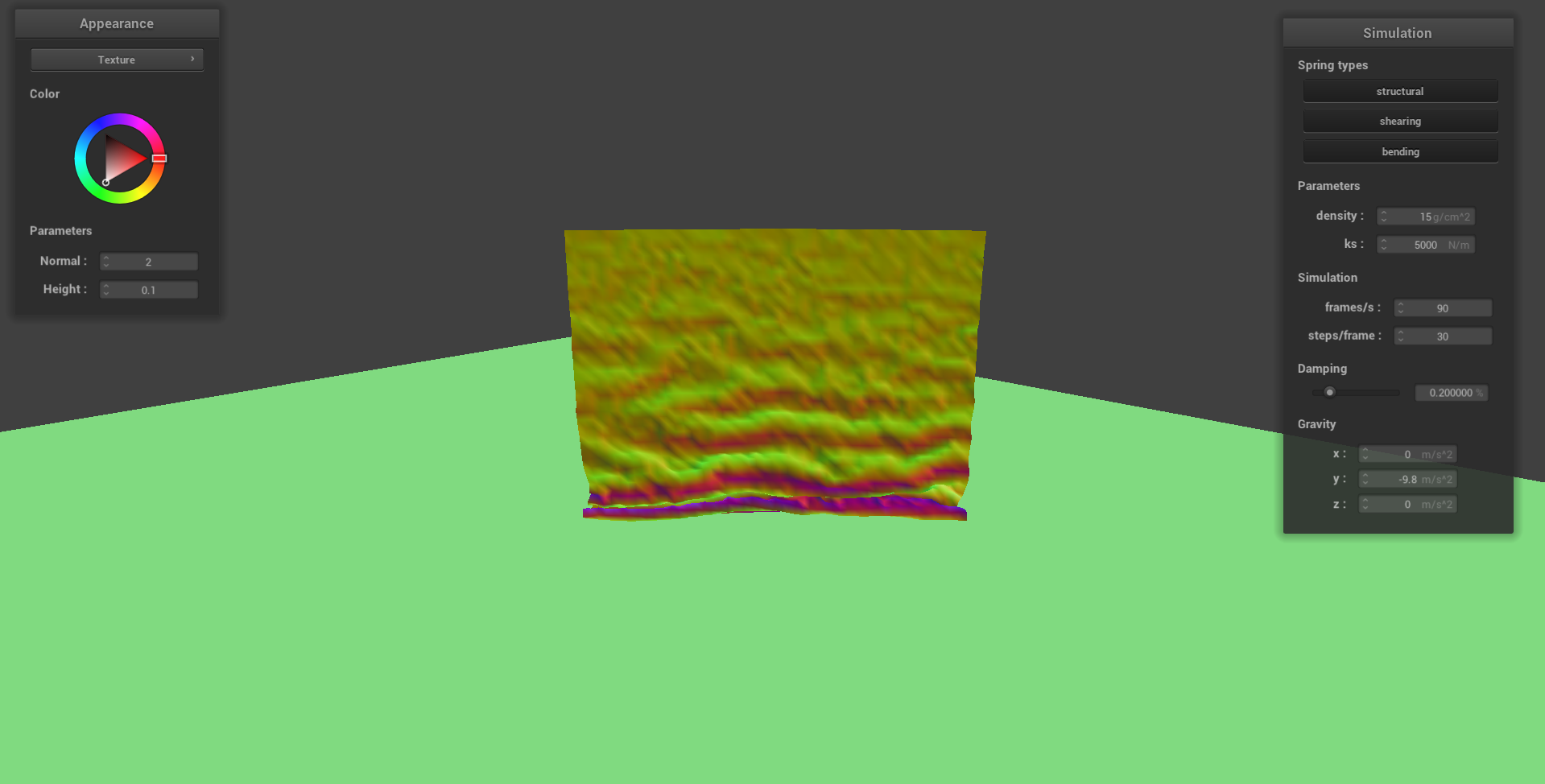
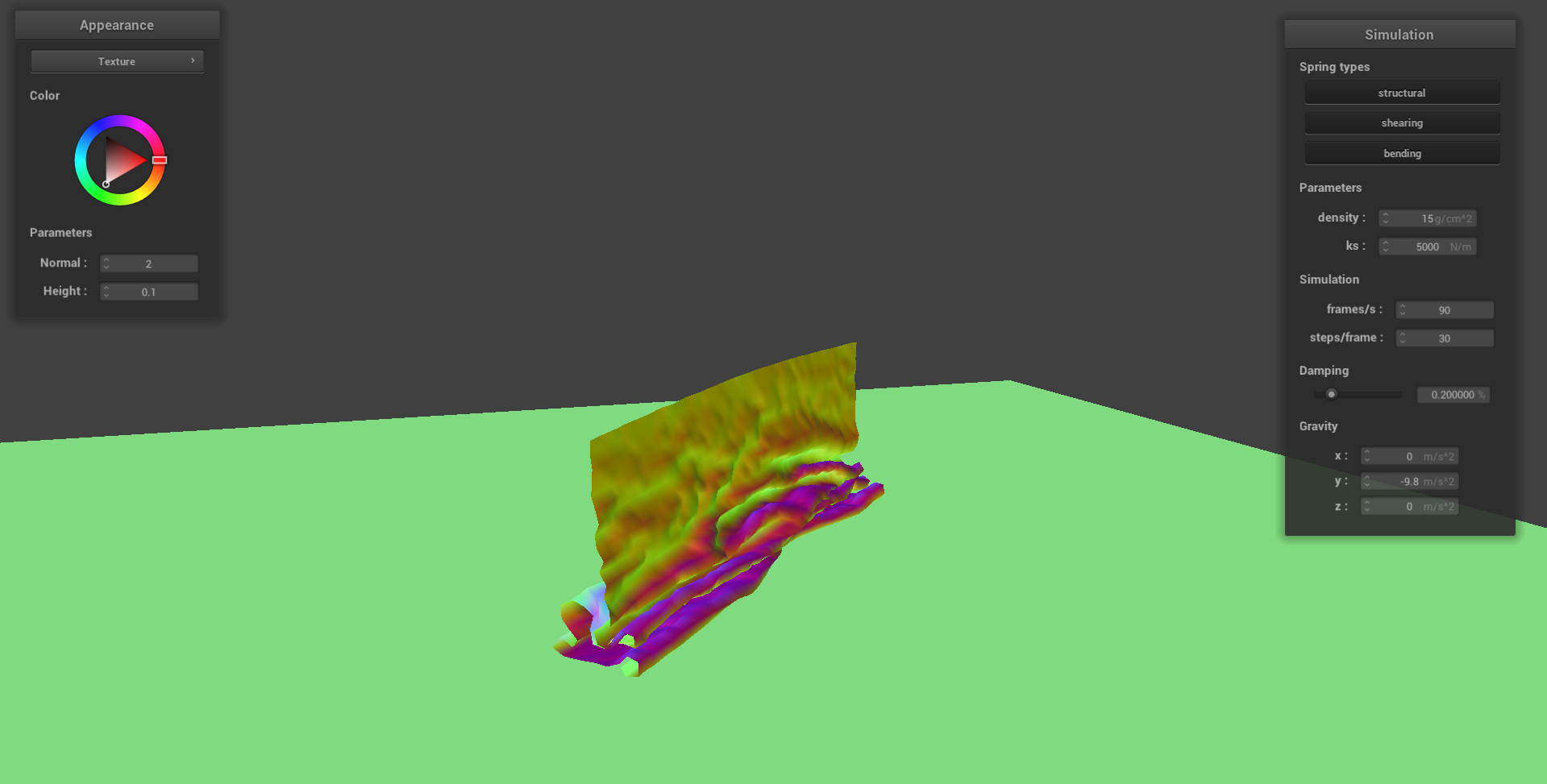
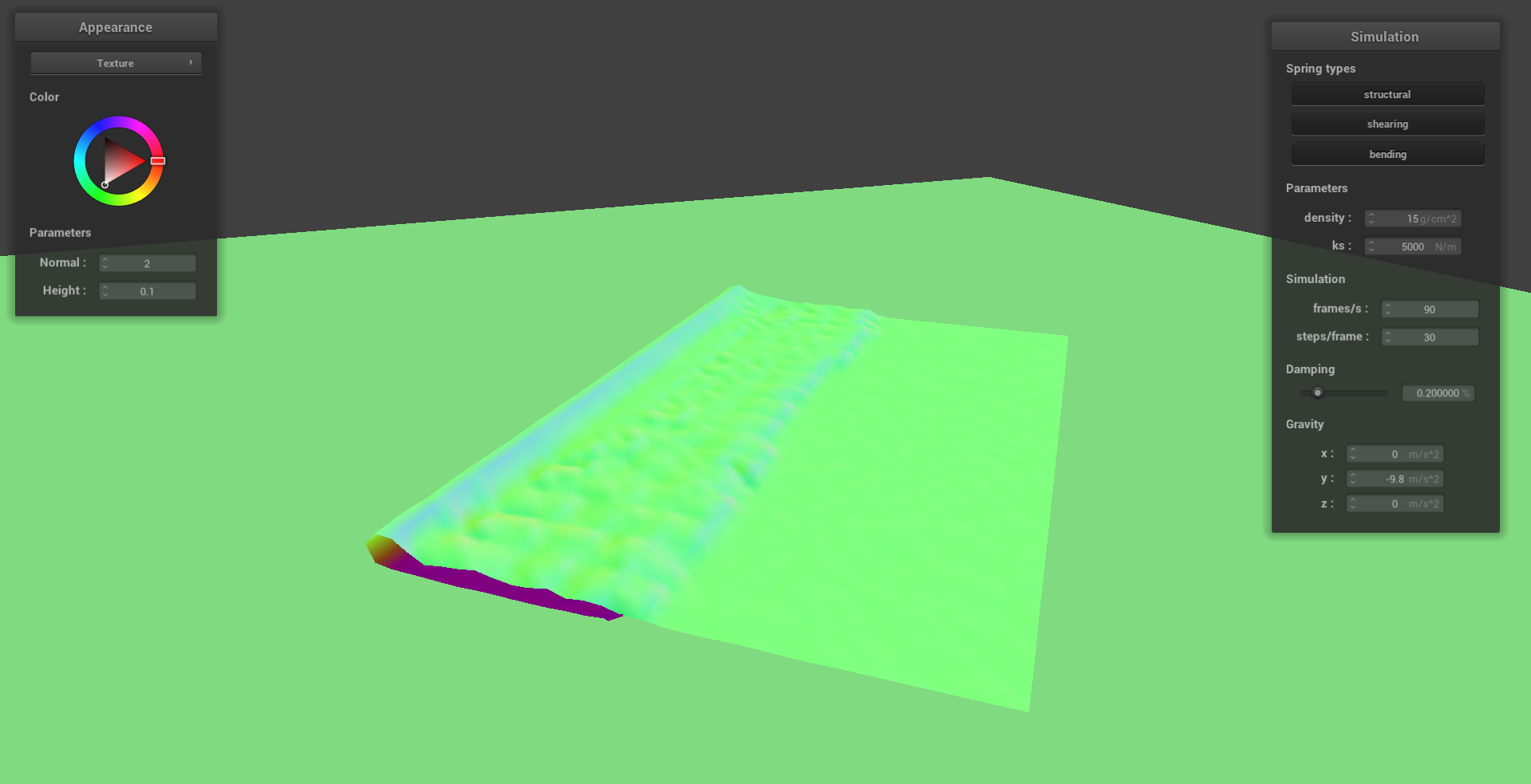
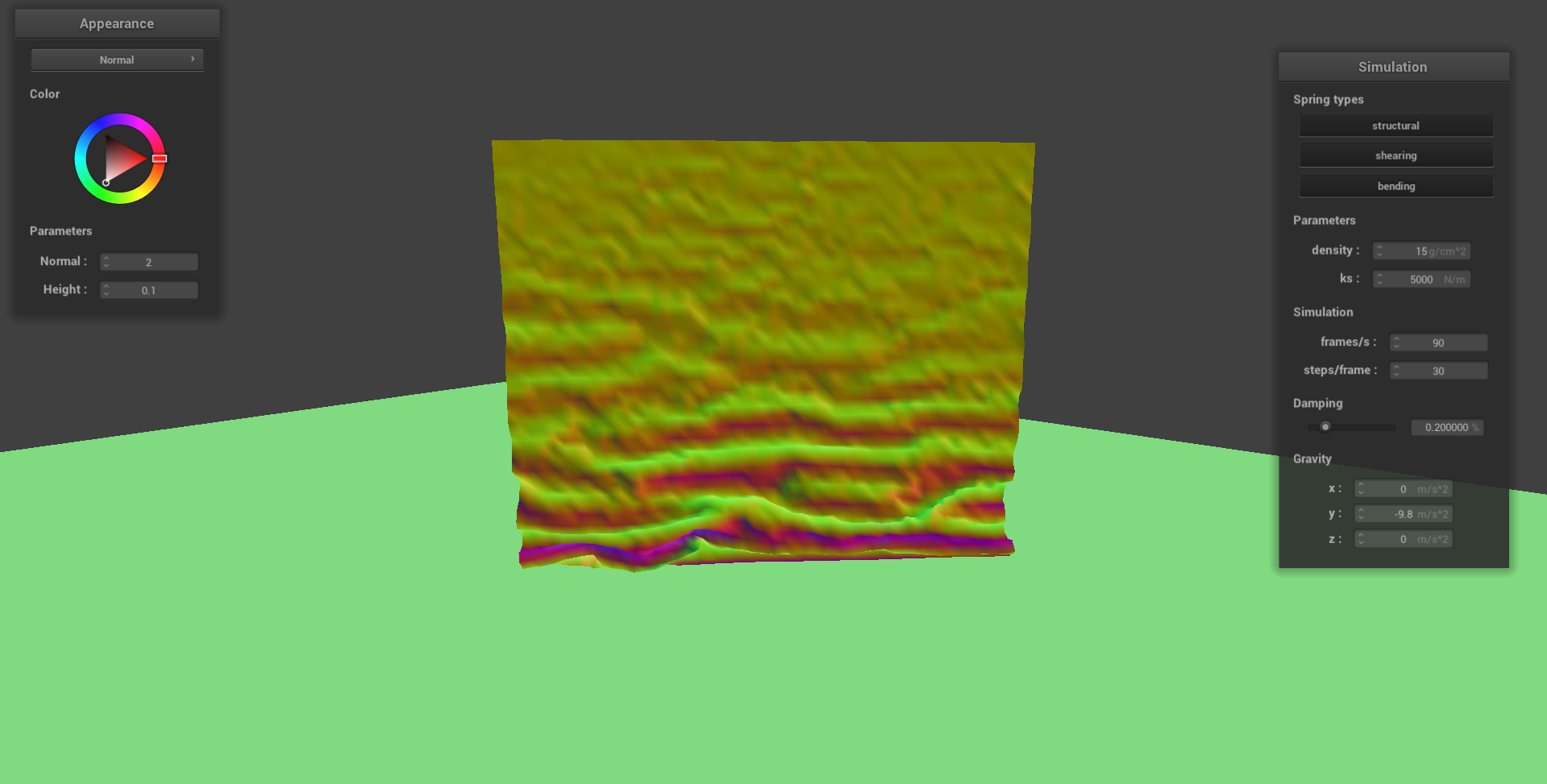
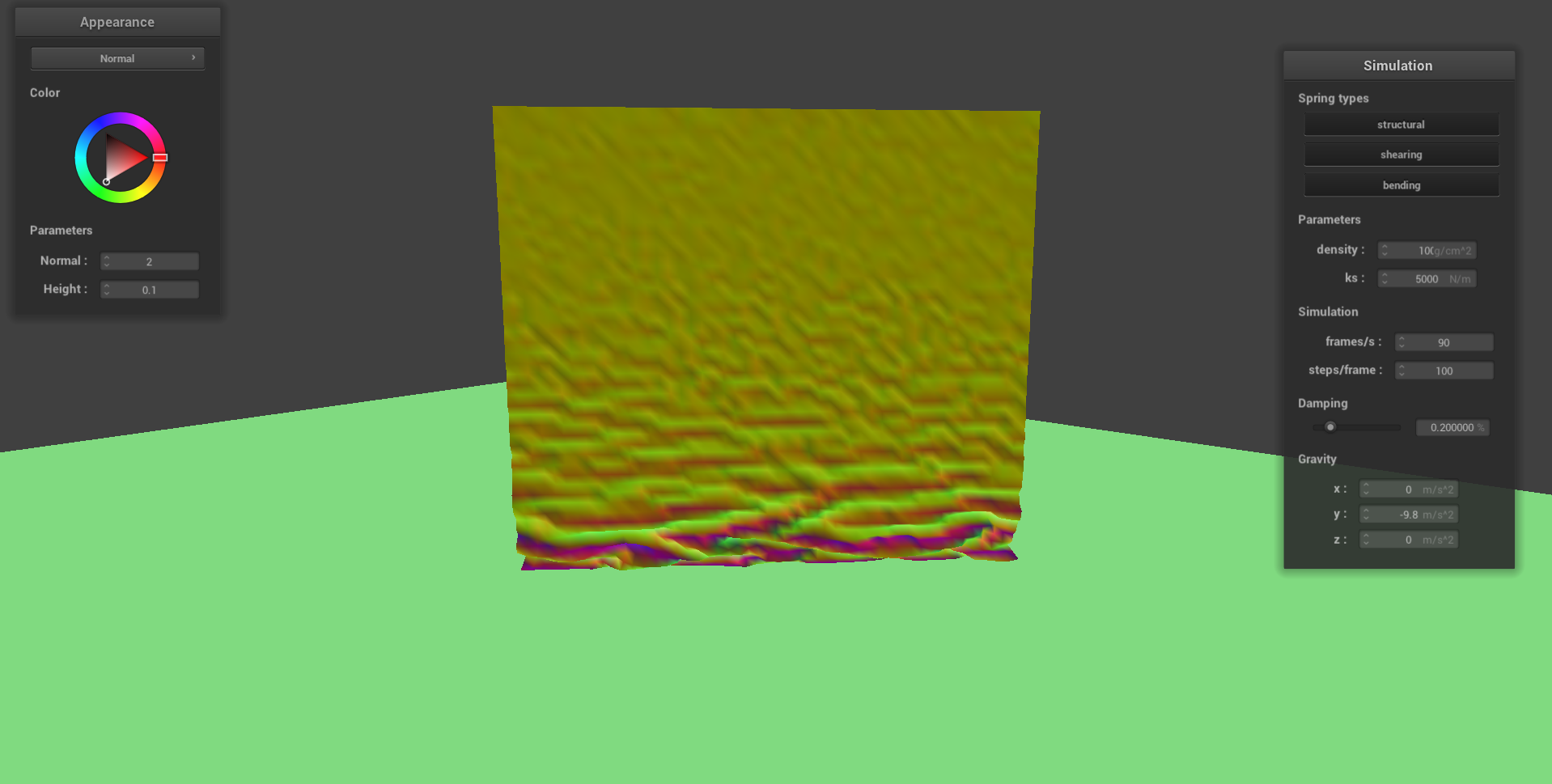
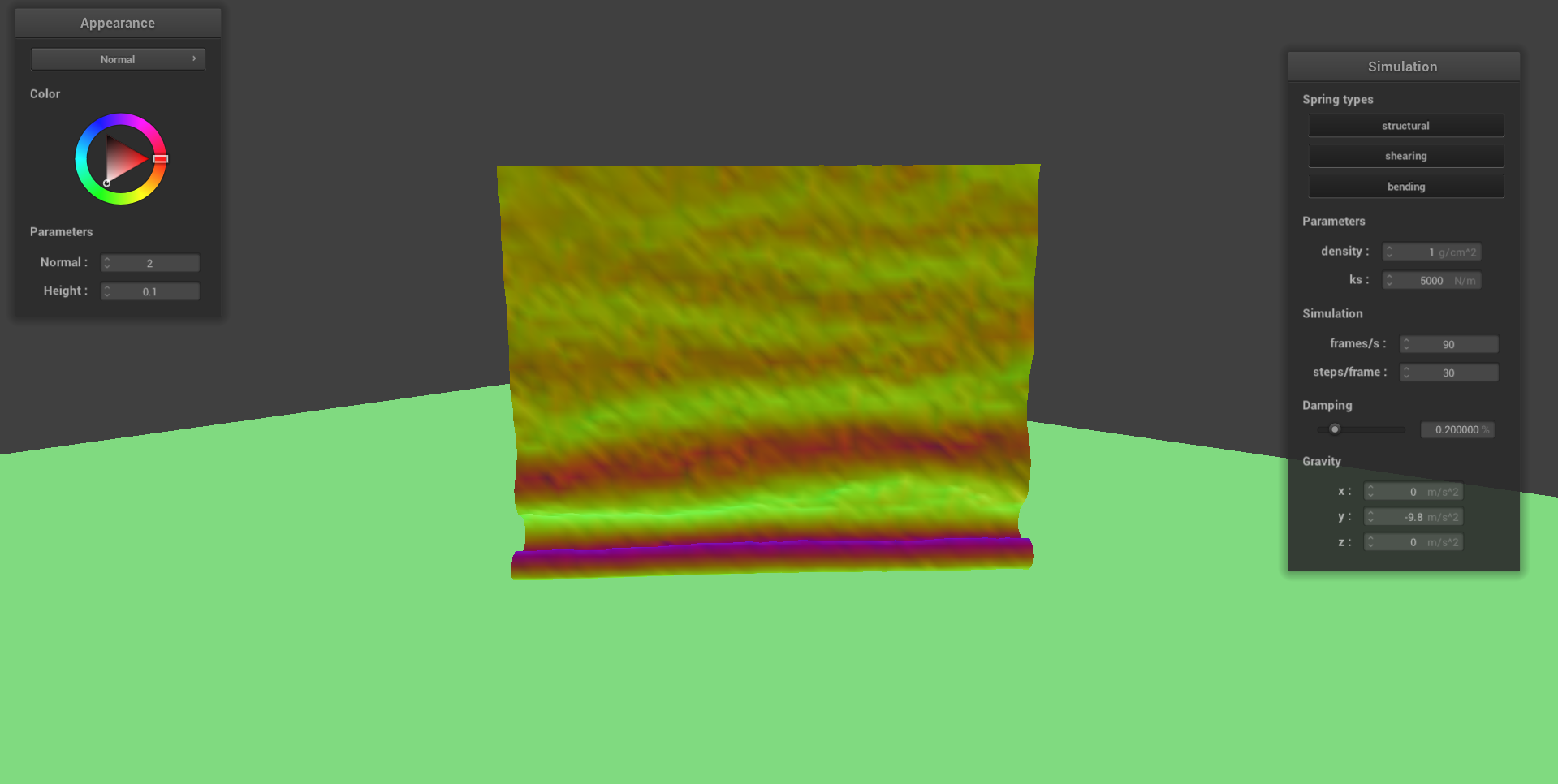
For those images above, we used the default parameters. However, it’s perhaps interesting to also investigate what happens when we change both the spring constant and the density . First, we look at tweaking :
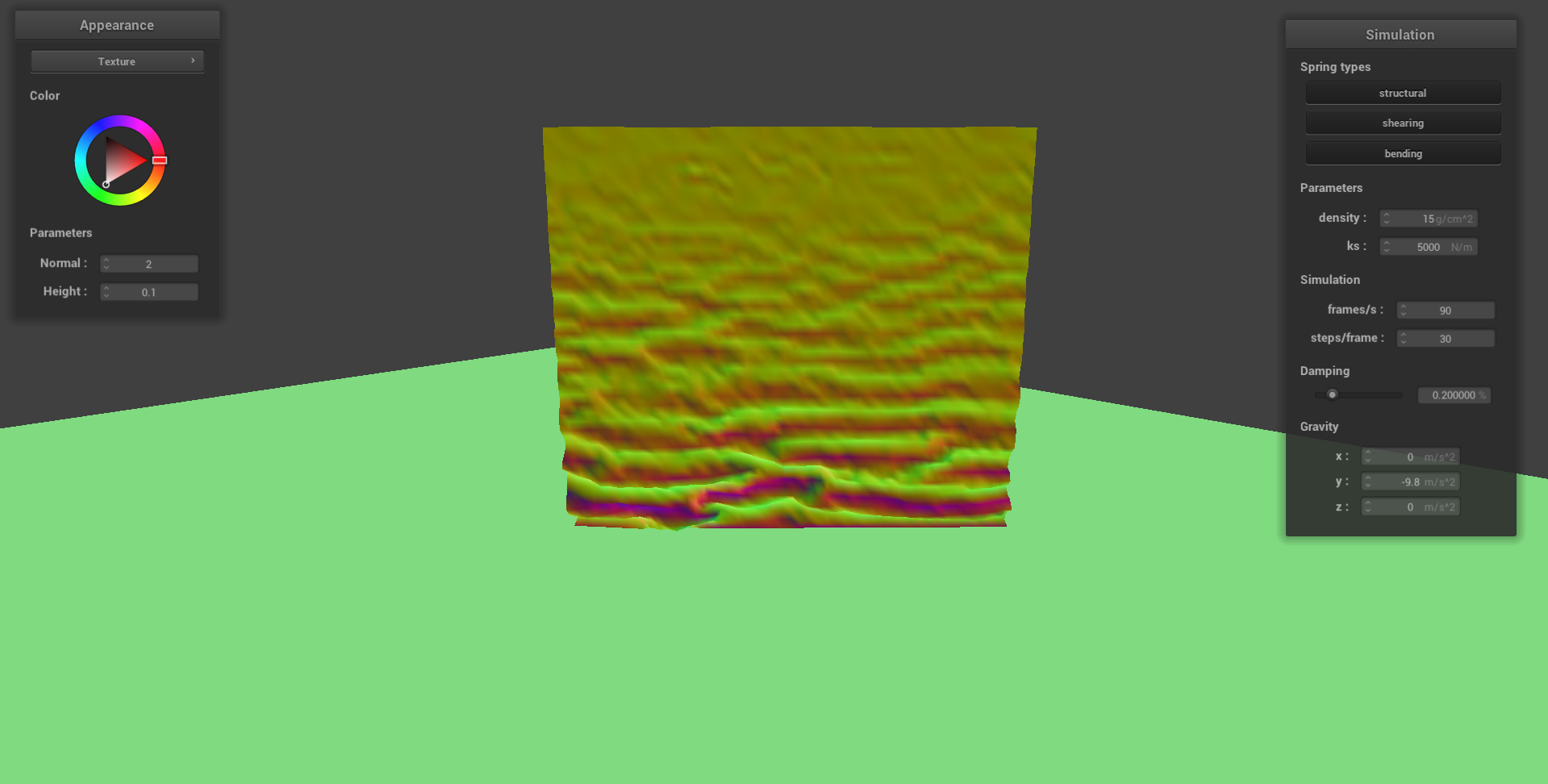
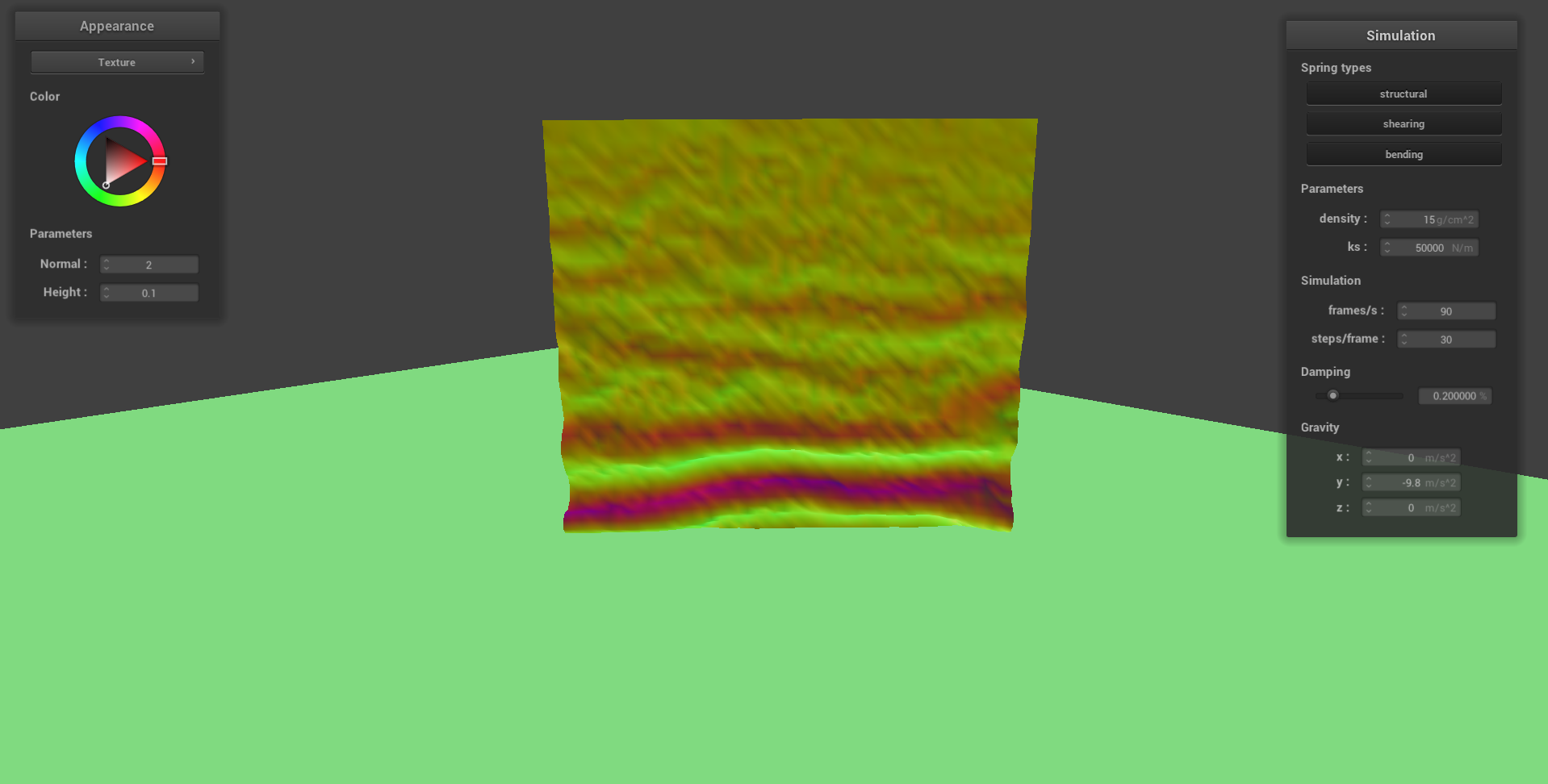
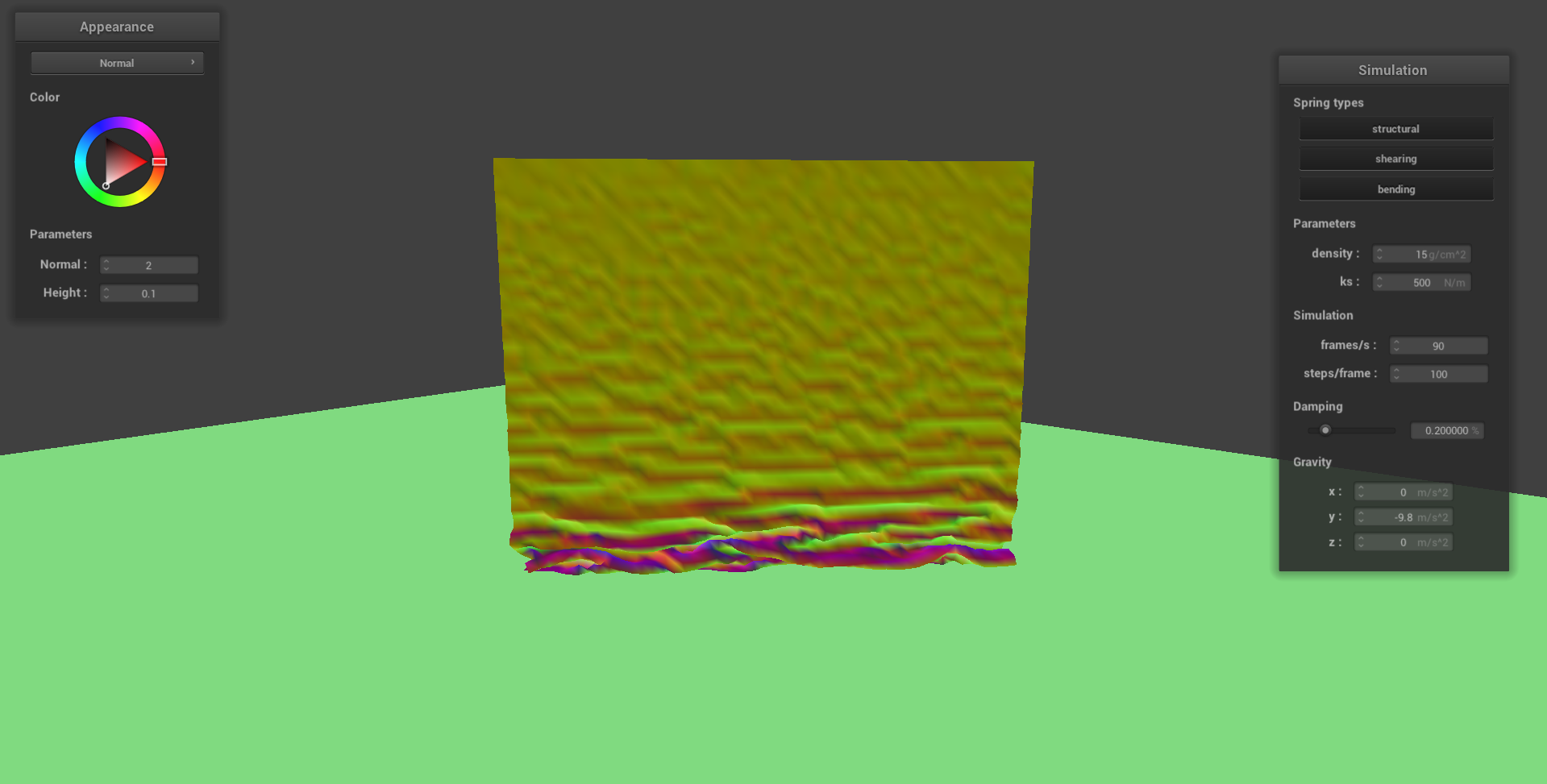
We observe that the higher our spring constant is, the less it folds upon itself, whereas if we lower the spring constant, it folds on itself a lot more. This makes sense intuitively, as the higher the spring constant is, the stiffer our cloth becomes.
Next, we vary the density . Here, we observe that it has the same effect visually as when we vary the spring constant , but in reverse.
Shaders
In this section, we implement a few shaders (such as Blinn-Phong, Texture Mapping, and Bump Mapping). But, what exactly is a shader? Well, simply put, shaders are programs that run in parallel on the GPU, allowing us to leverage both the CPU and GPU for computations at the same time. For this project specifically, we will be working with GLSL, a C-like language. More specifically, we will work with the following two OpenGL shader types:
- Vertex Shaders: These apply transformations to vertices, writing the final positions to
gl_Position. - Fragment Shaders: These typically take in geometric attributes of fragments that our vertex shader’s calculated, using this to determine a color which it writes into
out_color.
Diffuse Shading
First, let us implement diffuse shading. This involves some diffuse coefficient and also other information such as the light intensity and position, camera position, etc. Then, we utilize the following formula to calculate the diffuse lighting:
Ultimately, this gives us the following scene: 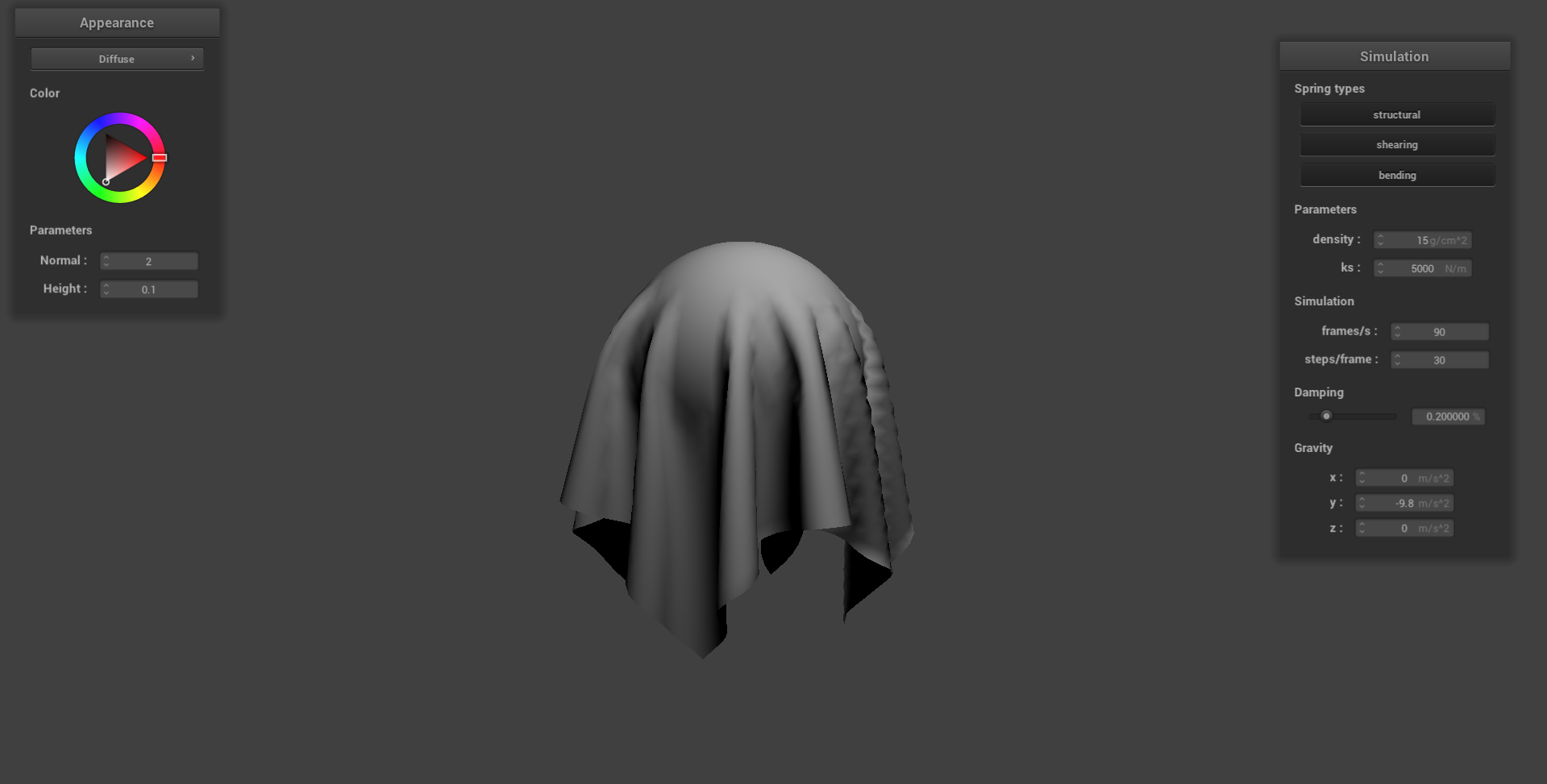
Blinn-Phong Shading
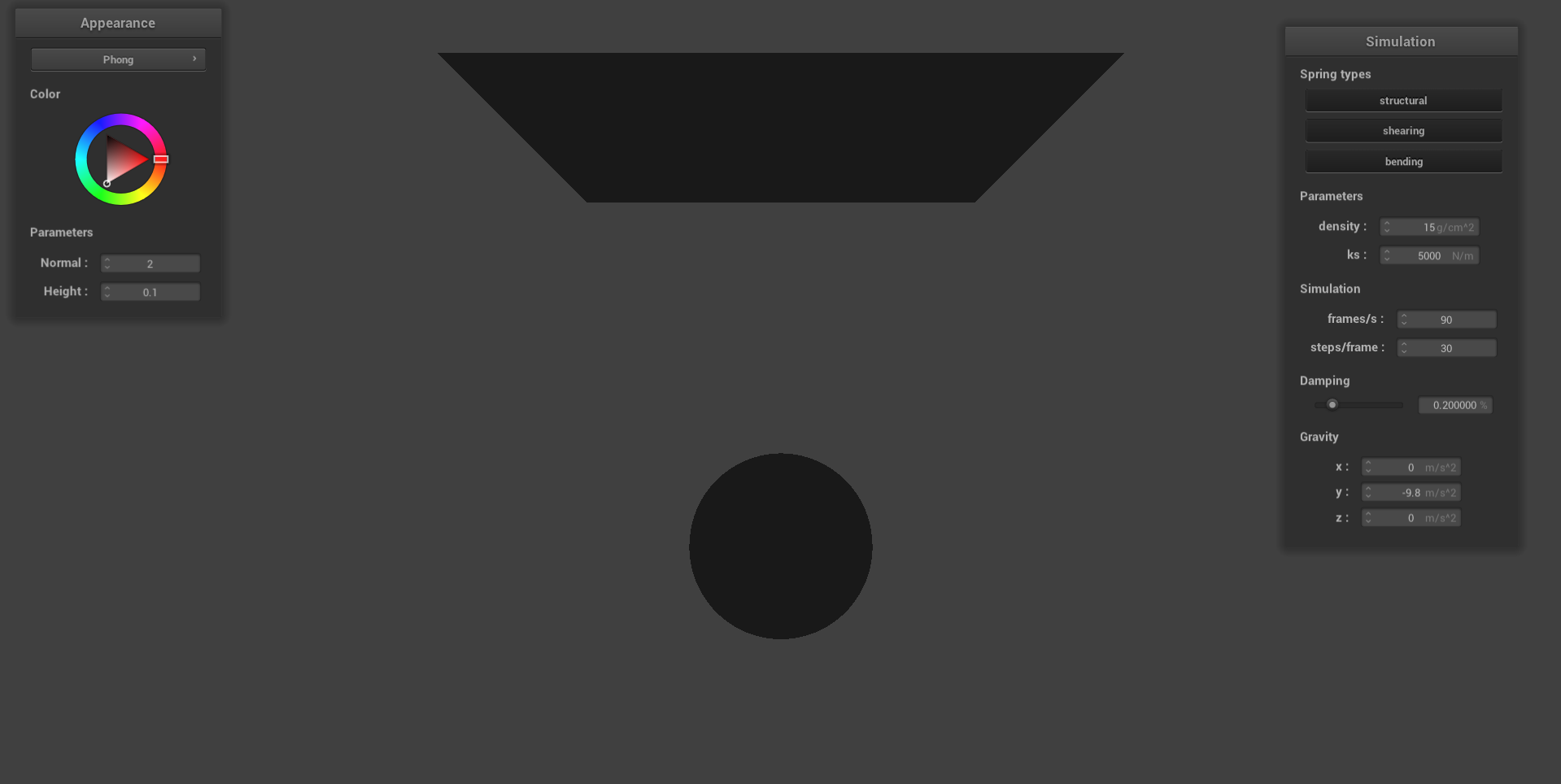
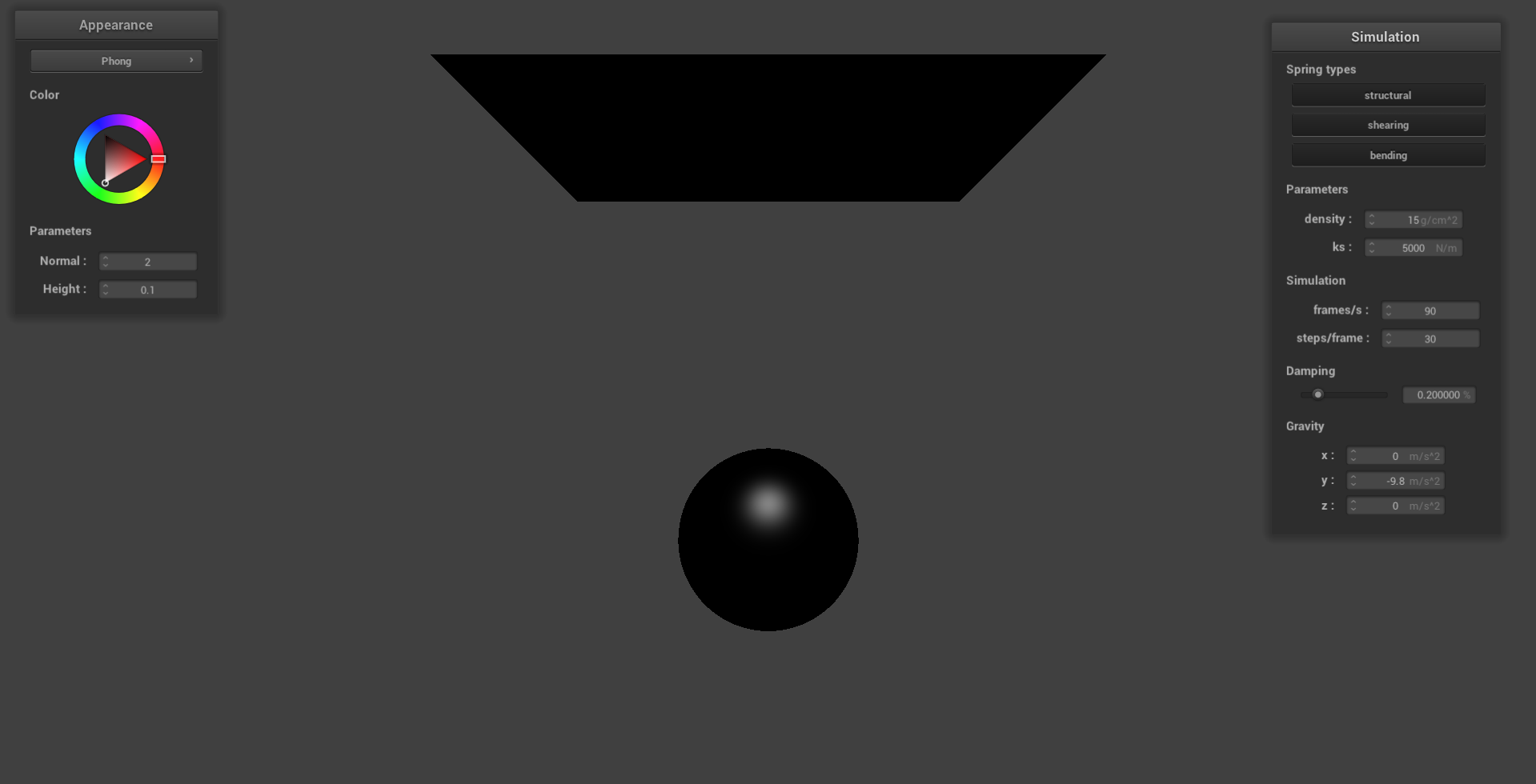
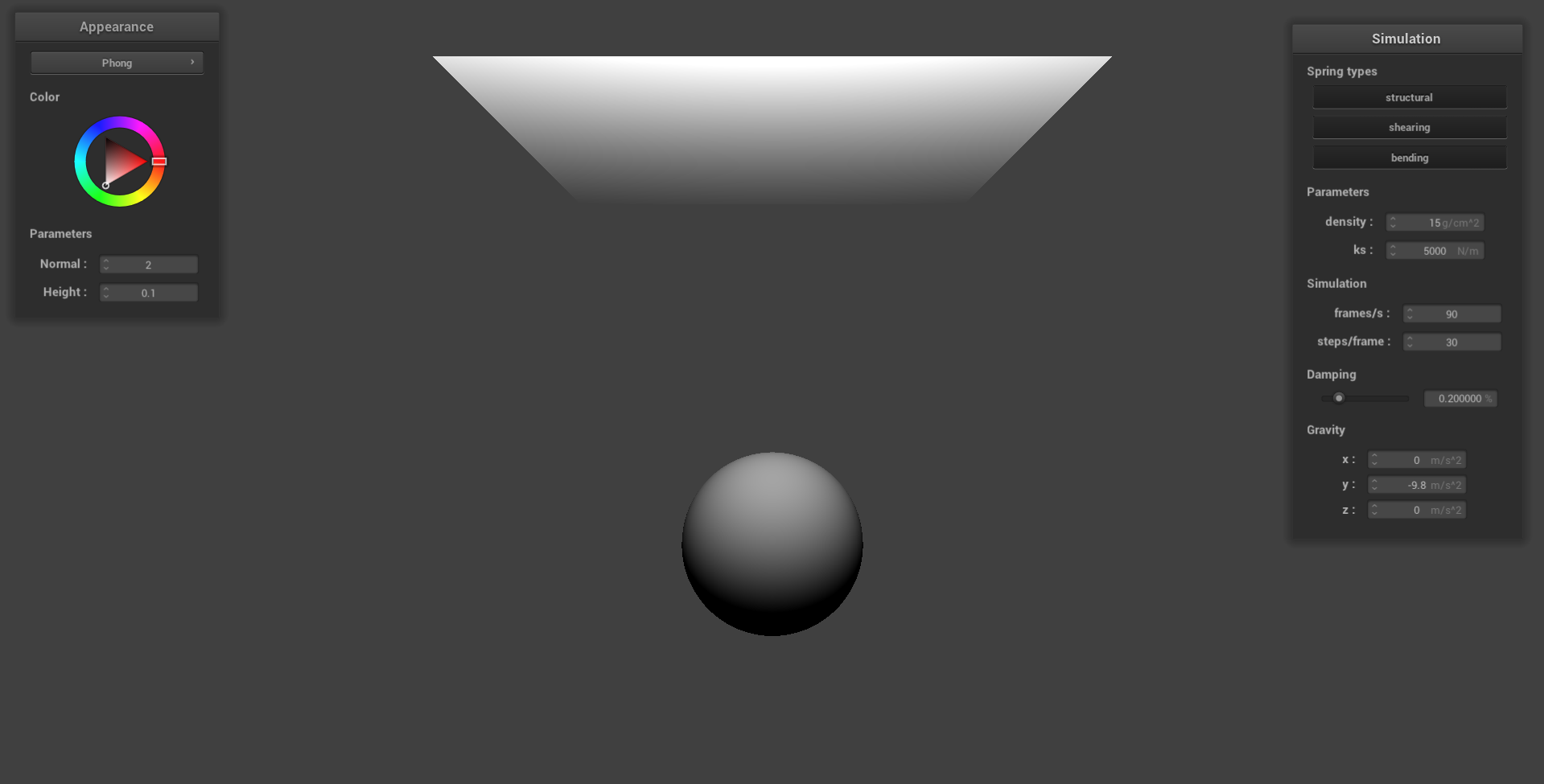
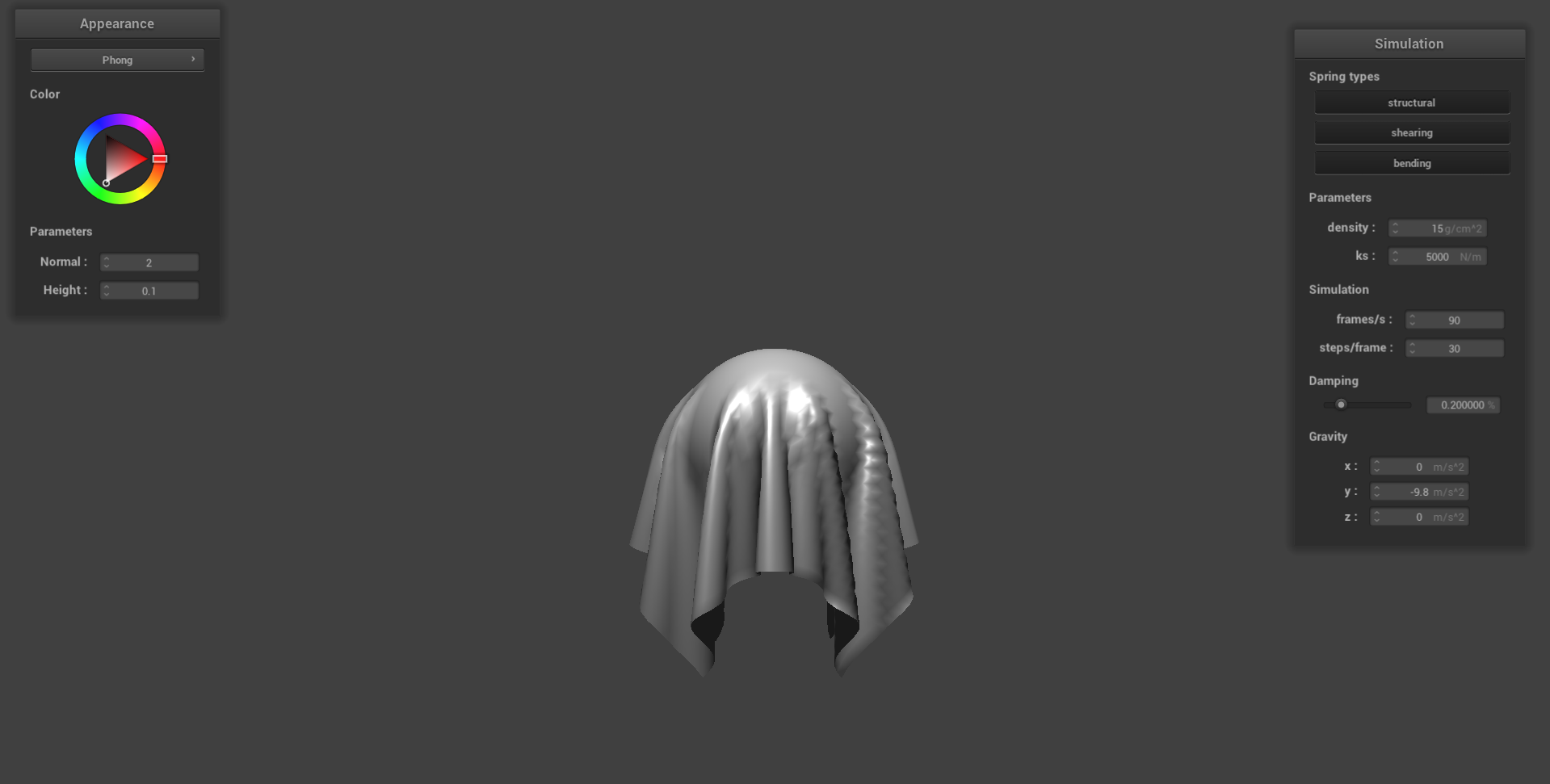
Next, we implement Blinn-Phong Shading. This is a shader that consists of three components:
- Ambient Lighting: This can be thought of as the light that’s everywhere in our scene, being applied uniformly to all objects.
- Specular Lighting: This helps us create the bright highlight areas on our surface, depending on both the light direction and view direction.
- Diffuse Lighting: This models how matte surfaces scatter light evenly in all direction, and depends on the angle between the surface normal and the light direction.
Then, with these three components, we can sum it up, giving us the following formula:
Below, we show each of the components separately, and how they come together in Blinn-Phong Shading. For the images below, we utilize the following parameters:
Texture Mapping
Next, we implement a texture mapping shader. Here, we can sample from the u_texture_1 uniform using the built-in function texture() which samples from a texture tex at the texture space coordinate uv. This allows us then to map a texture onto the objects in our scene.
For fun, let’s Weezo-fy everything, giving us the somewhat amusing scenes:
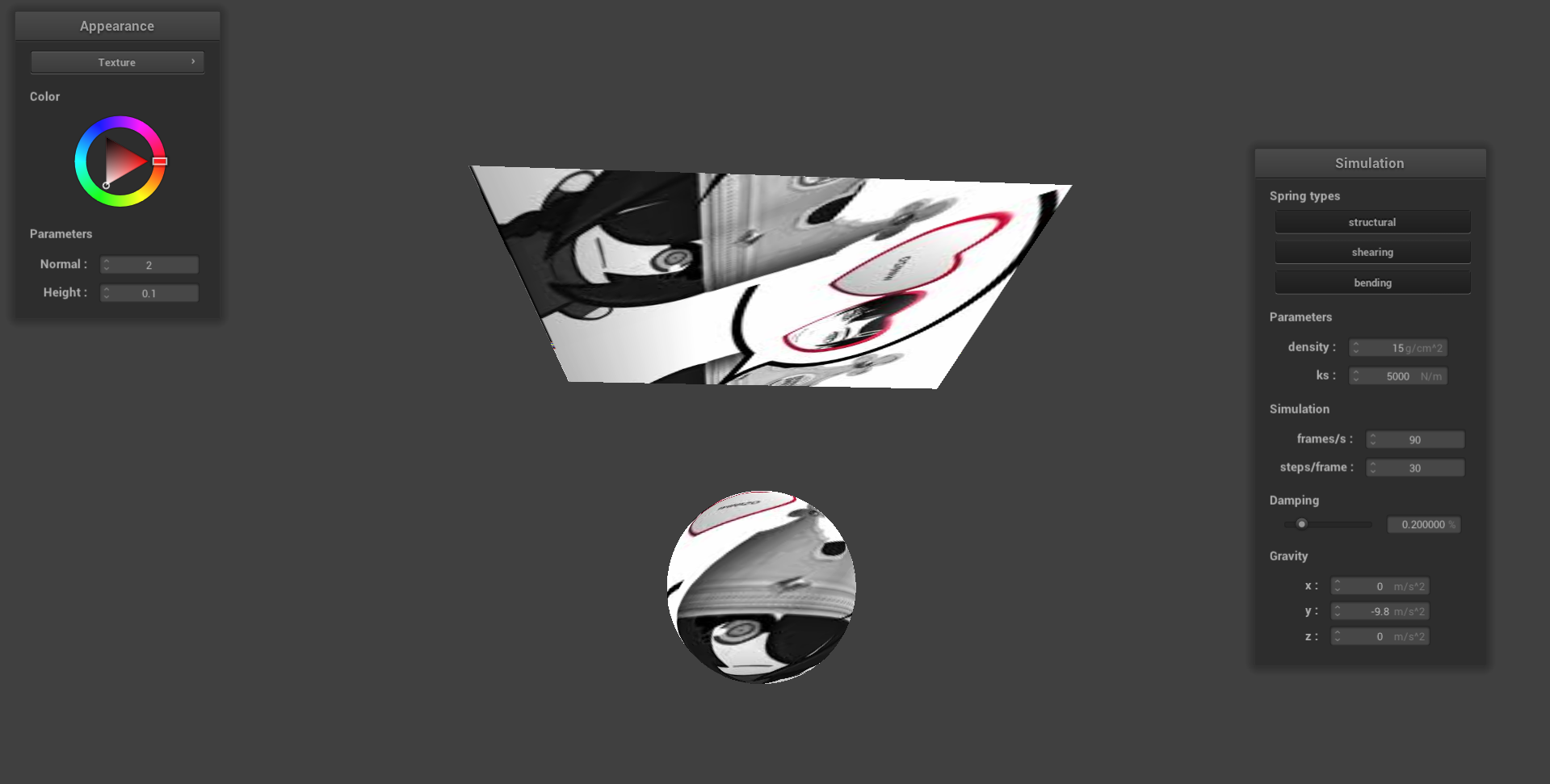
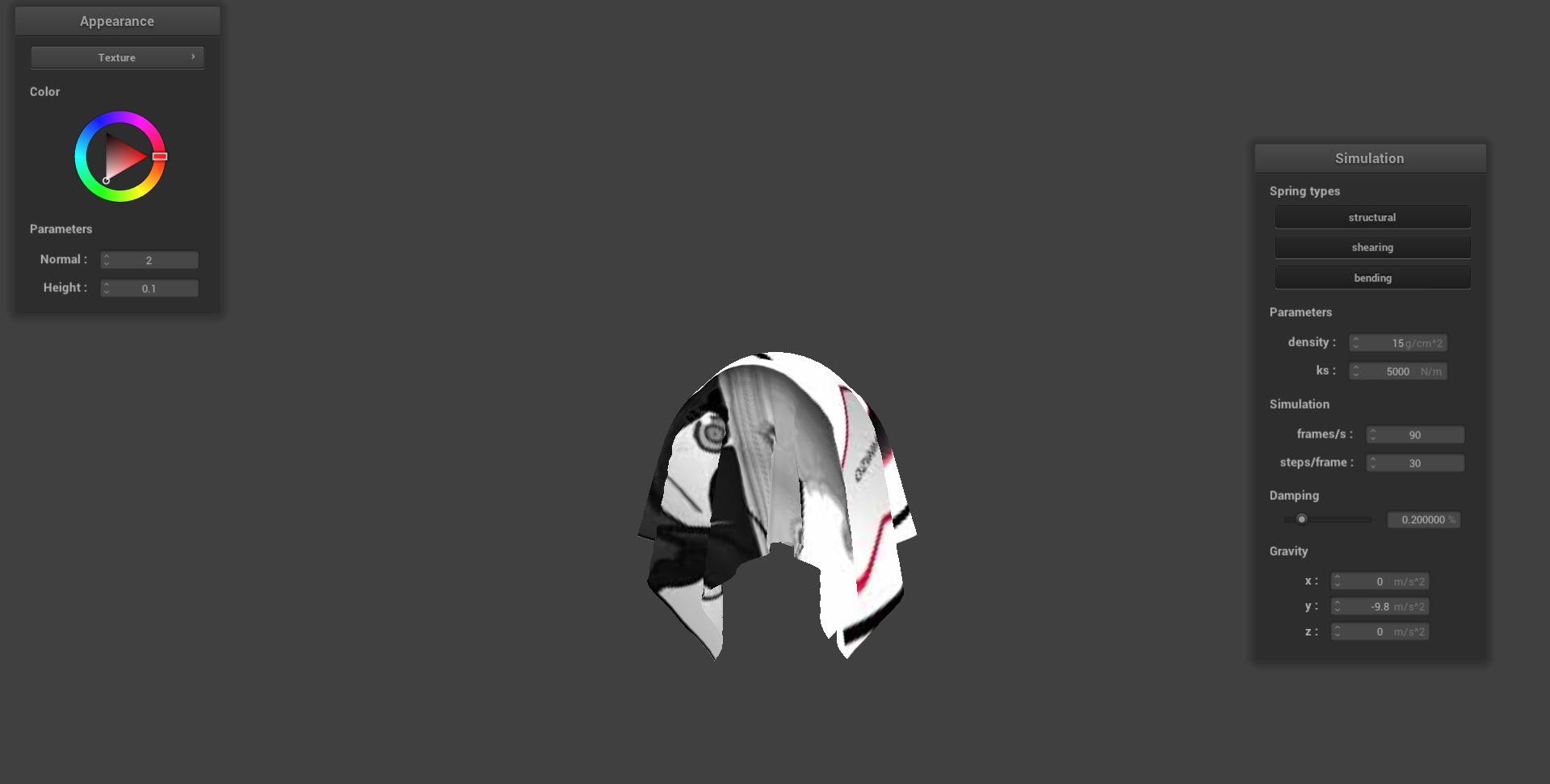
Displacement and Bump Mapping
In this section, we will explore both Bump Mapping and Displacement Mapping. In Bump Mapping, we modify the normal vectors of our objects, giving off the illusion that there are “bumps” (hence the name). To do this, we proceed as follow:
- First construct a TBN Matrix, turning an object space into a model space.
- Then, define displacement vectors as follows:
- Then, we can define our new normal vector , and our model-space normal is derived by multiply the TBN matrix by .
Below, we see examples of our sphere-and-cloth with bump mapping:
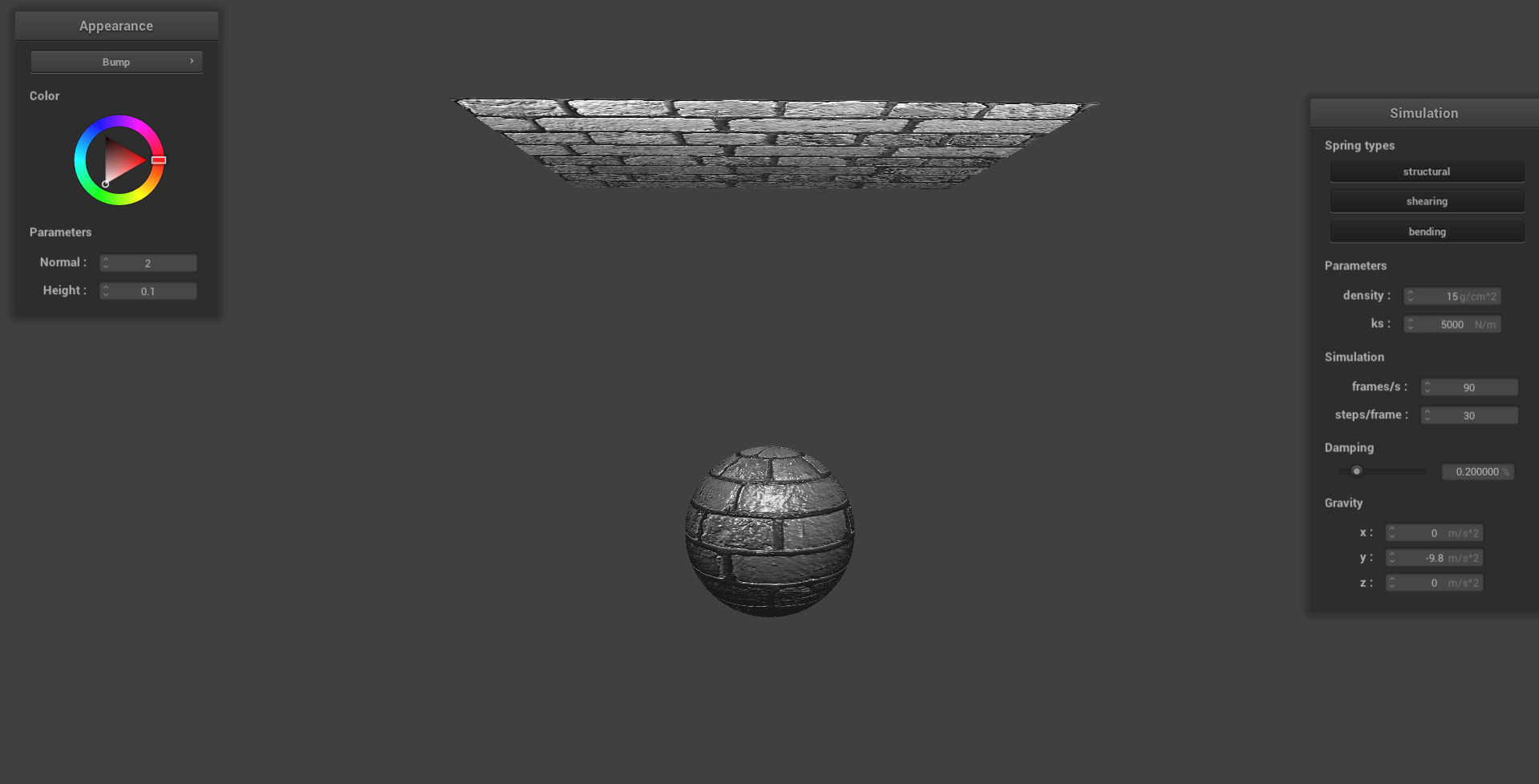
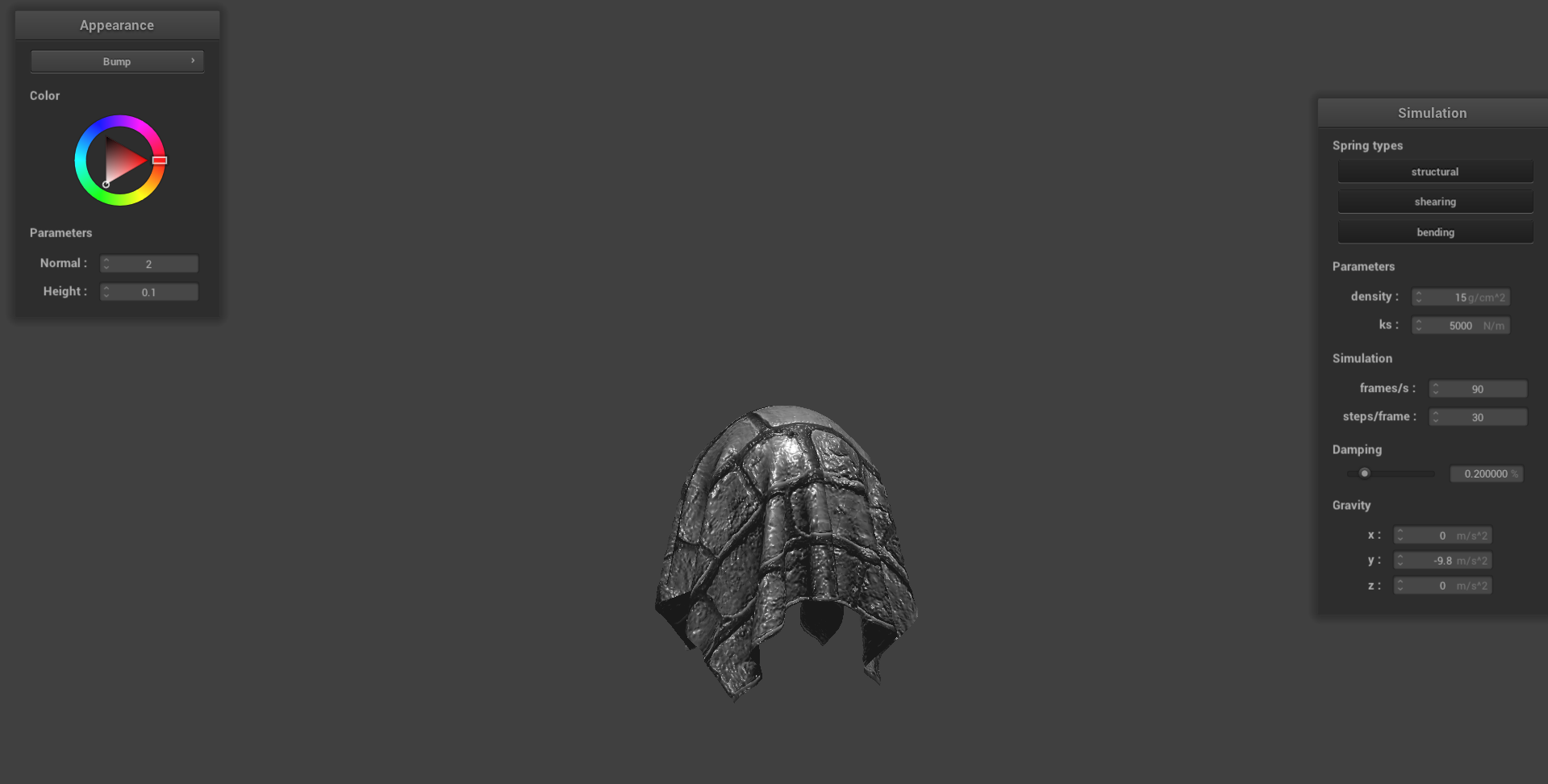
Next, we implement Displacement Mapping. This is essentially Bump Mapping with an extra step: we modify the vertex positions themselves. In this case, we add the normal scaled by the heightmap and the height constant. Below, we compare the result of Bump Mapping versus Displacement Mapping:
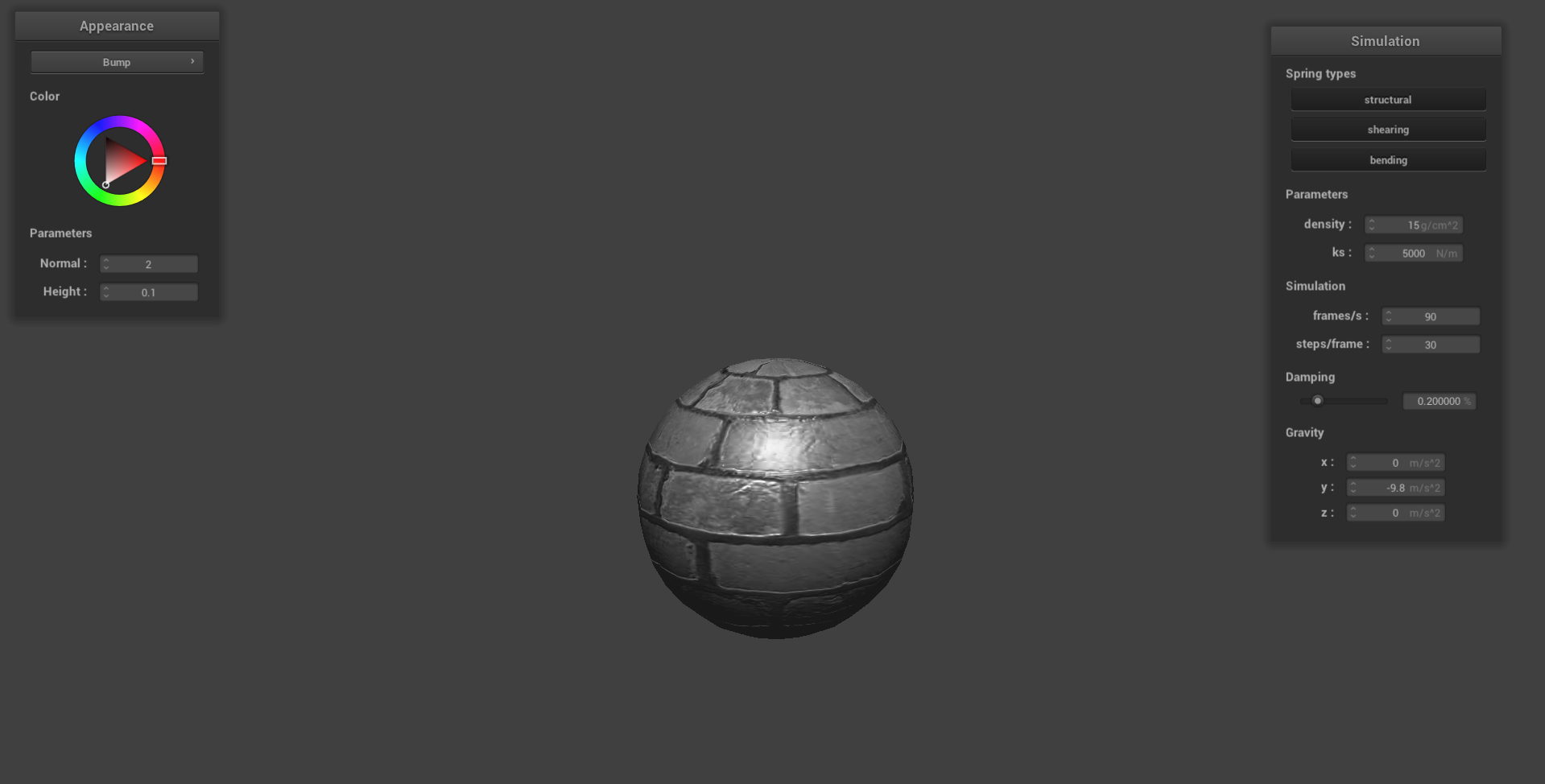
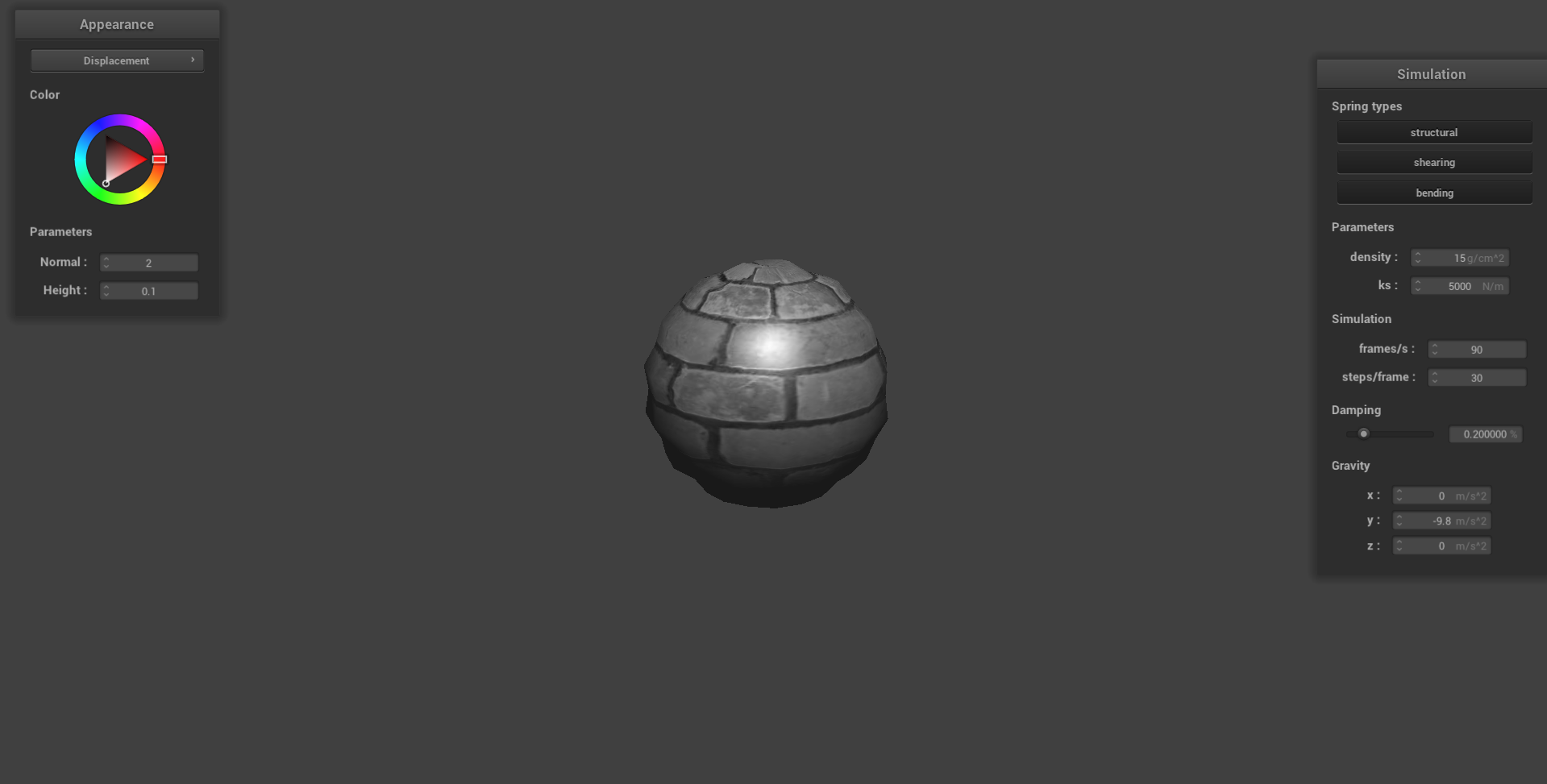
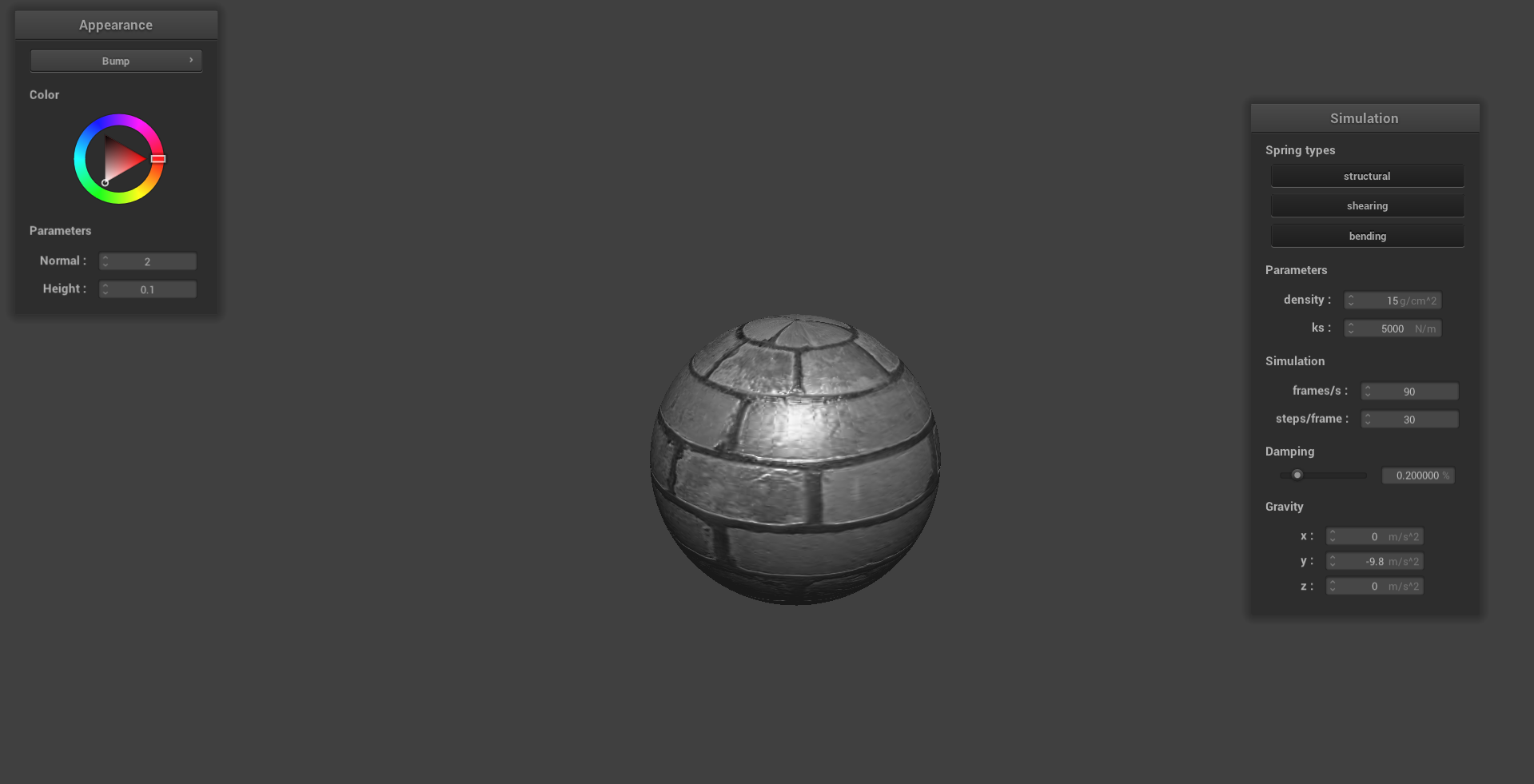
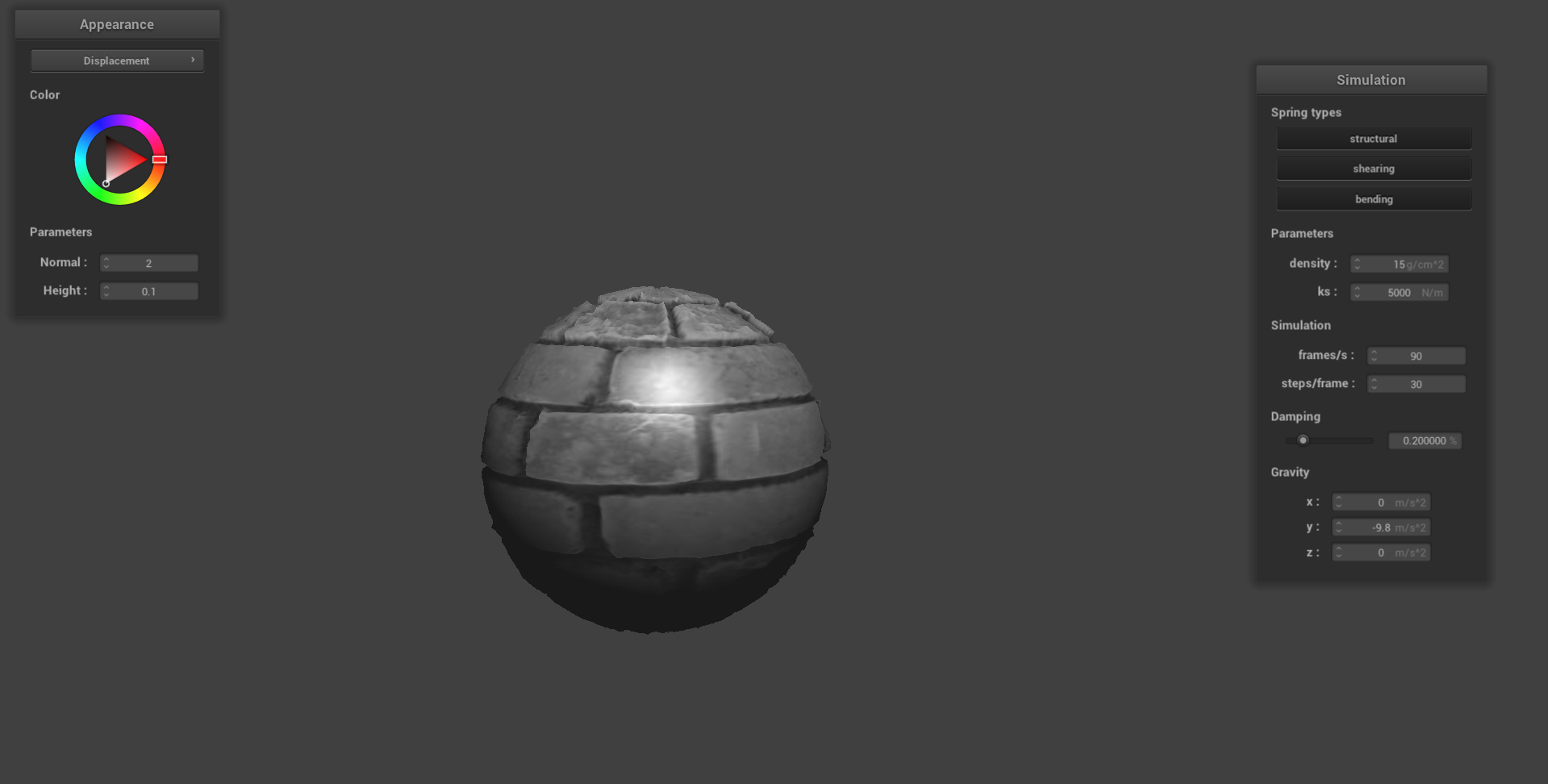
From this, we note that when we utilize Displacement Mapping, in both cases we see that the sphere’s geometry changes. For example, with the 16x16 example, we see the sphere deform a bit; on the other hand, with the 128x128 example, we can actually see the bricks protruding out.
We also observe that while changing the resolution didn’t affect Bump Mapping much (if at all), it had a noticeable effect on Displacement Mapping. In the 16x16 image, we don’t really see the bricks; instead, the sphere has become weirdly deformed. But with 128x128, the bricks are now clearly visible, poking out from the sphere itself.
Environment-mapped Reflections
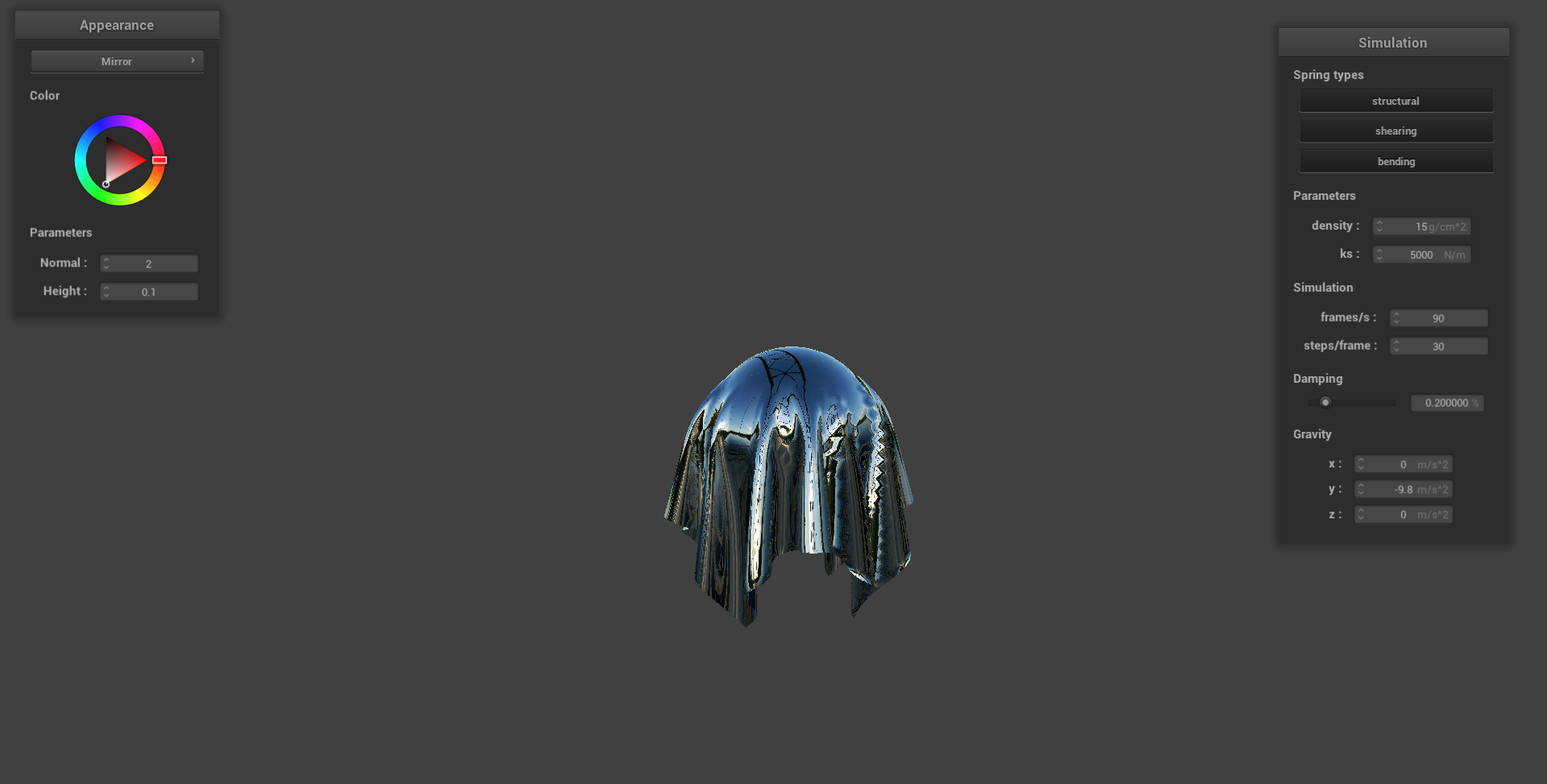
Now, we implement a reflective material shader as well. This is done by approximating mirror reflections by reflecting the view direction about the surface normal to obtain a reflection direction. This direction is then used to sample a precomputed cubemap, which represents the radiance of the surrounding environment in every direction. This avoids explicit ray-scene intersection and shadow rays, producing fast approximations of reflective surfaces by treating the environment as infinitely far away.
Comic Book Shader
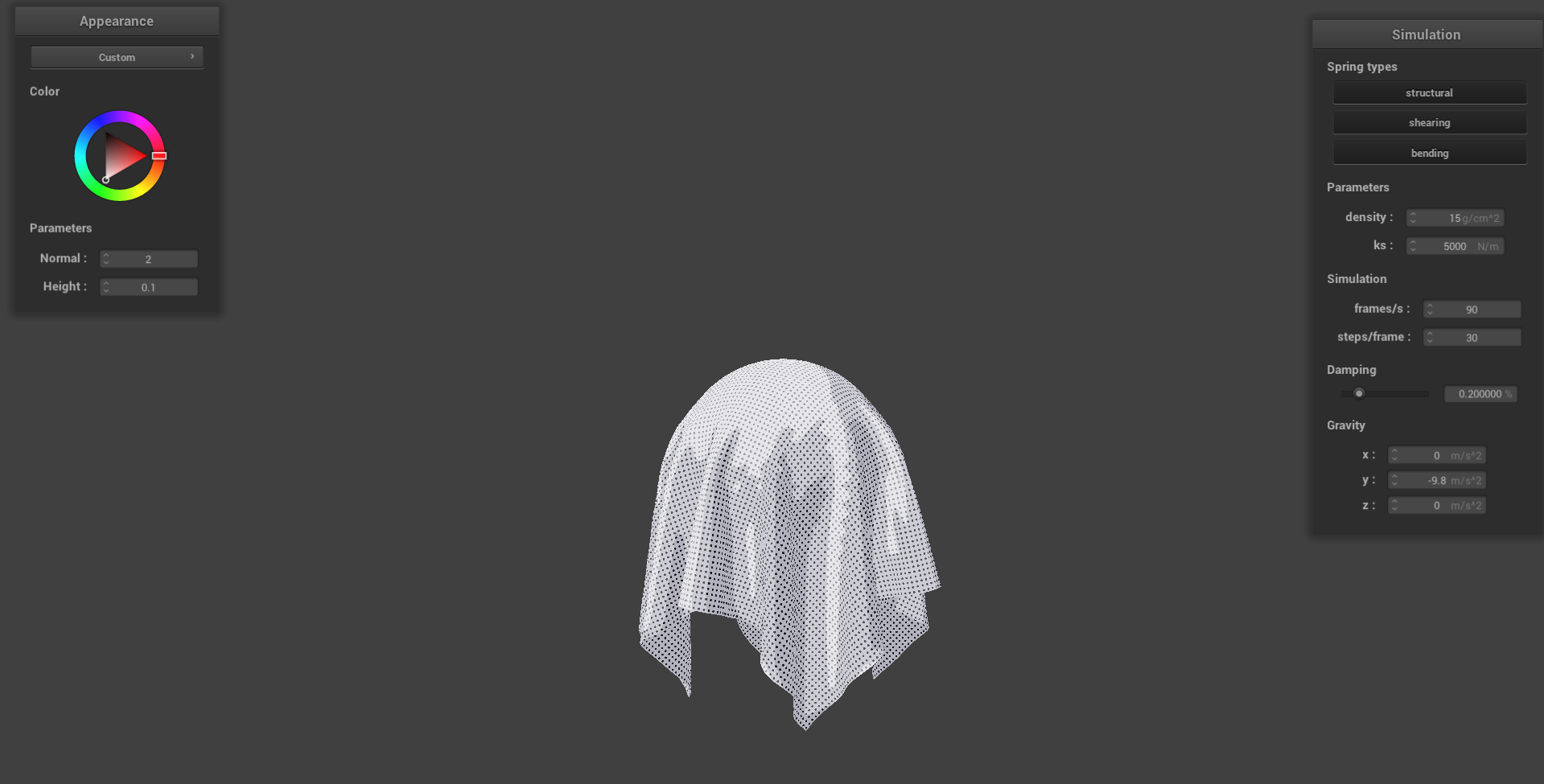
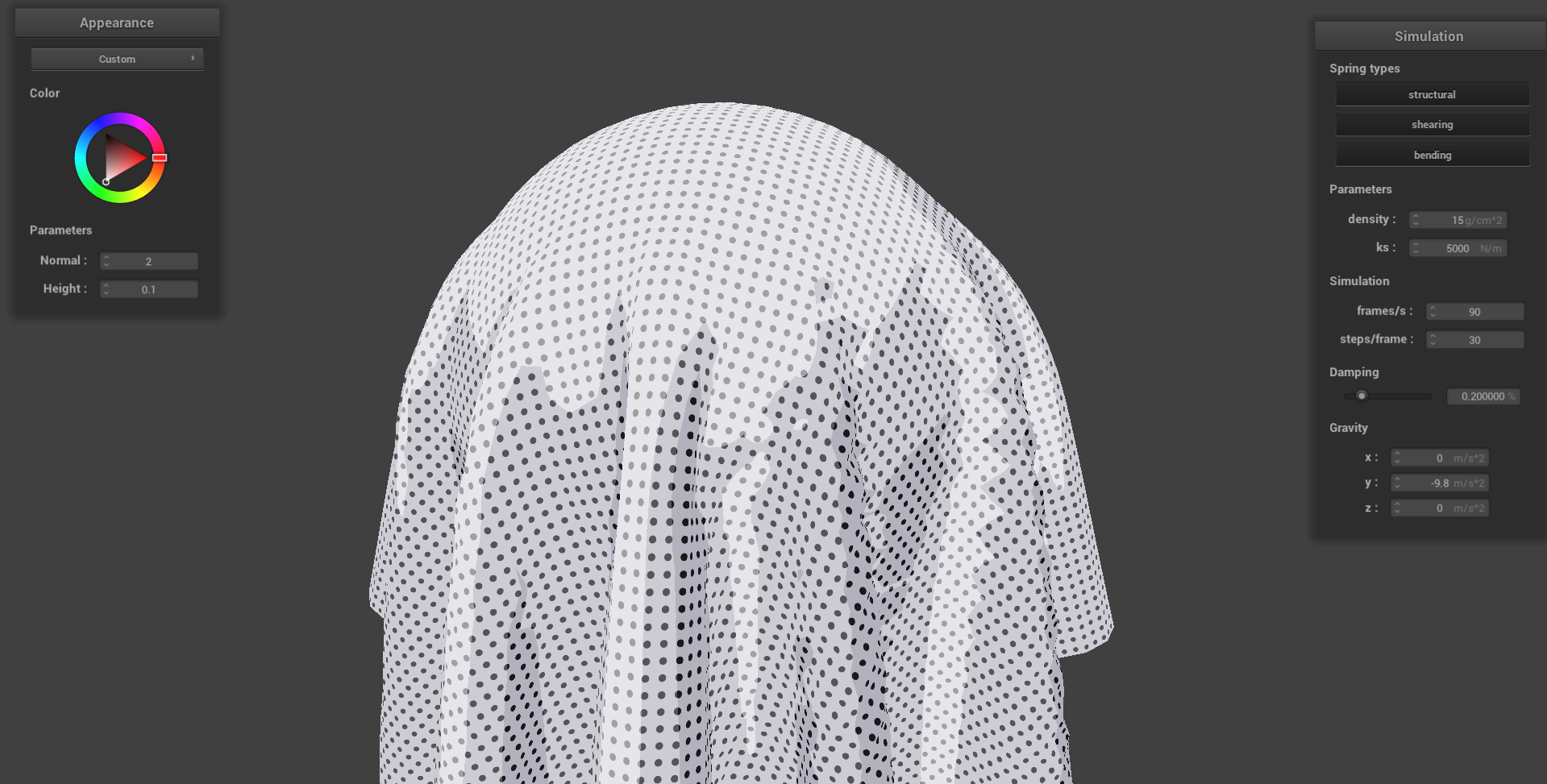
Finally, we implement a custom shader that attempts to emulate the vibes from comic books.
The main idea here is that instead of smooth lighting, we first want to instead create “buckets” to group similar lighting levels together, effectively discretizing it.
Now, this alone gives us a cartoon-ish look to the lighting. However, the main staple of comic books is that dotted pattern they have. In order to emulate this comic book feel, we add in dots whose color is determined by the light level they’re in; the darker the area they’re in is, the darker the dots become. We distribute these dots evenly over our surface, and thus we have created a shader that emulates that comic book feel.
Below, we provide some pictures of this shader:
Ambient Wind
As an extra feature, we implemented some ambient wind that can be toggled on/off using the W key. Furthermore, we tweaked the GUI to provide feedback on whether wind is enabled or not.
For our ambient wind, we implemented a time-varying wind force:
Vector3D wind(
    sin(t * 1.3),
    cos(t * 0.7),
    sin(t * 0.9)
);
This makes it so that the direction of our wind force varies over time, changing smoothly. From here, we normalize wind to make it a unit direction, and then multiply it by some constant for the wind strength. In our case, we used a strength of 500 (note that otherwise, the cloth will barely move due to the wind!).
Now, we can imagine ourselves iterating over each square surface in our cloth mesh. The idea is that we can split each square into two triangles, and then calculate the force being applied by our wind to each triangle, and distribute this force equally to each of the vertices of these triangles.
To calculate the force, we proceed as follows:
- For each triangle defined by points , we can calculate the surface normal , yielding us both the direction and also the area of our triangle.
- Next, we can take the dot product between our normalized surface normal and the wind vector , giving us how closely aligned they are.
- From this, we multiply this dot product by the surface normal, giving us our force we apply to the triangle.
- Finally, we distribute this force equally to each of our triangle vertices.
Below, we have a video demosntrating this ambient wind in action:
Cubes
In this section, we discuss implementing a new class of primitives: cubes. Aside from constructing the cube.h and cube.cpp files, we also had to change main.cpp and also the CMakeLists.txt file in src to accomodate these changes (and probably some other files I forgot about). This was definitely a headache.
Anyways, the basic implementation for our collision check is simple:
- First, we check to see if our point mass is inside of our cube. This is done by first converting our point to be relative to the center, and then checking if it’s outside any of our face boundaries.
- If it is inside, we can then calculate the depth our point lies within the cube.
- Once this is calculated, we simply push it to the nearest face, and use the same friction logic as in the other primitives.
However, as it turned out, this doesn’t exactly work:
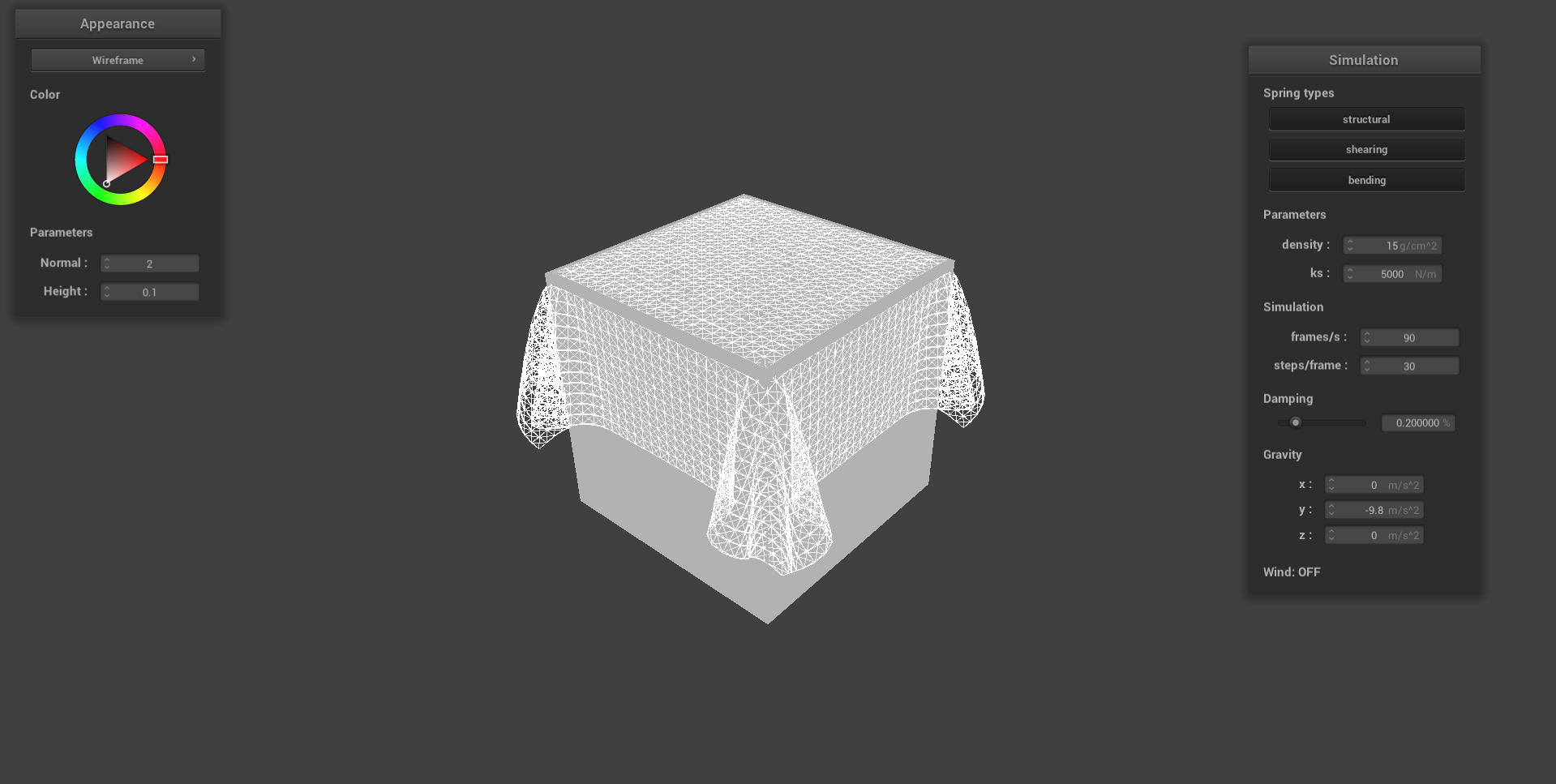
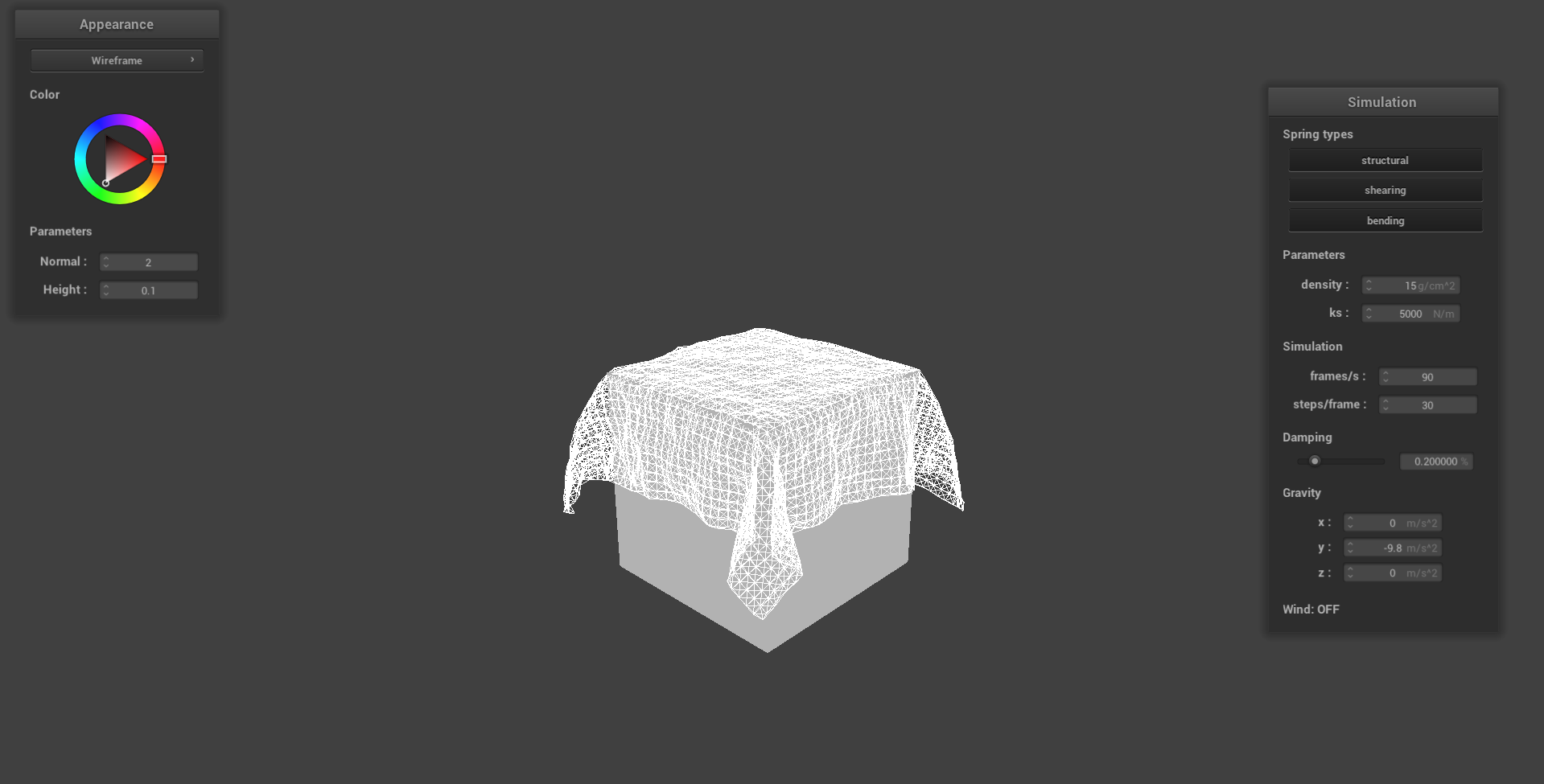
Unfortunately, as we can observe, along the edges and corners the points aren’t being pushed out properly. Although we’re not too sure why this is happening, as this is only happening along areas where multiple faces meet each other, we assume that we have to somehow account for multiple faces messing up with where the point masses decide to land on.
As a quick attempt at fixing, we tried adding in an EDGE_BIAS and also extra calculations to blend the three axes so that we can push points out in multiple axes at once (rather than picking only one face to push to). This ultimately yielded us the following result, though the cloth never seems to reach a rested state:
Snapping
Another feature we implemented is for springs to “snap” when they exceed a certain length:
- To implement this, we first introduce a new
tear_threshold(and in our case, we set this to be 2). - Then, within
simulate(), we create an arraynew_springsthat will consist of non-broken springs. - Now, we check whether or not the spring’s stretched more than
tear_thresholdthat of the length; if it has, then we consider it broken and don’t add it tonew_springs. - Finally, we let
springsbe equal tonew_springs.
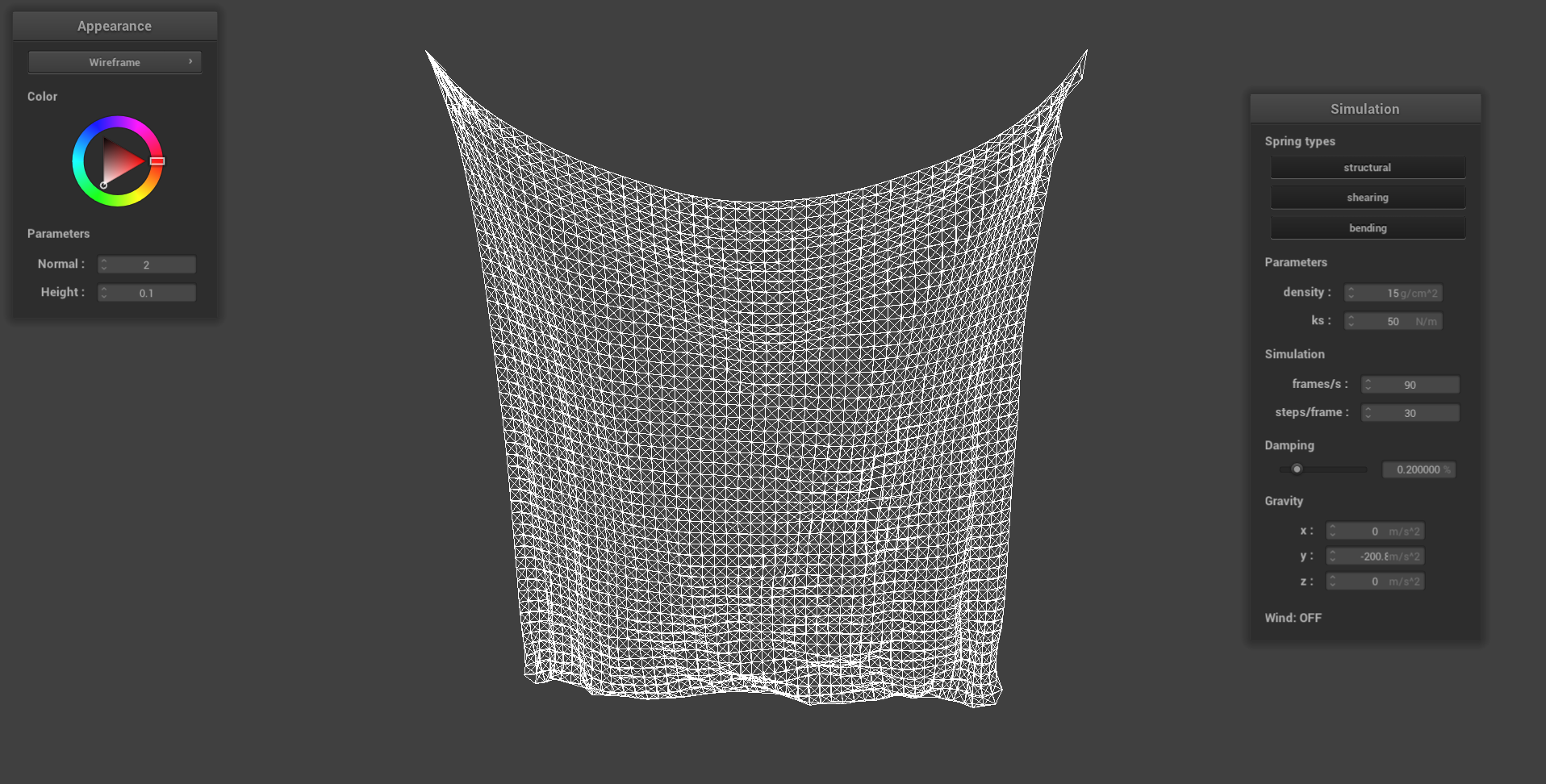
Below, we observe the result of messing with the parameters for pinned4.json (namely, the string constant, draping, and gravity) in order to force our cloth to stretch and tear. We notice that, well:
- Firstly, the cloth isn’t pinned on all corners anymore — the connecting springs to the pinned ones snapped, leaving us with a two-pinned cloth instead.
- Secondly, we can see tears happening in part of the cloth, especially near the pinned corner.